> ## Documentation Index
> Fetch the complete documentation index at: https://docs.usertour.io/llms.txt
> Use this file to discover all available pages before exploring further.
# MCP server
> Drive Usertour from an AI agent over the Model Context Protocol.
Usertour exposes a [Model Context Protocol](https://modelcontextprotocol.io)
endpoint so AI agents (Claude, Cursor, …) can read and write your project through
the same v2 services the REST API uses.
**See it in action:** [Build Your Onboarding with AI](/build-onboarding-with-ai)
— a video of an AI assistant building a complete onboarding experience in a
real app, with the exact prompts to follow along.
**Beta.** The MCP endpoint is new and evolving with the [v2
API](/api-reference-v2/introduction) — tools and behavior may still change.
Breaking changes will be called out in the changelog. Feedback is welcome.
## Endpoint
```text Cloud theme={null}
https://mcp.usertour.io/mcp
```
```text Self-hosted theme={null}
https:///mcp
```
It speaks MCP over **Streamable HTTP**. Whichever way you connect, this is the
only URL you give your client — it discovers everything else (the authorization
server, the login) automatically.
A connection always acts in **exactly one project** (MCP carries no project in the
path): with OAuth you pick it — along with the environments and permissions the
app gets — during consent; with a personal token it's the token's project. Tools are **scope-gated** — a tool is only listed and usable if
your access includes its capability, so write tools need the matching write scope
(`content:create`, `user:write`, `segment:create`, `theme:update`,
`session:manage`, …).
**Self-hosting?** Use your own API host + `/mcp`. The discovery metadata, the
`WWW-Authenticate` challenge, and the consent redirect are all derived from
your instance's public URLs, so behind a reverse proxy make sure forwarded
headers (`X-Forwarded-Proto` / `Host`) are correct — or pin them with
[`API_URL`](/open-source/env) (every public URL) or `MCP_SERVER_URL` (just
the MCP endpoint) — and that [`APP_HOMEPAGE_URL`](/open-source/env) points
at your real, browser-reachable app URL (the consent step redirects there).
OAuth 2.1 also requires the endpoint to be reachable over **HTTPS** (loopback
is exempt).
## Connect with OAuth (one-click)
Clients that support remote MCP servers over OAuth (Claude Code, Claude's custom
connectors, Cursor, Codex, VS Code, ChatGPT, …) need **no token to copy** — you
give them the [endpoint](#endpoint) and they run the login for you. On first use
the client discovers the authorization server, registers itself
([Dynamic Client Registration](https://datatracker.ietf.org/doc/html/rfc7591)),
and opens your browser to authorize. The flow is OAuth 2.1 with PKCE.
The snippets below use the Cloud endpoint — self-hosting, substitute your own
`/mcp` URL. **Settings → MCP** in the app shows the same per-client steps with
your instance's URL pre-filled. To serve MCP on its own domain, set
`MCP_SERVER_URL` to the full public endpoint — it drives the Settings display
and the OAuth discovery metadata together, and that domain must also proxy
`/oauth/*` and `/.well-known/oauth-*` (the shipped nginx config does).
Install the [plugin](https://github.com/usertour/skills) — it registers the MCP
connection **and** the authoring skills in one:
```text theme={null}
/plugin marketplace add usertour/skills
/plugin install usertour@usertour
```
Then run `/mcp` inside Claude Code to authorize — the Usertour authorization
screen opens in your browser.
Prefer the MCP connection only (without the skills)? One shell command:
```bash theme={null}
claude mcp add --transport http usertour https://mcp.usertour.io/mcp
```
**Self-hosting?** Set your server URL in the shell you launch Claude Code from
(the plugin defaults to Cloud):
```bash theme={null}
export USERTOUR_MCP_URL="https:///mcp"
```
One click:
[**Add to Cursor**](cursor://anysphere.cursor-deeplink/mcp/install?name=usertour\&config=eyJ1cmwiOiJodHRwczovL21jcC51c2VydG91ci5pby9tY3AifQ==)
— Cursor opens with the server pre-filled and walks you through authorization.
Prefer manual setup? **Cursor → Settings → MCP → Add new MCP server**, or add to
`~/.cursor/mcp.json`:
```json theme={null}
{
"mcpServers": {
"usertour": {
"url": "https://mcp.usertour.io/mcp"
}
}
}
```
Optional: also install the authoring skill for workflow guidance:
```bash theme={null}
npx skills add https://github.com/usertour/skills
```
Register the server — shared by Codex's CLI and IDE extension (not Codex Cloud):
```bash theme={null}
codex mcp add usertour --url "https://mcp.usertour.io/mcp"
```
Codex supports OAuth natively and prompts you to authorize the first time you
use a Usertour tool. To authorize right away instead:
```bash theme={null}
codex mcp login usertour
```
Optional: also install the authoring skill for workflow guidance:
```bash theme={null}
npx skills add https://github.com/usertour/skills
```
One click: [**Add to VS Code**](vscode:mcp/install?%7B%22name%22%3A%20%22usertour%22%2C%20%22type%22%3A%20%22http%22%2C%20%22url%22%3A%20%22https%3A//mcp.usertour.io/mcp%22%7D) — VS Code prompts to
install the server with the values pre-filled.
Prefer manual setup? Open the Command Palette and run **MCP: Open User
Configuration** to open your `mcp.json`, then add this entry — the root key is
`servers`, **not**
`mcpServers` (the #1 copy-paste mistake coming from a Cursor/Claude config):
```json theme={null}
{
"servers": {
"usertour": {
"type": "http",
"url": "https://mcp.usertour.io/mcp"
}
}
}
```
Save — the server is available next time you chat with Copilot in Agent mode.
First use prompts you to authorize.
Open [chatgpt.com/plugins](https://chatgpt.com/plugins), enable **Developer
mode**, and click **New Plugin** (requires a paid ChatGPT plan). Set the name
(`Usertour`) and the MCP Server URL (`https://mcp.usertour.io/mcp`), leave
Authentication on **OAuth**, and submit — ChatGPT opens the Usertour
authorization screen. Approve to connect.
Open [Claude's connector settings](https://claude.ai/new#settings/customize-connectors)
and click **Add → Add custom connector**. Set the name (`Usertour`), paste the Server URL
(`https://mcp.usertour.io/mcp`), and click **Add** — Claude opens the Usertour
authorization screen. Pick the project, environments, and access level, then
approve.
Any client that reads an `mcpServers` config (Continue, Zed, …): add the entry
below. The authorization flow runs automatically on first use.
```json theme={null}
{
"mcpServers": {
"Usertour": {
"url": "https://mcp.usertour.io/mcp"
}
}
}
```
### Authorizing
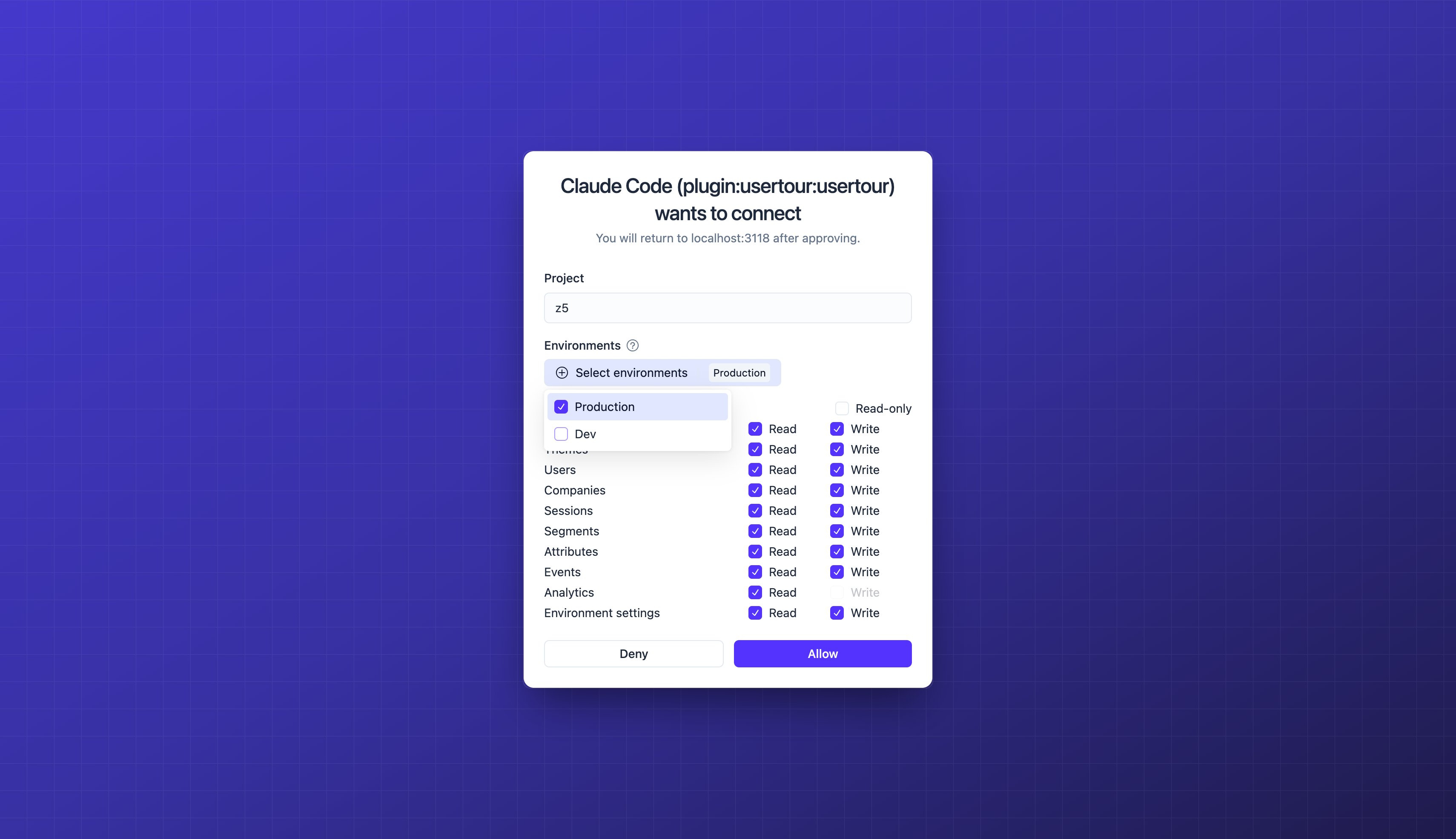
When the browser opens, you sign in to Usertour (if you aren't already) and the
consent screen lets you shape exactly what the app gets:
* **Project** — the one project the connection may act in (fixed when you only
have one).
* **Environments** — which of that project's environments it can act on.
Environment-targeted permissions (publishing, end-user data, sessions, …)
require at least one; with several environments none are pre-selected, so
handing an agent Production is always an explicit choice.
* **Permissions** — what the app asked for, capped by your role on that
project. Everything grantable starts checked; uncheck what you don't want to
hand over, or flip **Read-only** to drop every write in one click.
 The connection then acts **as you, within that grant** — the grant is a ceiling
under your role, never an extension of it: if your role is later downgraded or
you are removed from the project, the connection loses that access immediately,
exactly like a personal key.
## Managing connected apps
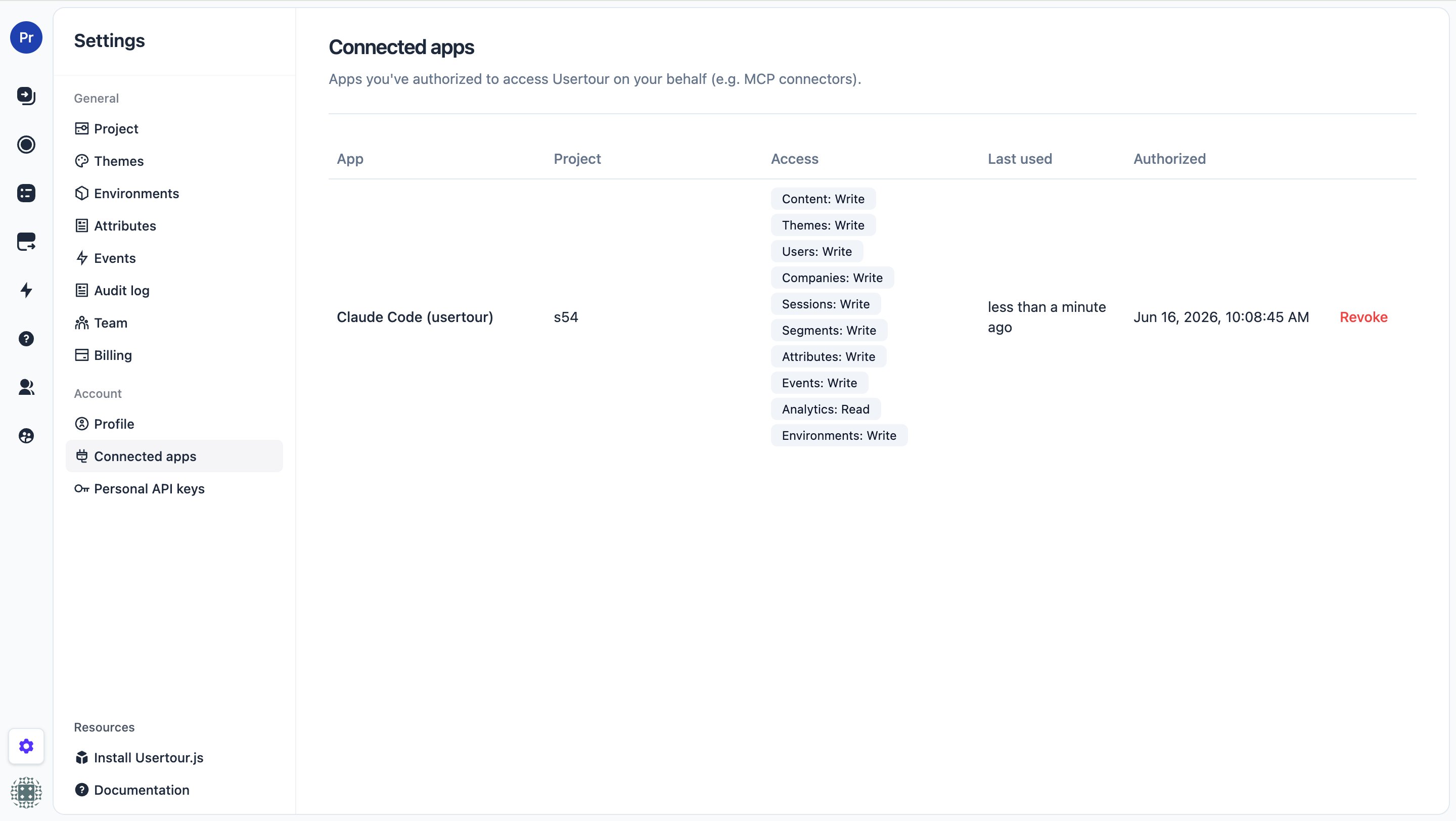
Every app you've authorized is listed under **Settings → Connected apps**, with
the project it can act in, the access it was granted, and when it was last used.
**Revoke** cuts it off immediately — its tokens stop working on the next call.
The connection then acts **as you, within that grant** — the grant is a ceiling
under your role, never an extension of it: if your role is later downgraded or
you are removed from the project, the connection loses that access immediately,
exactly like a personal key.
## Managing connected apps
Every app you've authorized is listed under **Settings → Connected apps**, with
the project it can act in, the access it was granted, and when it was last used.
**Revoke** cuts it off immediately — its tokens stop working on the next call.
 ## Connect with a personal token
Clients that don't support OAuth (or stdio-only clients) use a personal token.
Bridge to the HTTP endpoint with `mcp-remote`:
```json theme={null}
{
"mcpServers": {
"usertour": {
"command": "npx",
"args": [
"-y",
"mcp-remote",
"https://mcp.usertour.io/mcp",
"--header",
"Authorization: Bearer utp_xxxxxxxxxxxxxxxxxxxxxxxxxxxx"
]
}
}
}
```
Use a single-project token with only the scopes the agent needs. To let it
author, include the write scopes — otherwise only read tools appear.
## Tools
The server ships a routing map as MCP **server instructions** in the initialize
handshake — which tool serves which intent, and to read `get_authoring_guide`
before authoring — so an agent starts oriented without spending a tool call.
Every tool carries MCP **annotations** (`readOnlyHint` / `destructiveHint`) so a
client can gate calls: read tools run freely, while destructive writes
(`delete_*`, `unpublish_*`, `end_session`, …) are flagged so the client can ask
for confirmation first.
**Read**
| Group | Tools |
| --------------------- | ------------------------------------------------------------------------------- |
| Guide & schemas | `get_authoring_guide`, `get_content_schema`, `get_theme_schema` |
| Diagnosis | `diagnose_content`, `diagnose_user` |
| Content | `list_content`, `get_content`, `list_publish_history` |
| Analytics | `get_content_analytics`, `get_content_question_analytics`, `get_usage_overview` |
| Versions | `list_content_versions`, `get_content_version`, `validate_content_version` |
| Users | `list_users`, `get_user` |
| Companies | `list_companies`, `get_company` |
| Segments | `list_segments`, `get_segment` |
| Sessions | `list_sessions`, `get_session` |
| Themes | `list_themes`, `get_theme` |
| Attribute definitions | `list_attribute_definitions`, `get_attribute_definition` |
| Event definitions | `list_event_definitions`, `get_event_definition` |
| Environments | `list_environments`, `get_environment` |
| Webhooks | `list_webhooks` |
| References | `list_references` |
Every `list_*` tool pages with `cursor` / `limit`. The named-resource lists —
`list_content`, `list_segments`, `list_themes`, `list_environments`,
`list_event_definitions`, `list_attribute_definitions` — also take a **`name`**
filter (case-insensitive substring against the display name). `list_content`
additionally filters by `type`, `published`, and a created-at range; `list_segments`
by `bizType`; `list_sessions` by `completed`.
`get_authoring_guide` returns the in-band conventions for building usable content
(lifecycle, step types, goto-by-key, the markdown subset, per-type requirements) —
an agent should read it before authoring.
`get_content_version` with `expand: ["steps"]` returns the decompiled steps — read
them before editing with `update_content_version`.
`diagnose_content` answers "why isn't my content showing?" by evaluating the SAME
runtime gates the SDK uses (published / user identified / start rules / frequency /
session state) as a per-gate checklist; `list_references` answers "who still uses
this attribute / event / segment / theme / content" before you delete it.
**Write**
| Group | Tools |
| --------------------- | ------------------------------------------------------------------------------------------------------------------------------------ |
| Content | `create_content`, `update_content`, `delete_content`, `restore_content`, `duplicate_content`, `publish_content`, `unpublish_content` |
| Versions | `create_content_version`, `update_content_version`, `restore_content_version` |
| Users | `upsert_user`, `delete_user` |
| Companies | `upsert_company`, `delete_company`, `add_company_member`, `remove_company_member` |
| Segments | `create_segment`, `update_segment`, `delete_segment`, `add_segment_member`, `remove_segment_member` |
| Themes | `create_theme`, `update_theme`, `delete_theme` |
| Attribute definitions | `create_attribute_definition`, `update_attribute_definition`, `delete_attribute_definition` |
| Event definitions | `create_event_definition`, `update_event_definition`, `delete_event_definition` |
| Sessions | `end_session`, `delete_session` |
| Environments | `create_environment`, `update_environment`, `delete_environment` |
| Webhooks | `create_webhook`, `update_webhook`, `delete_webhook` — see [Webhooks](/developers/webhooks) |
Content write tools take the same [representation](/api-reference-v2/content-representation)
as the REST endpoints (markdown blocks, `{{ attribute }}` placeholders, rules);
`update_content_version` carries `steps`, `startRules` / `hideRules`, `themeId`,
and `data`. The rest mirror their REST bodies one-to-one. Give each step a `key`
and wire `goto_step` to it to author a multi-step flow (forward or cyclic links)
in a single call — see [step identifiers](/api-reference-v2/content-representation).
Theme `settings` are writable as a **partial patch**: send only the fields you
change (colors, fonts, sizes, …) — they're field-merged onto the current
settings, and "Auto" hover/active colors are derived server-side. Conditional
`variations` are writable too, with the same condition set the theme builder's
variation editor offers. Call `get_theme_schema` for the exact writable fields
and their ranges; media assets (avatars, logo, custom icons) are still set in
the theme builder.
`publish_content` rejects content that wouldn't render — no theme, a tooltip step
with no target, an empty checklist, a launcher with no anchor, and so on. Call
`validate_content_version` after authoring and before publishing to get the list
of `{ ok, errors, warnings }`; `errors` are exactly what blocks publish.
## Read-only by default (prompt-injection safety)
Untrusted text reaches an agent through **read** tools — session answers and
custom user/company attributes can contain anything, including instructions. To
stop an injected instruction from triggering a write, **give any agent that reads
untrusted data read-only access** — flip **Read-only** on the OAuth consent, or
mint a token with only read scopes: with no write scopes, no write tools are
listed, so there is nothing to exploit. Mint a separate write-scoped token only
for trusted automation.
## Troubleshooting (self-hosted)
```text theme={null}
Error POSTing to endpoint: ...
## Connect with a personal token
Clients that don't support OAuth (or stdio-only clients) use a personal token.
Bridge to the HTTP endpoint with `mcp-remote`:
```json theme={null}
{
"mcpServers": {
"usertour": {
"command": "npx",
"args": [
"-y",
"mcp-remote",
"https://mcp.usertour.io/mcp",
"--header",
"Authorization: Bearer utp_xxxxxxxxxxxxxxxxxxxxxxxxxxxx"
]
}
}
}
```
Use a single-project token with only the scopes the agent needs. To let it
author, include the write scopes — otherwise only read tools appear.
## Tools
The server ships a routing map as MCP **server instructions** in the initialize
handshake — which tool serves which intent, and to read `get_authoring_guide`
before authoring — so an agent starts oriented without spending a tool call.
Every tool carries MCP **annotations** (`readOnlyHint` / `destructiveHint`) so a
client can gate calls: read tools run freely, while destructive writes
(`delete_*`, `unpublish_*`, `end_session`, …) are flagged so the client can ask
for confirmation first.
**Read**
| Group | Tools |
| --------------------- | ------------------------------------------------------------------------------- |
| Guide & schemas | `get_authoring_guide`, `get_content_schema`, `get_theme_schema` |
| Diagnosis | `diagnose_content`, `diagnose_user` |
| Content | `list_content`, `get_content`, `list_publish_history` |
| Analytics | `get_content_analytics`, `get_content_question_analytics`, `get_usage_overview` |
| Versions | `list_content_versions`, `get_content_version`, `validate_content_version` |
| Users | `list_users`, `get_user` |
| Companies | `list_companies`, `get_company` |
| Segments | `list_segments`, `get_segment` |
| Sessions | `list_sessions`, `get_session` |
| Themes | `list_themes`, `get_theme` |
| Attribute definitions | `list_attribute_definitions`, `get_attribute_definition` |
| Event definitions | `list_event_definitions`, `get_event_definition` |
| Environments | `list_environments`, `get_environment` |
| Webhooks | `list_webhooks` |
| References | `list_references` |
Every `list_*` tool pages with `cursor` / `limit`. The named-resource lists —
`list_content`, `list_segments`, `list_themes`, `list_environments`,
`list_event_definitions`, `list_attribute_definitions` — also take a **`name`**
filter (case-insensitive substring against the display name). `list_content`
additionally filters by `type`, `published`, and a created-at range; `list_segments`
by `bizType`; `list_sessions` by `completed`.
`get_authoring_guide` returns the in-band conventions for building usable content
(lifecycle, step types, goto-by-key, the markdown subset, per-type requirements) —
an agent should read it before authoring.
`get_content_version` with `expand: ["steps"]` returns the decompiled steps — read
them before editing with `update_content_version`.
`diagnose_content` answers "why isn't my content showing?" by evaluating the SAME
runtime gates the SDK uses (published / user identified / start rules / frequency /
session state) as a per-gate checklist; `list_references` answers "who still uses
this attribute / event / segment / theme / content" before you delete it.
**Write**
| Group | Tools |
| --------------------- | ------------------------------------------------------------------------------------------------------------------------------------ |
| Content | `create_content`, `update_content`, `delete_content`, `restore_content`, `duplicate_content`, `publish_content`, `unpublish_content` |
| Versions | `create_content_version`, `update_content_version`, `restore_content_version` |
| Users | `upsert_user`, `delete_user` |
| Companies | `upsert_company`, `delete_company`, `add_company_member`, `remove_company_member` |
| Segments | `create_segment`, `update_segment`, `delete_segment`, `add_segment_member`, `remove_segment_member` |
| Themes | `create_theme`, `update_theme`, `delete_theme` |
| Attribute definitions | `create_attribute_definition`, `update_attribute_definition`, `delete_attribute_definition` |
| Event definitions | `create_event_definition`, `update_event_definition`, `delete_event_definition` |
| Sessions | `end_session`, `delete_session` |
| Environments | `create_environment`, `update_environment`, `delete_environment` |
| Webhooks | `create_webhook`, `update_webhook`, `delete_webhook` — see [Webhooks](/developers/webhooks) |
Content write tools take the same [representation](/api-reference-v2/content-representation)
as the REST endpoints (markdown blocks, `{{ attribute }}` placeholders, rules);
`update_content_version` carries `steps`, `startRules` / `hideRules`, `themeId`,
and `data`. The rest mirror their REST bodies one-to-one. Give each step a `key`
and wire `goto_step` to it to author a multi-step flow (forward or cyclic links)
in a single call — see [step identifiers](/api-reference-v2/content-representation).
Theme `settings` are writable as a **partial patch**: send only the fields you
change (colors, fonts, sizes, …) — they're field-merged onto the current
settings, and "Auto" hover/active colors are derived server-side. Conditional
`variations` are writable too, with the same condition set the theme builder's
variation editor offers. Call `get_theme_schema` for the exact writable fields
and their ranges; media assets (avatars, logo, custom icons) are still set in
the theme builder.
`publish_content` rejects content that wouldn't render — no theme, a tooltip step
with no target, an empty checklist, a launcher with no anchor, and so on. Call
`validate_content_version` after authoring and before publishing to get the list
of `{ ok, errors, warnings }`; `errors` are exactly what blocks publish.
## Read-only by default (prompt-injection safety)
Untrusted text reaches an agent through **read** tools — session answers and
custom user/company attributes can contain anything, including instructions. To
stop an injected instruction from triggering a write, **give any agent that reads
untrusted data read-only access** — flip **Read-only** on the OAuth consent, or
mint a token with only read scopes: with no write scopes, no write tools are
listed, so there is nothing to exploit. Mint a separate write-scoped token only
for trusted automation.
## Troubleshooting (self-hosted)
```text theme={null}
Error POSTing to endpoint: ...405 Not Allowed
...
```
The client is POSTing MCP requests to your app's web root, which serves the
admin UI and rejects POST. Almost always the configured server URL is missing
the **`/mcp` path** — it must be the full endpoint
(`https://your-usertour-host/mcp`), not the bare domain. Copy it from
**Settings → MCP**, which shows the exact URL.
```text theme={null}
SDK auth failed: Protected resource http://your-host/mcp does not match
expected https://your-host/mcp (or origin)
```
Your instance described itself with `http://` URLs while the client connected
over `https://`: the `https` scheme was lost on the way in, usually because a
TLS-terminating proxy in front of the instance (a PaaS edge, Cloudflare, a load
balancer) didn't get `X-Forwarded-Proto: https` through the whole chain. Two
fixes, either works:
* **Pin the URL** (simplest): set [`API_URL`](/open-source/env) to your public
`https://` base — it pins every public URL the instance hands out — or
`MCP_SERVER_URL` to pin just the MCP endpoint.
* **Fix the header chain**: make sure every hop forwards `X-Forwarded-Proto`
and `Host` unchanged, and that you run a current Usertour image.
If your instance is genuinely served over plain HTTP (no TLS anywhere), MCP
authorization cannot work at all — OAuth 2.1 requires HTTPS, with only
localhost exempt.