> ## Documentation Index
> Fetch the complete documentation index at: https://docs.usertour.io/llms.txt
> Use this file to discover all available pages before exploring further.
# Identity Verification
> Prove that identify() and group() calls really come from your app, so nobody can impersonate your users with your public environment token.
Your environment token ships in the page source of every visitor — it has to, so the Usertour SDK can connect. That means the token alone can't prove *who* is calling. Without identity verification, anyone who has seen your page could call `usertour.identify()` with any user ID and read or overwrite that user's attributes.
Identity verification closes this: your **backend** signs an **identity token** (a JWT) for each user with a **signing secret** only you hold, and Usertour rejects identity claims without a valid token.
Key ideas, up front:
* **The token is minted on your server**, never in frontend code. The signing secret must stay as private as a password.
* **One token carries both proofs**: the `sub` claim proves "this is really user X"; the optional `companyId` claim proves "user X is a member of company Y".
* **Enforcement is opt-in per environment.** Until you turn it on, unsigned traffic keeps working while Usertour measures your signed-traffic coverage — so you can roll out safely.
* **Anonymous users are exempt from signing** — `usertour.identifyAnonymous()` involves no server round-trip, so it can't be signed; anonymous IDs are generated by the SDK and can't collide with your real user IDs. Note that anonymous users cannot call `group()` under enforcement.
## How identity tokens work
An identity token is a standard JWT, signed with **HS256** using your environment's signing secret (the full `utv_…` string is the key):
| Claim | Required | Meaning |
| ----------- | -------- | ------------------------------------------------------------------ |
| `sub` | Yes | The user ID you pass to `usertour.identify()` |
| `companyId` | No | The company ID you pass to `usertour.group()` |
| `exp` | No | Standard JWT expiry — enforced when present, bounding token replay |
Sign `sub` and `companyId` as **JSON strings**, even when your IDs are
numeric — `{"sub": "12345"}`, not `{"sub": 12345}`. JSON parsing loses
precision on 64-bit integers (snowflake-style IDs), so a numeric claim can
never be matched reliably.
```js Node.js theme={null}
const jwt = require('jsonwebtoken');
const secret = process.env.USERTOUR_SIGNING_SECRET;
const identityToken = jwt.sign(
{ sub: userId, companyId: companyId }, // omit companyId if you don't use group()
secret,
{ algorithm: 'HS256' },
);
```
```python Python theme={null}
import os
import jwt # PyJWT
secret = os.environ["USERTOUR_SIGNING_SECRET"]
identity_token = jwt.encode(
{"sub": user_id, "companyId": company_id},
secret,
algorithm="HS256",
)
```
```ruby Ruby theme={null}
require "jwt"
secret = ENV["USERTOUR_SIGNING_SECRET"]
identity_token = JWT.encode(
{ sub: user_id, companyId: company_id },
secret,
"HS256"
)
```
```php PHP theme={null}
use Firebase\JWT\JWT;
$secret = getenv('USERTOUR_SIGNING_SECRET');
$identityToken = JWT::encode(
['sub' => $userId, 'companyId' => $companyId],
$secret,
'HS256'
);
```
```go Go theme={null}
import "github.com/golang-jwt/jwt/v5"
secret := []byte(os.Getenv("USERTOUR_SIGNING_SECRET"))
identityToken, err := jwt.NewWithClaims(jwt.SigningMethodHS256, jwt.MapClaims{
"sub": userID,
"companyId": companyID,
}).SignedString(secret)
```
Render the token into the page (or serve it from an endpoint) alongside the user's ID, then pass it to the SDK.
Adding an `exp` claim is optional. When present, Usertour rejects the token
after it expires — a leaked token stops being replayable. If you set one,
refresh it from your backend before it expires and hand it to the SDK via
`usertour.updateUser(attributes, { token })` or
`usertour.updateGroup(attributes, { token })` — the SDK applies it to the
connection immediately, including reviving a connection that was rejected
with an expired token.
## Step 1: Generate a signing secret
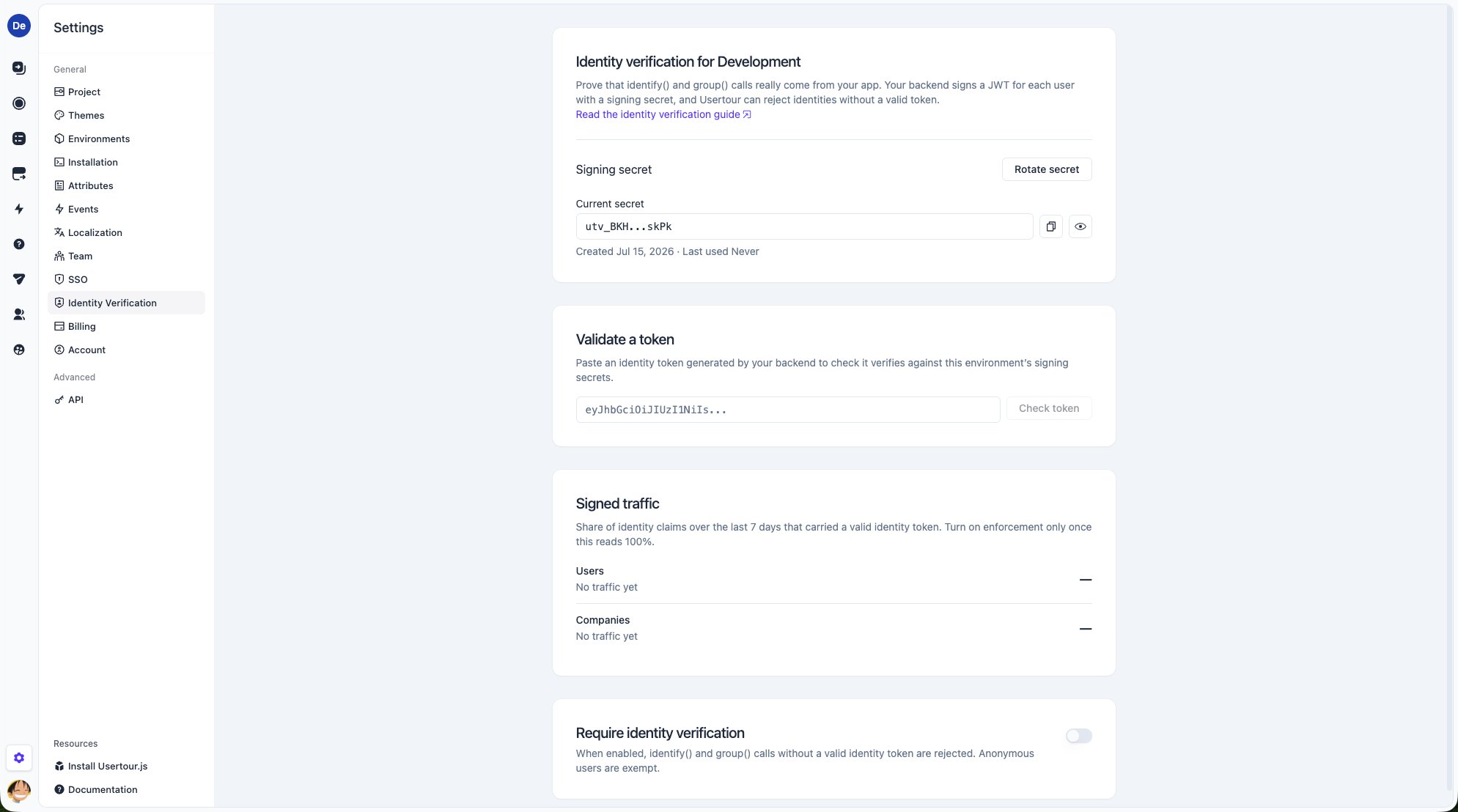
Go to **Settings → Identity Verification**. Each environment has its own secrets — production and staging are isolated, so a leaked staging secret never endangers production.
Click **Generate secret** and copy the value (it looks like `utv_…`) into your backend configuration. You can reveal it again later from the same page. Use the full string, including the `utv_` prefix, as the HS256 signing key.
 ## Step 2: Pass the token to the SDK
Add the token as the third argument of `identify()`; when you use `group()`, mint the token with the matching `companyId` claim:
```js theme={null}
usertour.init('YOUR_ENVIRONMENT_TOKEN');
await usertour.identify(
'user-42',
{ name: 'Ada', email: 'ada@example.com' },
{ token: identityTokenFromYourBackend },
);
await usertour.group(
'acme-inc',
{ name: 'Acme Inc.' },
{ token: identityTokenFromYourBackend }, // its companyId claim must be 'acme-inc'
);
```
Nothing else changes — attributes, membership, and all other SDK calls work exactly as before. Deploy this and let it run.
**Loader version:** if you install via the [usertour.js npm
package](https://www.npmjs.com/package/usertour.js), upgrade to **0.0.24 or
later** — earlier versions don't have the `token` option in their TypeScript
types. If you install via the HTML snippet, the snippet forwards the option
as-is, but make sure you're using the current snippet from the [installation
guide](/developers/usertourjs-installation) or your Settings → Installation
page.
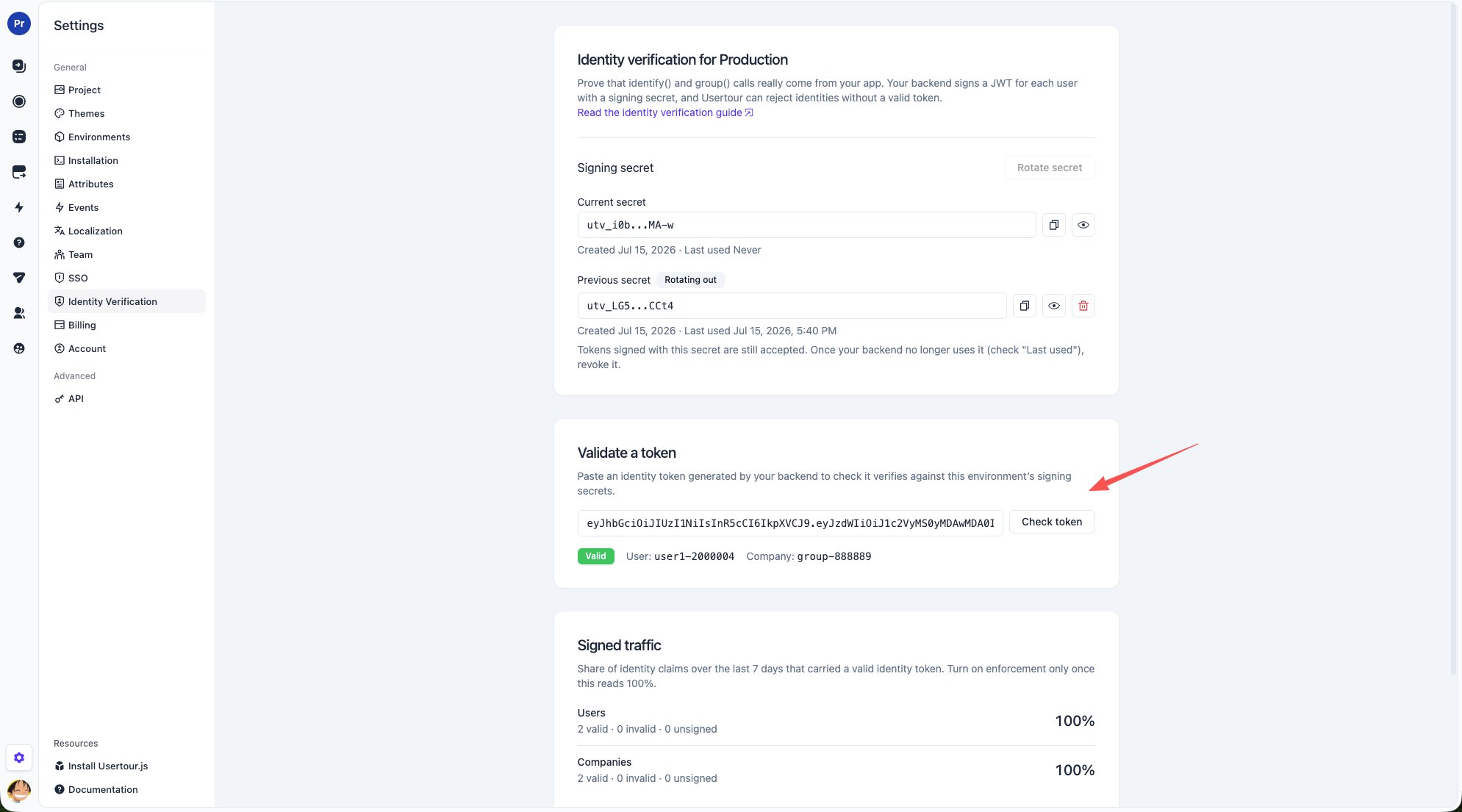
To check a token you've generated, paste it into **Validate a token** on the Identity Verification settings page — it reports whether the token verifies, and if not, exactly why (expired, wrong signature, missing `sub`).
## Step 2: Pass the token to the SDK
Add the token as the third argument of `identify()`; when you use `group()`, mint the token with the matching `companyId` claim:
```js theme={null}
usertour.init('YOUR_ENVIRONMENT_TOKEN');
await usertour.identify(
'user-42',
{ name: 'Ada', email: 'ada@example.com' },
{ token: identityTokenFromYourBackend },
);
await usertour.group(
'acme-inc',
{ name: 'Acme Inc.' },
{ token: identityTokenFromYourBackend }, // its companyId claim must be 'acme-inc'
);
```
Nothing else changes — attributes, membership, and all other SDK calls work exactly as before. Deploy this and let it run.
**Loader version:** if you install via the [usertour.js npm
package](https://www.npmjs.com/package/usertour.js), upgrade to **0.0.24 or
later** — earlier versions don't have the `token` option in their TypeScript
types. If you install via the HTML snippet, the snippet forwards the option
as-is, but make sure you're using the current snippet from the [installation
guide](/developers/usertourjs-installation) or your Settings → Installation
page.
To check a token you've generated, paste it into **Validate a token** on the Identity Verification settings page — it reports whether the token verifies, and if not, exactly why (expired, wrong signature, missing `sub`).
 ## Step 3: Watch coverage, then enforce
Back in **Settings → Identity Verification**, the **Signed traffic** card shows what share of `identify()` and `group()` calls over the last 7 days carried a valid identity token. Anonymous users are listed separately — they can never be signed and don't count against coverage.
## Step 3: Watch coverage, then enforce
Back in **Settings → Identity Verification**, the **Signed traffic** card shows what share of `identify()` and `group()` calls over the last 7 days carried a valid identity token. Anonymous users are listed separately — they can never be signed and don't count against coverage.
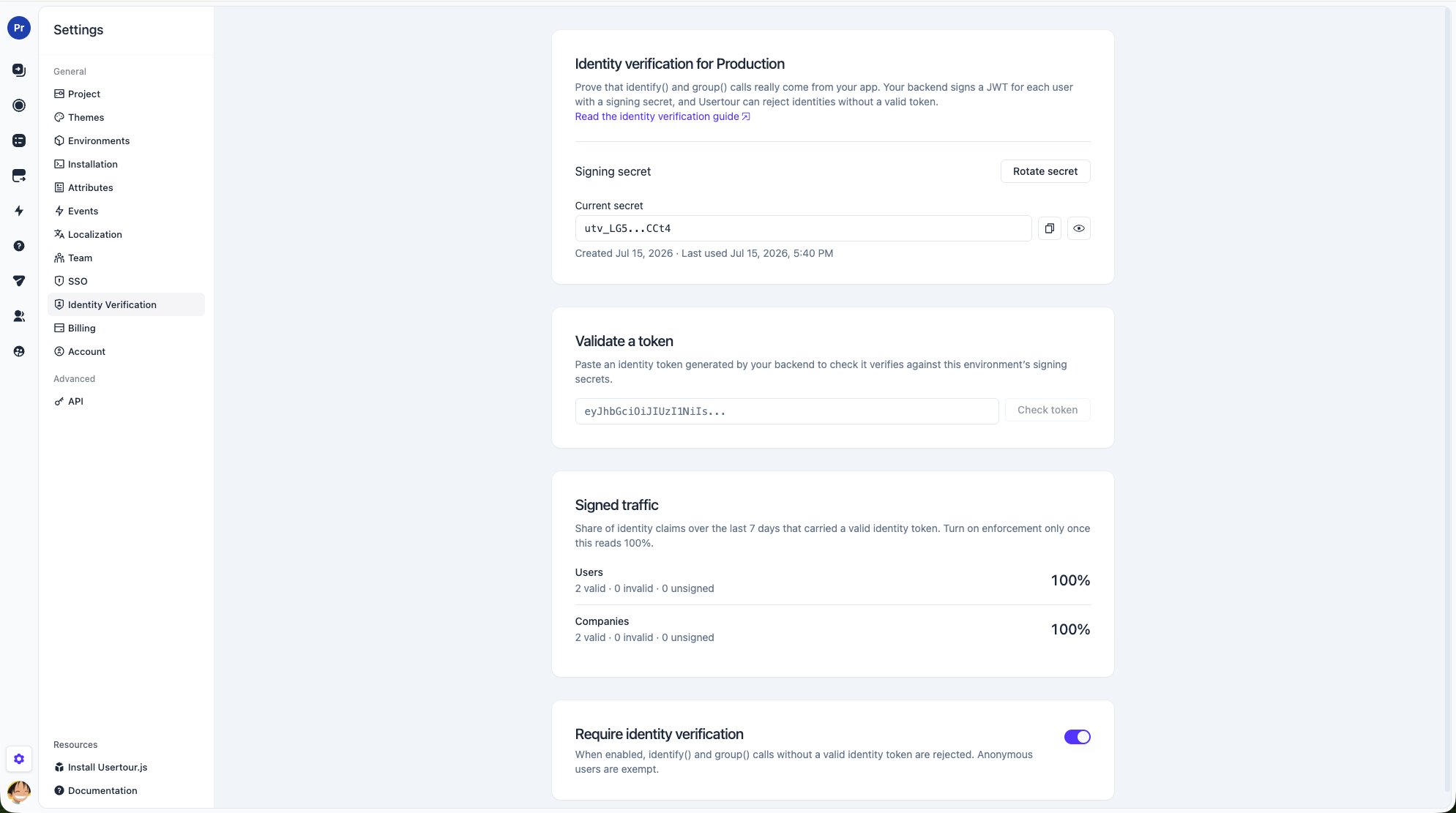 When both rows read **100%**, turn on **Require identity verification**. From then on:
* `identify()` without a valid identity token is rejected, and Usertour does not load for that user.
* `group()` without a matching `companyId` claim is rejected.
* Anonymous users keep working, but they cannot be associated with a company.
Enabling enforcement while some of your pages still send unsigned identities
will make Usertour stop loading for those users. Always confirm coverage is
at 100% first.
## Rotating a secret
Each environment can hold **two** active secrets at once — one in use, one rotation slot — and tokens signed with either are accepted. To rotate:
1. Click **Rotate secret** to create the new secret.
2. Switch every backend signer to the new secret.
3. Watch the old secret's **Last used** time on the settings page. Once it goes stale, no signer still depends on it.
4. **Revoke** the old secret.
When both rows read **100%**, turn on **Require identity verification**. From then on:
* `identify()` without a valid identity token is rejected, and Usertour does not load for that user.
* `group()` without a matching `companyId` claim is rejected.
* Anonymous users keep working, but they cannot be associated with a company.
Enabling enforcement while some of your pages still send unsigned identities
will make Usertour stop loading for those users. Always confirm coverage is
at 100% first.
## Rotating a secret
Each environment can hold **two** active secrets at once — one in use, one rotation slot — and tokens signed with either are accepted. To rotate:
1. Click **Rotate secret** to create the new secret.
2. Switch every backend signer to the new secret.
3. Watch the old secret's **Last used** time on the settings page. Once it goes stale, no signer still depends on it.
4. **Revoke** the old secret.
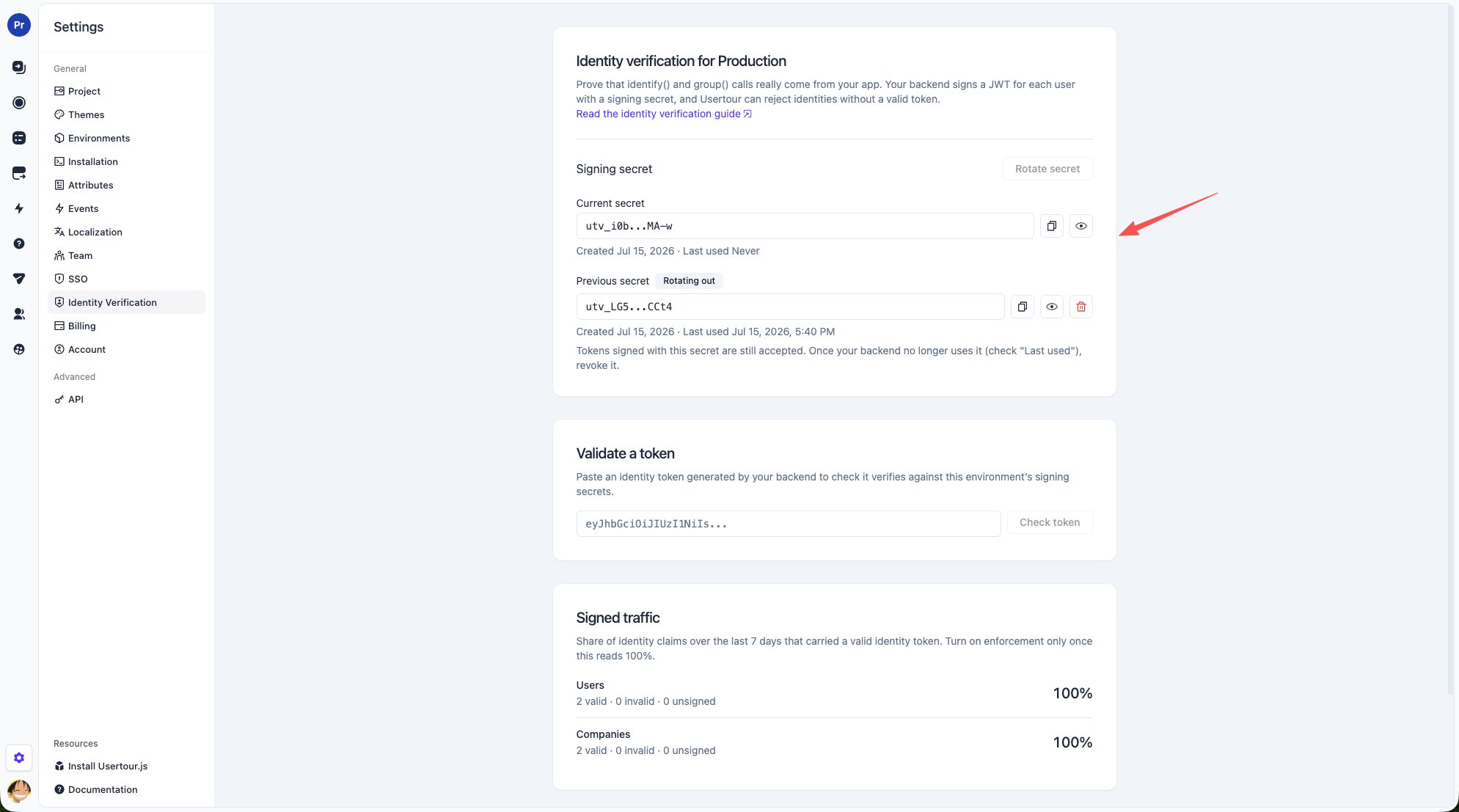 While enforcement is on, the last active secret cannot be revoked — that would instantly sign out every verified user.
## What identity verification does and doesn't protect
With enforcement on, your environment token stops being a write credential: nobody can impersonate your users, mass-create fake users, or attach users to companies they don't belong to.
It deliberately does **not** cover:
* **Published content is still readable** with the token — it's the same content served to your anonymous visitors.
* **A real, signed-in user can still change their own attributes.** Tokens prove identity, not the truthfulness of attribute values.
* **Anonymous junk users** can still be created; they can't touch any real user's data.
While enforcement is on, the last active secret cannot be revoked — that would instantly sign out every verified user.
## What identity verification does and doesn't protect
With enforcement on, your environment token stops being a write credential: nobody can impersonate your users, mass-create fake users, or attach users to companies they don't belong to.
It deliberately does **not** cover:
* **Published content is still readable** with the token — it's the same content served to your anonymous visitors.
* **A real, signed-in user can still change their own attributes.** Tokens prove identity, not the truthfulness of attribute values.
* **Anonymous junk users** can still be created; they can't touch any real user's data.