> ## Documentation Index
> Fetch the complete documentation index at: https://docs.usertour.io/llms.txt
> Use this file to discover all available pages before exploring further.
# Checklists
> Learn how to create and manage interactive checklists to guide users through your product
## Overview
Checklists are powerful tools for user onboarding and task completion. They provide:
* A reliable anchor for new users
* Clear progress tracking
* Easy access to related tours
* A sense of achievement
* Persistent guidance throughout the user journey
## Creating Checklists
### Basic Setup
1. Navigate to the **Checklists** page in the sidebar
2. Create a new checklist
3. Configure auto-start conditions
4. Publish your checklist
The checklist will automatically appear in your application via [Usertour.js](/developers/usertourjs-reference/overview) - no additional installation required.
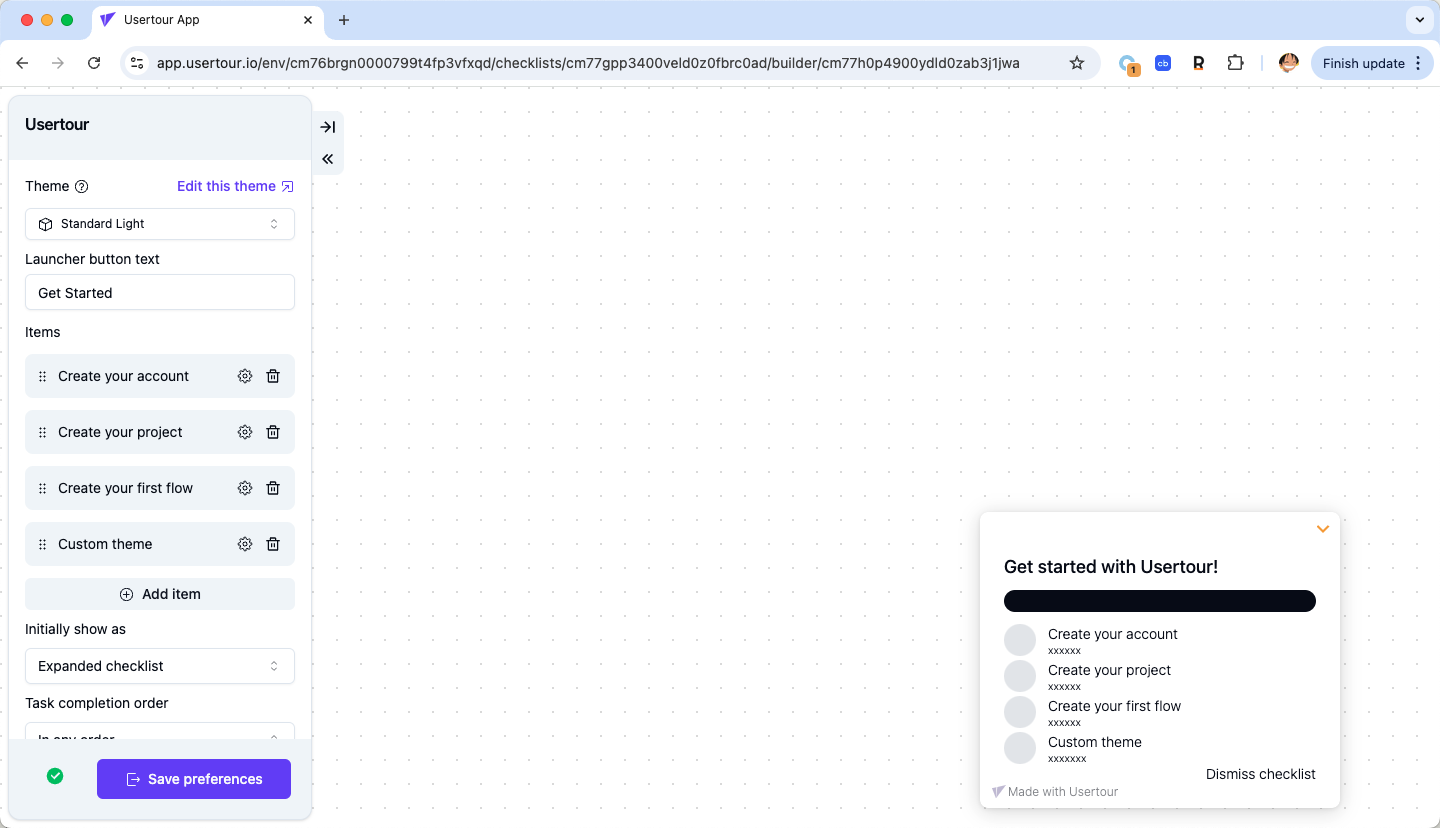 ### Task Configuration
Each checklist task includes:
* Task name
* Optional subtitle
* Completion condition
* One or more actions
For example, you can create a task that:
* Triggers when users create their first project
* Launches a guided tour
* Updates the checklist progress
## User Experience
### Default Display
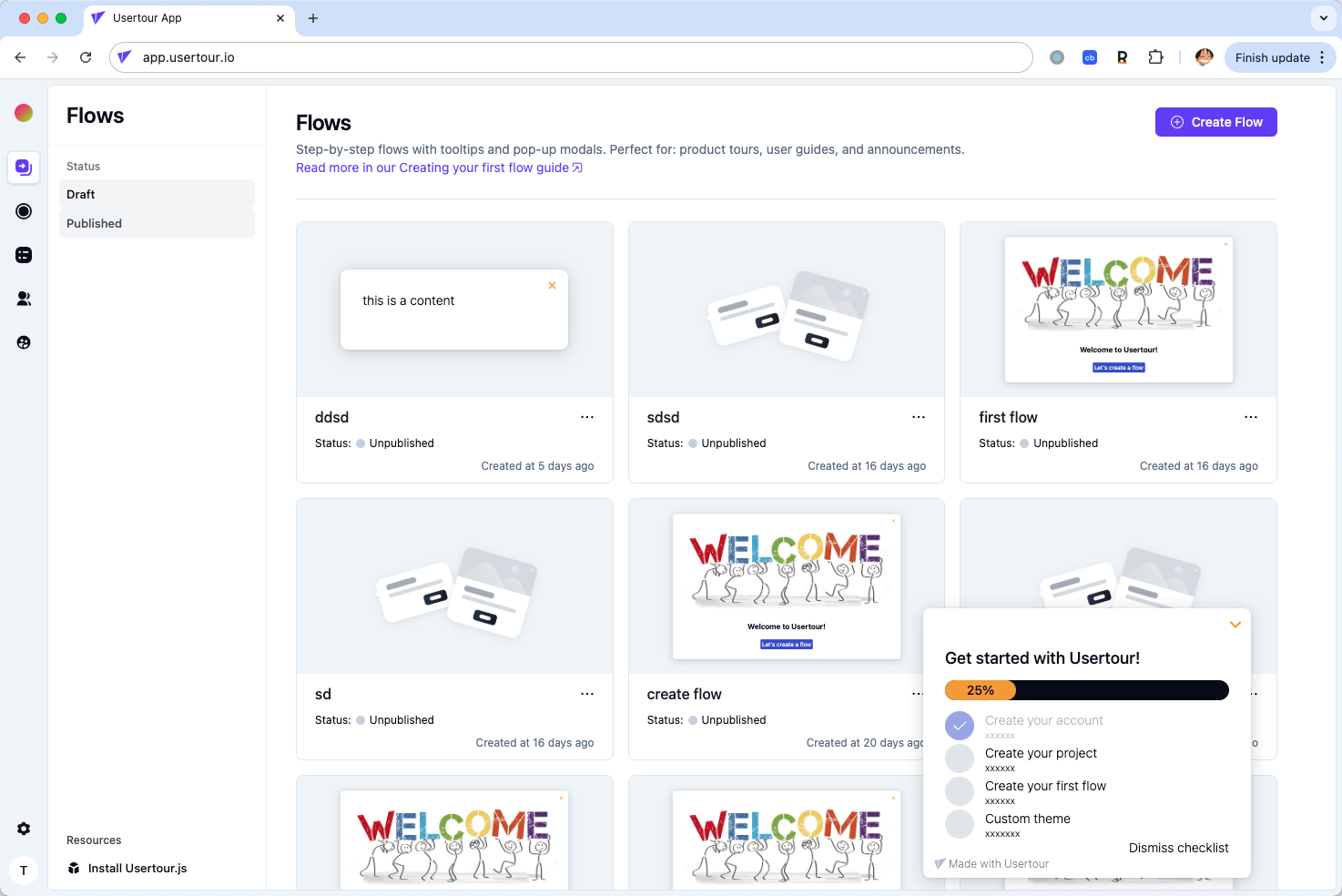
Checklists appear in the lower-right corner of the screen:
### Task Configuration
Each checklist task includes:
* Task name
* Optional subtitle
* Completion condition
* One or more actions
For example, you can create a task that:
* Triggers when users create their first project
* Launches a guided tour
* Updates the checklist progress
## User Experience
### Default Display
Checklists appear in the lower-right corner of the screen:
 ### Interaction Features
* Click tasks to trigger associated actions
* Minimize to show the "Get started" launcher
* View remaining task count
* See real-time progress updates
* Watch checkmark animations on completion
### Flow Completion Integration
To mark tasks as complete when users finish a flow:
### Interaction Features
* Click tasks to trigger associated actions
* Minimize to show the "Get started" launcher
* View remaining task count
* See real-time progress updates
* Watch checkmark animations on completion
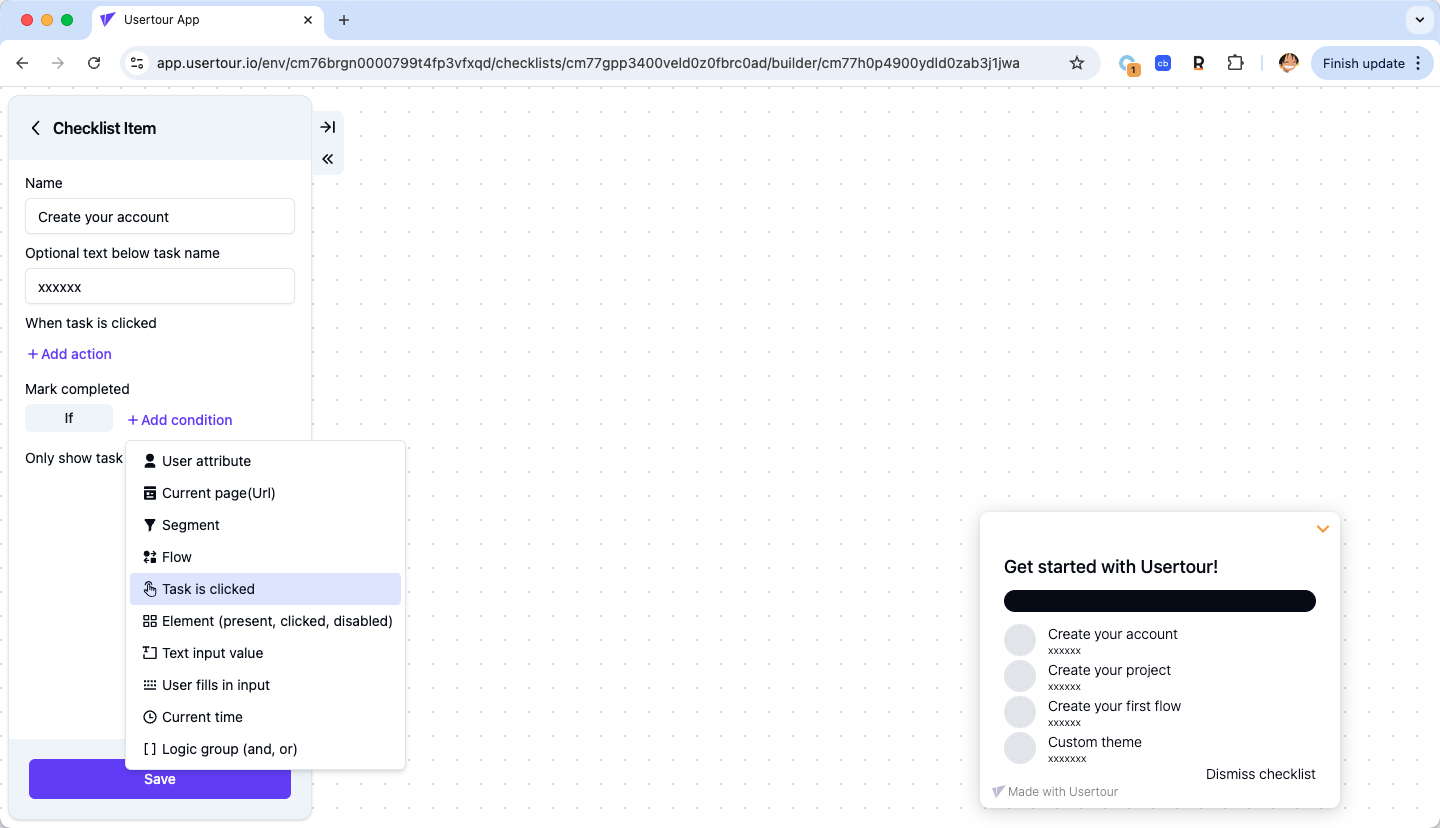
### Flow Completion Integration
To mark tasks as complete when users finish a flow:
 ## Customization
### Appearance
Customize your checklist through the theme editor:
* Access via [Settings -> Themes](https://app.usertour.io/project/1/settings/themes)
* Modify colors and styling
* Adjust positioning
* Customize launcher appearance
### Visibility Control
#### Dismissal Options
* Users can dismiss via the "Dismiss checklist" button
* Prevent dismissal in advanced settings
* Toggle "Prevent users from dismissing checklist"
#### Conditional Hiding
Control checklist visibility with temporary hide conditions:
* Hide on specific pages
* Hide in certain scenarios
* Hide when embedded in resource centers
* Hide launcher independently
> **Note**: For complete control over checklist visibility, configure auto-start conditions rather than using temporary hide conditions.
## Best Practices
1. **Keep it Focused**
* Limit tasks to essential steps
* Use clear, actionable language
* Provide context in subtitles
2. **Progress Tracking**
* Show clear progress indicators
* Celebrate task completion
* Maintain engagement
3. **Integration**
* Connect with relevant flows
* Link to important features
* Guide users naturally
4. **User Control**
* Allow task skipping when appropriate
* Provide clear navigation
* Enable easy access to help
## Customization
### Appearance
Customize your checklist through the theme editor:
* Access via [Settings -> Themes](https://app.usertour.io/project/1/settings/themes)
* Modify colors and styling
* Adjust positioning
* Customize launcher appearance
### Visibility Control
#### Dismissal Options
* Users can dismiss via the "Dismiss checklist" button
* Prevent dismissal in advanced settings
* Toggle "Prevent users from dismissing checklist"
#### Conditional Hiding
Control checklist visibility with temporary hide conditions:
* Hide on specific pages
* Hide in certain scenarios
* Hide when embedded in resource centers
* Hide launcher independently
> **Note**: For complete control over checklist visibility, configure auto-start conditions rather than using temporary hide conditions.
## Best Practices
1. **Keep it Focused**
* Limit tasks to essential steps
* Use clear, actionable language
* Provide context in subtitles
2. **Progress Tracking**
* Show clear progress indicators
* Celebrate task completion
* Maintain engagement
3. **Integration**
* Connect with relevant flows
* Link to important features
* Guide users naturally
4. **User Control**
* Allow task skipping when appropriate
* Provide clear navigation
* Enable easy access to help