> ## Documentation Index
> Fetch the complete documentation index at: https://docs.usertour.io/llms.txt
> Use this file to discover all available pages before exploring further.
# Environments
> Learn how to manage different environments for development, staging, and production
## Overview
Environments in Usertour help you:
* Isolate development from production
* Test changes safely
* Manage different user groups
* Control content deployment
* Maintain separate configurations
Each environment has its own unique `Usertour.js` token, ensuring complete isolation between your staging and production users.
## Managing Environments
### Creating a New Environment
1. Navigate to [Settings → Environments](https://app.usertour.io/project/1/settings/environments)
2. Click **Create new environment**
3. Enter a descriptive name (e.g., "Staging", "Development")
4. Save your changes
A new `Usertour.js` token will be generated automatically.
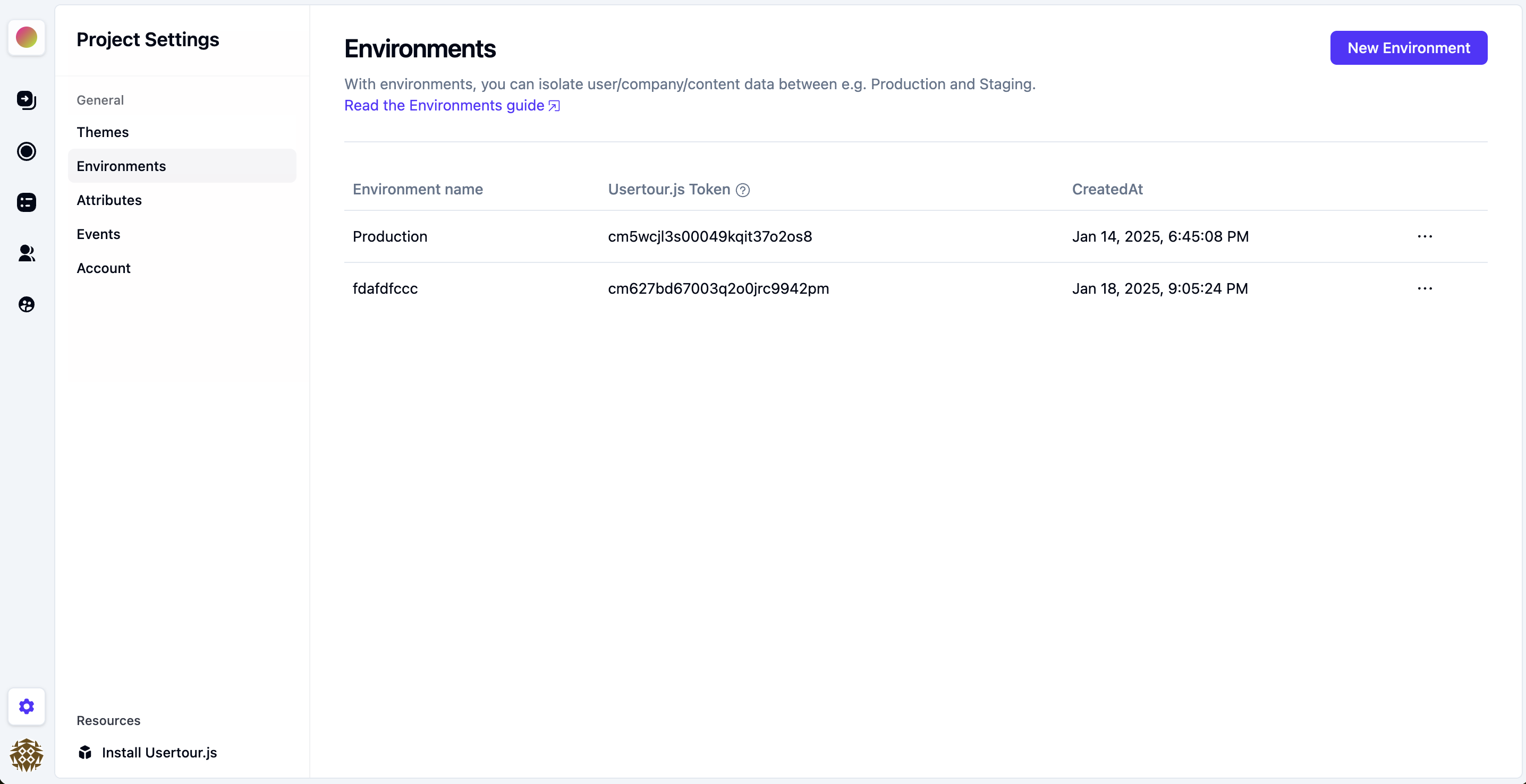 **Using Environment Tokens**
1. Copy the generated token
2. Update your `Usertour.js` snippet with the new token
3. Deploy to your target environment
4. Verify the connection
Each environment's token is unique and should only be used in its designated environment.
### Version Control
Managing your content across different environments is a breeze with Usertour's version control system. Think of it as a time machine for your flows - you can always go back to a previous version if needed!
When you open the **Versions** tab under any flow, you'll see:
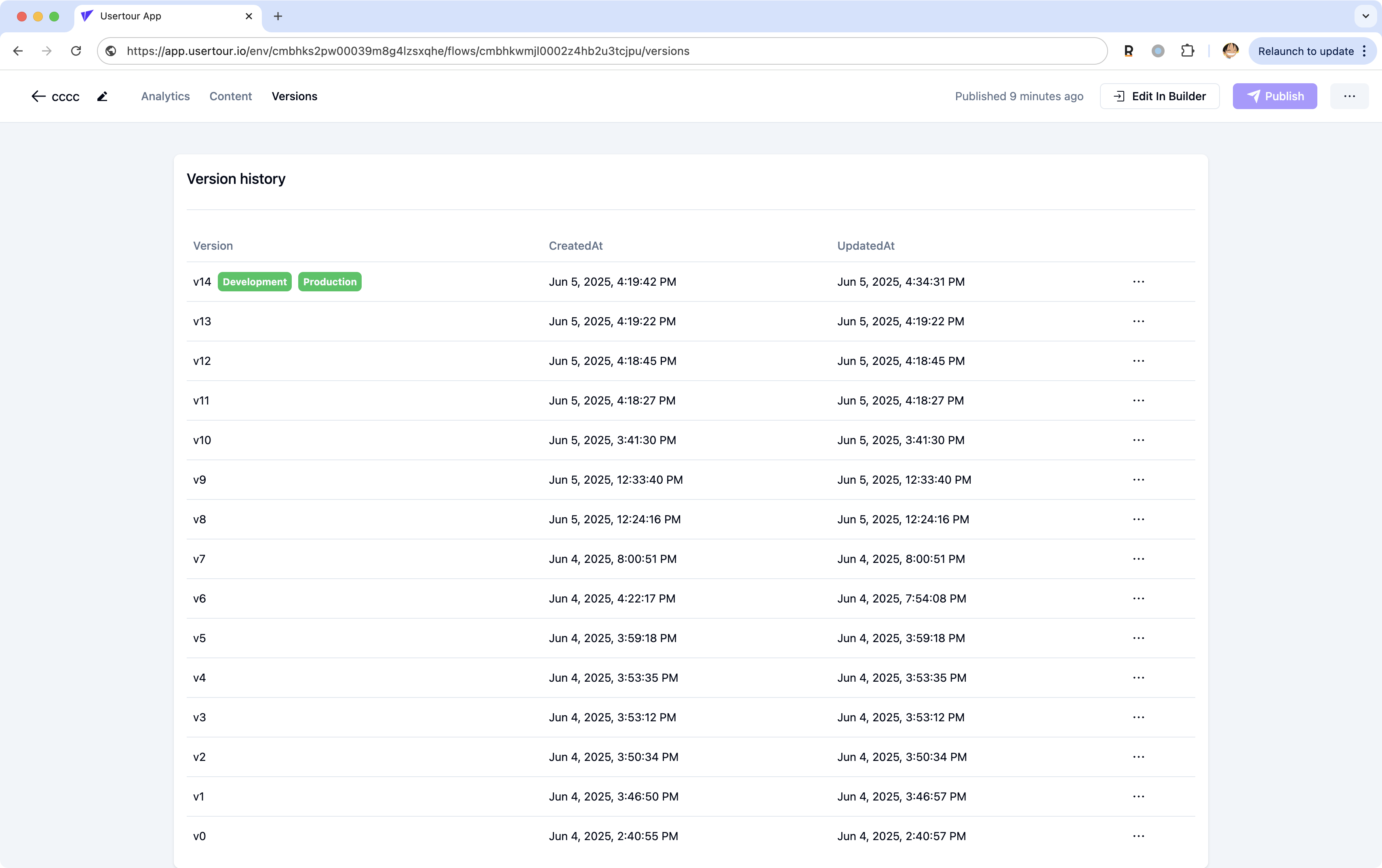
Here's what you can do:
* View your version history - we automatically save versions when you publish or when multiple team members make changes
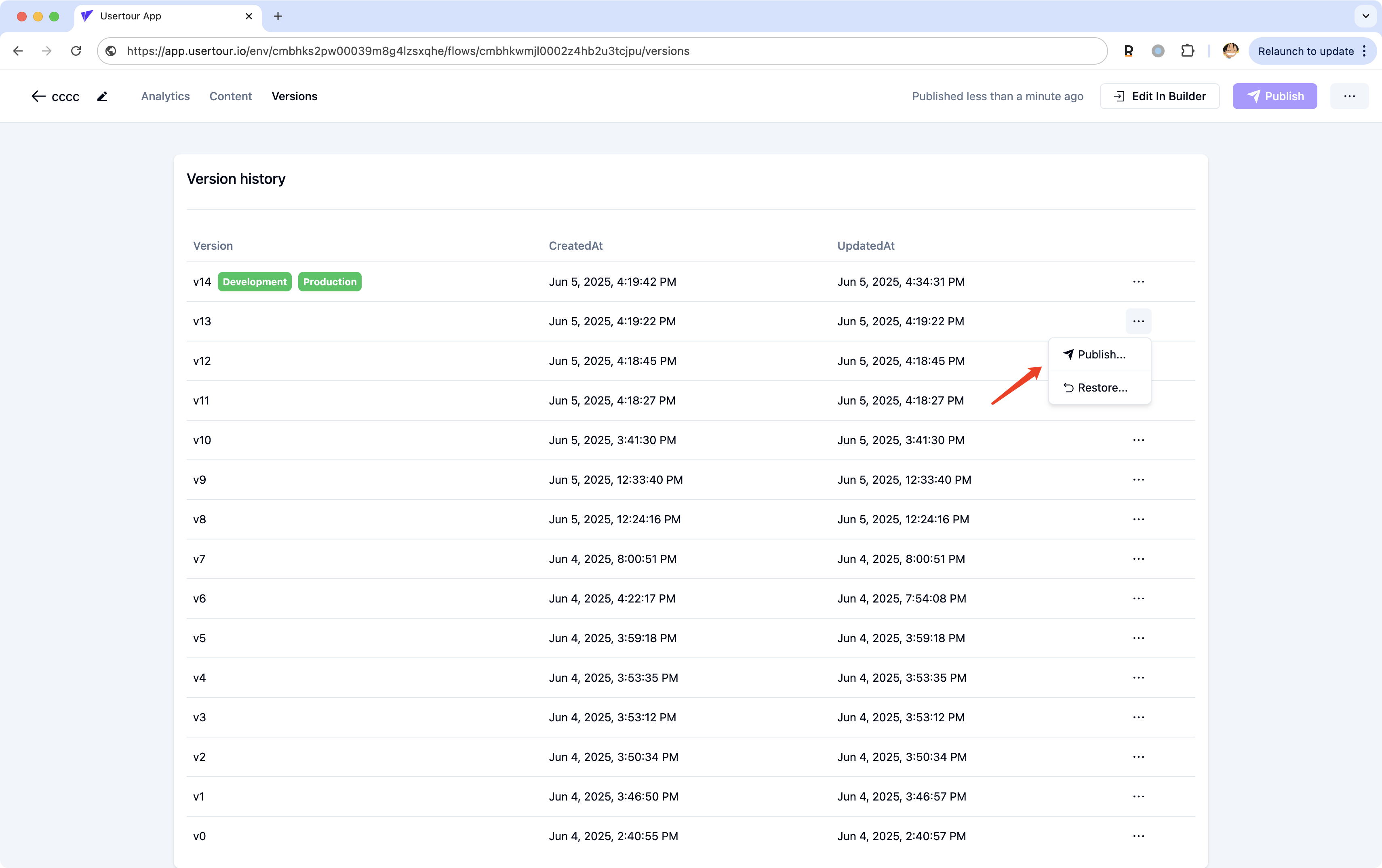
* Click the three dots menu (⋯) next to any version to:
* **Publish** that version to any environment
* **Restore** it if you want to undo recent changes
### Publishing to a Specific Environment
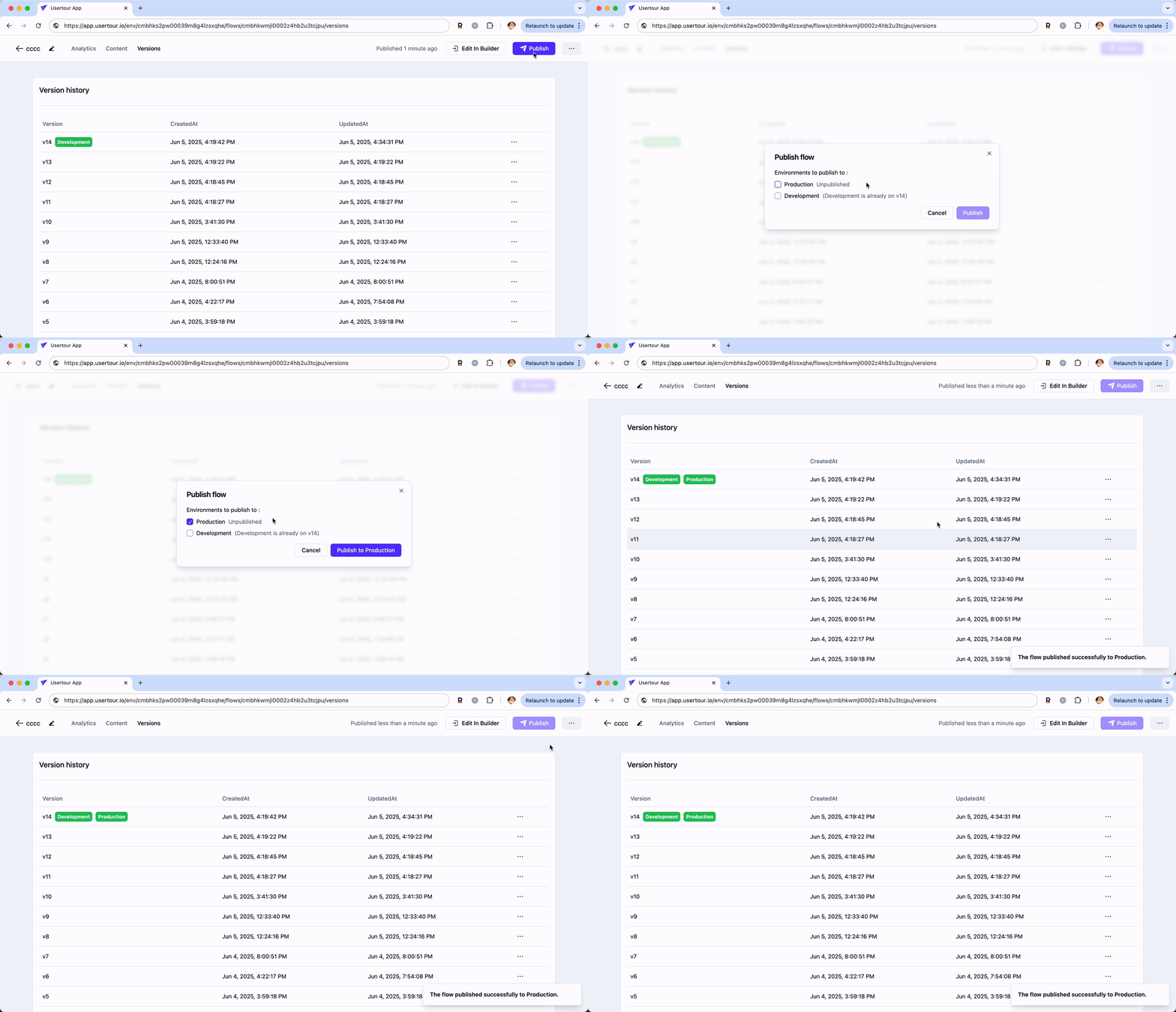
Ready to share your changes with your users? Here's how to publish to a specific environment:
1. Open the flow you want to publish
2. Click the **Publish** button
3. Choose which environment you want to publish to (just uncheck **Development** if you don't want it there)
4. Hit **Publish to Production** and you're done!
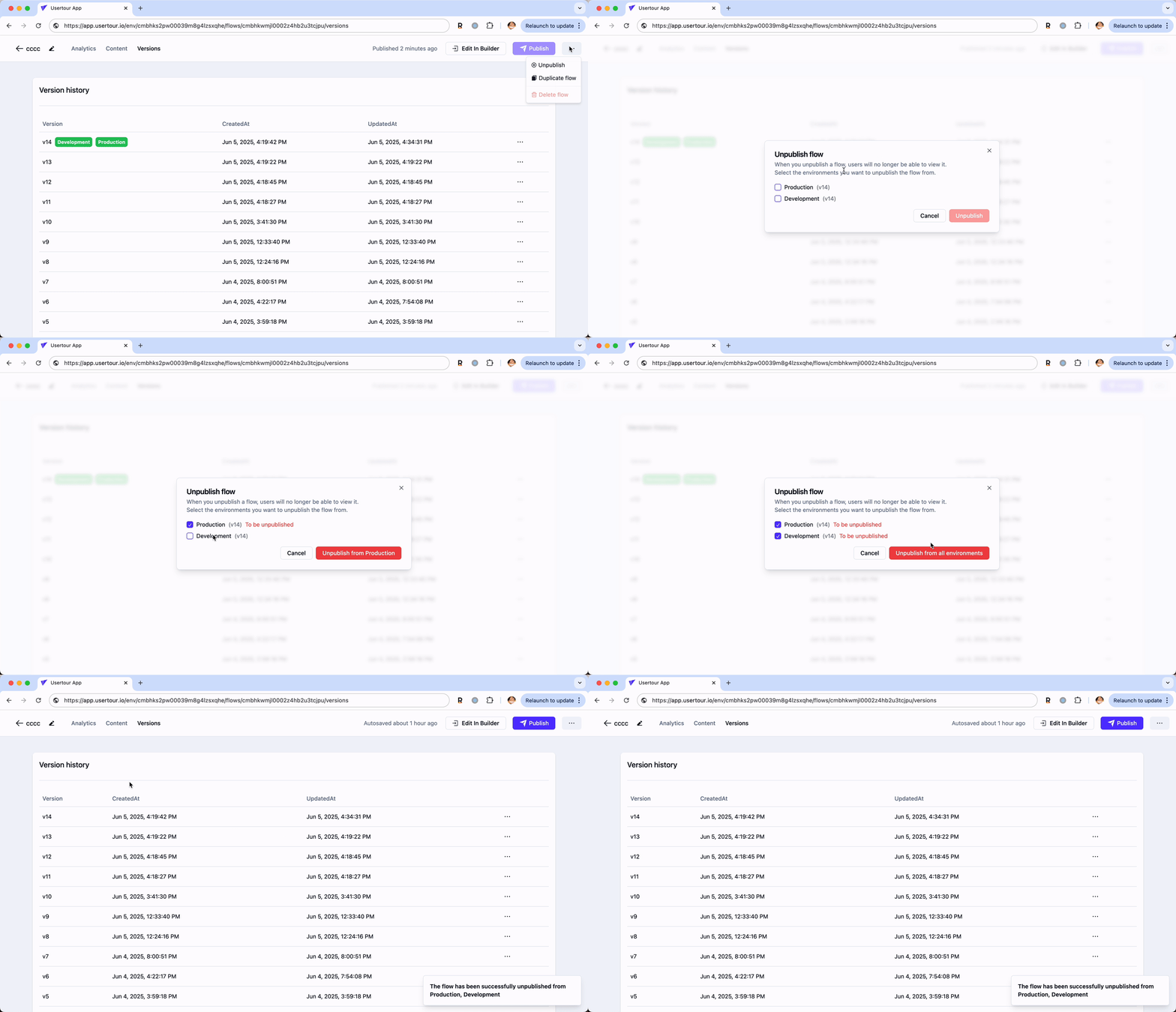
### Unpublishing from an Environment
Oops! Published something by mistake? No worries - you can easily unpublish it:
1. Head to the **Versions** tab
2. Click the three dots menu (⋯) in the top right corner
3. Select **Unpublish**
4. Find the environment you want to unpublish from
5. Click the **Unpublish from all environments** button to confirm
That's it! Your content will be removed from that environment.
## Best Practices
1. **Environment Naming**
* Use clear, descriptive names
* Follow your team's conventions
* Include environment type
* Add version numbers if needed
2. **Token Management**
* Keep tokens secure
* Don't share between environments
* Document token usage
* Rotate tokens regularly
3. **Content Management**
* Test changes in staging first
* Use version control
* Document environment differences
* Maintain consistent configurations
4. **Deployment Strategy**
* Plan your deployments
* Test thoroughly
* Monitor performance
* Have a rollback plan
> **Tip**: Always test your flows in a staging environment before deploying to production to ensure a smooth user experience.
**Using Environment Tokens**
1. Copy the generated token
2. Update your `Usertour.js` snippet with the new token
3. Deploy to your target environment
4. Verify the connection
Each environment's token is unique and should only be used in its designated environment.
### Version Control
Managing your content across different environments is a breeze with Usertour's version control system. Think of it as a time machine for your flows - you can always go back to a previous version if needed!
When you open the **Versions** tab under any flow, you'll see:

Here's what you can do:
* View your version history - we automatically save versions when you publish or when multiple team members make changes
* Click the three dots menu (⋯) next to any version to:
* **Publish** that version to any environment
* **Restore** it if you want to undo recent changes

### Publishing to a Specific Environment
Ready to share your changes with your users? Here's how to publish to a specific environment:
1. Open the flow you want to publish
2. Click the **Publish** button
3. Choose which environment you want to publish to (just uncheck **Development** if you don't want it there)
4. Hit **Publish to Production** and you're done!

### Unpublishing from an Environment
Oops! Published something by mistake? No worries - you can easily unpublish it:
1. Head to the **Versions** tab
2. Click the three dots menu (⋯) in the top right corner
3. Select **Unpublish**
4. Find the environment you want to unpublish from
5. Click the **Unpublish from all environments** button to confirm
That's it! Your content will be removed from that environment.

## Best Practices
1. **Environment Naming**
* Use clear, descriptive names
* Follow your team's conventions
* Include environment type
* Add version numbers if needed
2. **Token Management**
* Keep tokens secure
* Don't share between environments
* Document token usage
* Rotate tokens regularly
3. **Content Management**
* Test changes in staging first
* Use version control
* Document environment differences
* Maintain consistent configurations
4. **Deployment Strategy**
* Plan your deployments
* Test thoroughly
* Monitor performance
* Have a rollback plan
> **Tip**: Always test your flows in a staging environment before deploying to production to ensure a smooth user experience.