> ## Documentation Index
> Fetch the complete documentation index at: https://docs.usertour.io/llms.txt
> Use this file to discover all available pages before exploring further.
# Integrations
> Stream Usertour events into Amplitude, Heap, Mixpanel, PostHog, or Segment as they happen — no code, just a key.
Integrations forward every event Usertour tracks — flow starts and completions, checklist progress, survey answers, your custom events — into your analytics tool in real time. Once connected, Usertour events sit next to your product's own events, ready for funnels, cohorts, and dashboards.
If you want events delivered to **your own endpoint** instead of an analytics tool, use [webhooks](/developers/webhooks) — same pipeline, different destination.
Key ideas, up front:
* **Integrations belong to an environment.** Production and Staging each have their own configuration; an integration only ever receives that environment's events.
* **The full event stream, as it happens.** An enabled integration receives every tracked event — built-in and custom, `page_viewed` included. There is no per-event picker; an analytics destination wants the whole stream.
* **Delivery is at-least-once with retries**, and every event carries a stable message id that the destination uses to deduplicate — a retried delivery never becomes a duplicate event.
* **Your API key is write-only and stored encrypted.** It is never shown again after you save it, and it never leaves the server except toward the provider.
* **Availability.** On Usertour Cloud, integrations are included from the **Starter** plan; self-hosted instances are never gated. Managing integrations requires the **Owner** role.
## Connect a provider
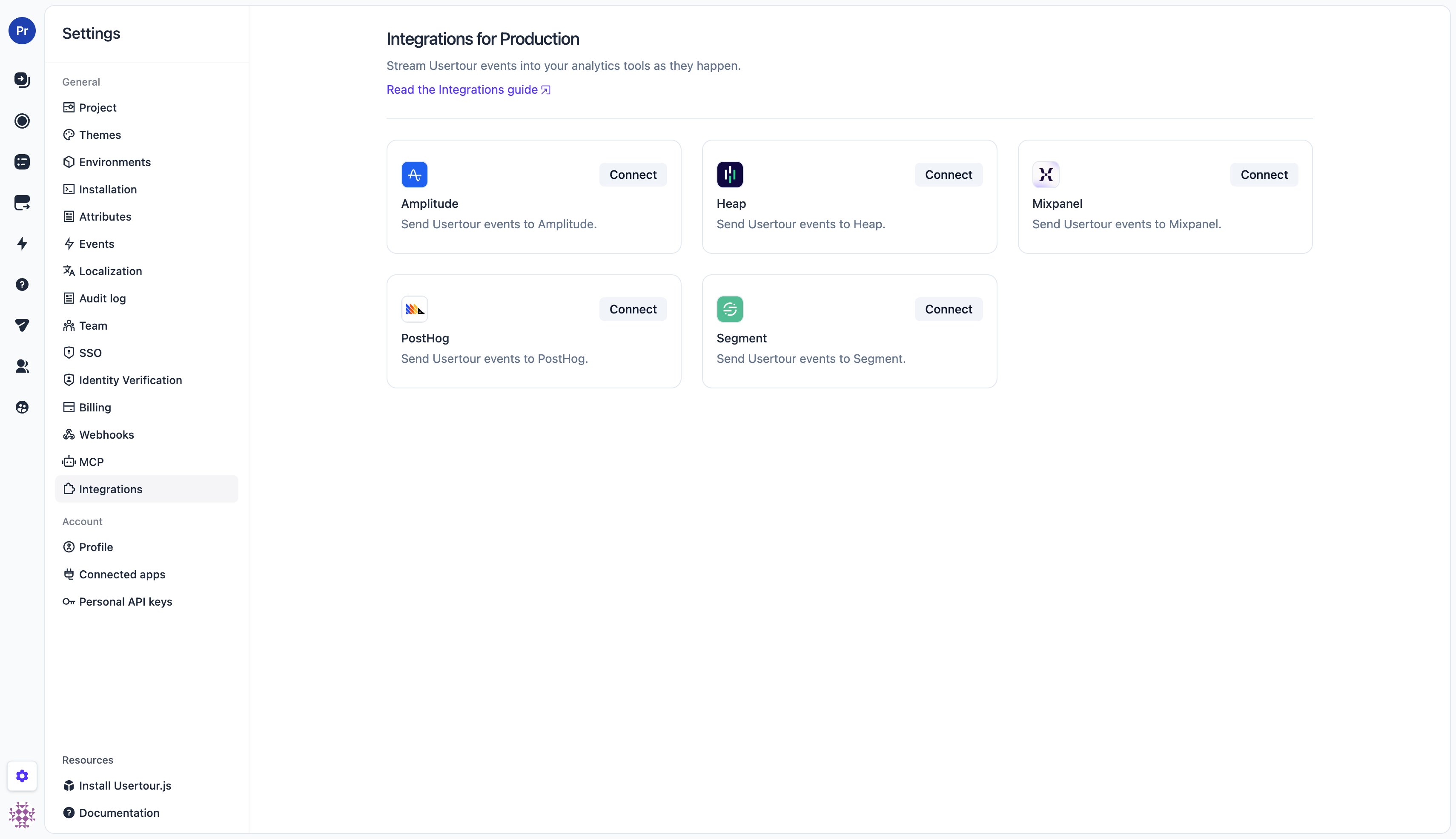
Go to **Settings → Integrations** (pick the environment first — the page is per environment) and choose a provider card.
 On the provider's page:
1. Paste the provider credential (see [where to find it](#provider-credentials) below) and, where offered, pick the **data residency** region (US or EU — it must match where your provider project is hosted).
2. Click **Save**. The first save connects the integration and turns streaming on.
3. The switch at the top controls streaming from then on — flipping it takes effect immediately, no Save needed.
4. Click **Send test event** to push a sample event through the full pipeline and confirm it arrives in the provider.
On the provider's page:
1. Paste the provider credential (see [where to find it](#provider-credentials) below) and, where offered, pick the **data residency** region (US or EU — it must match where your provider project is hosted).
2. Click **Save**. The first save connects the integration and turns streaming on.
3. The switch at the top controls streaming from then on — flipping it takes effect immediately, no Save needed.
4. Click **Send test event** to push a sample event through the full pipeline and confirm it arrives in the provider.
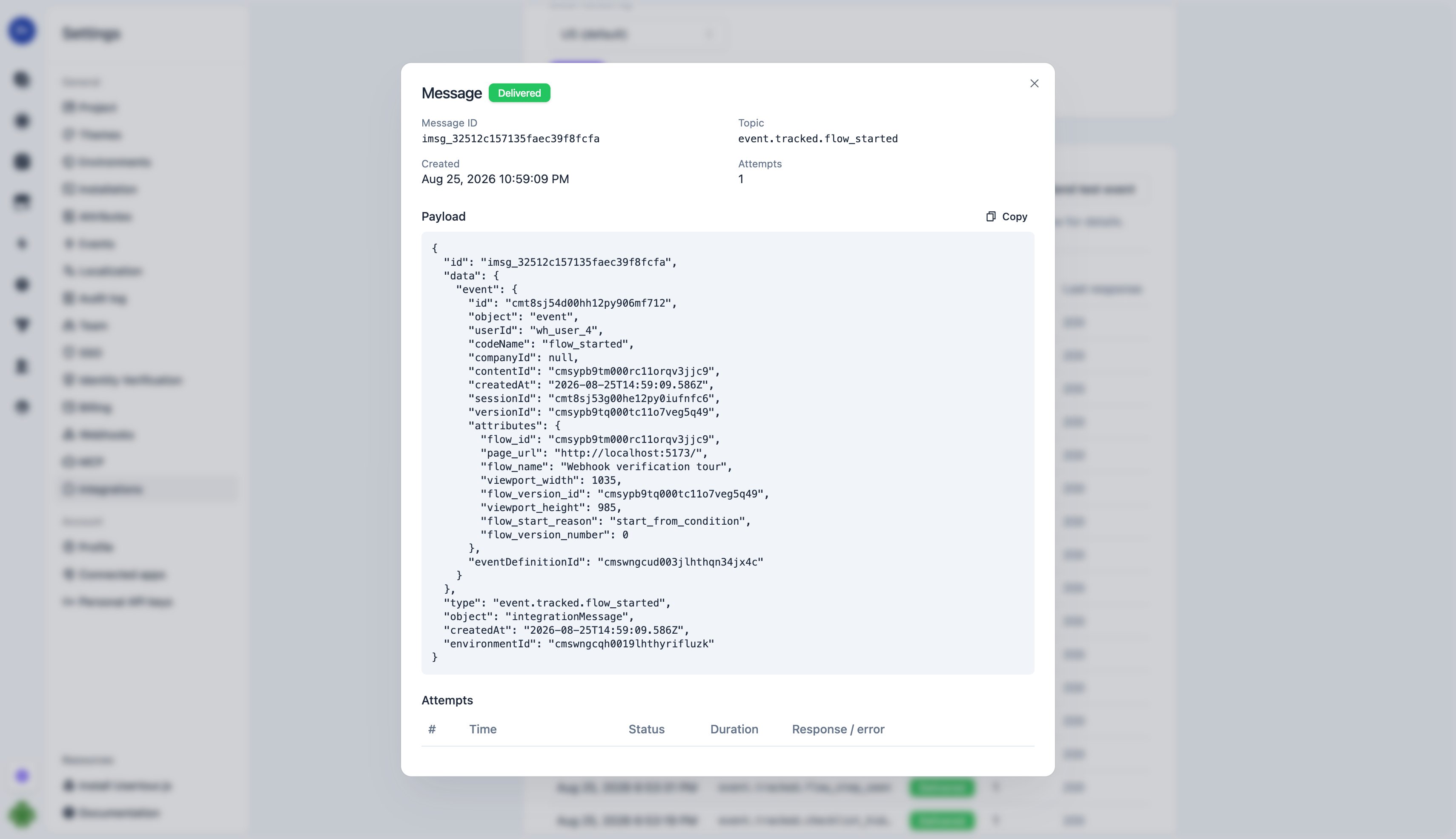
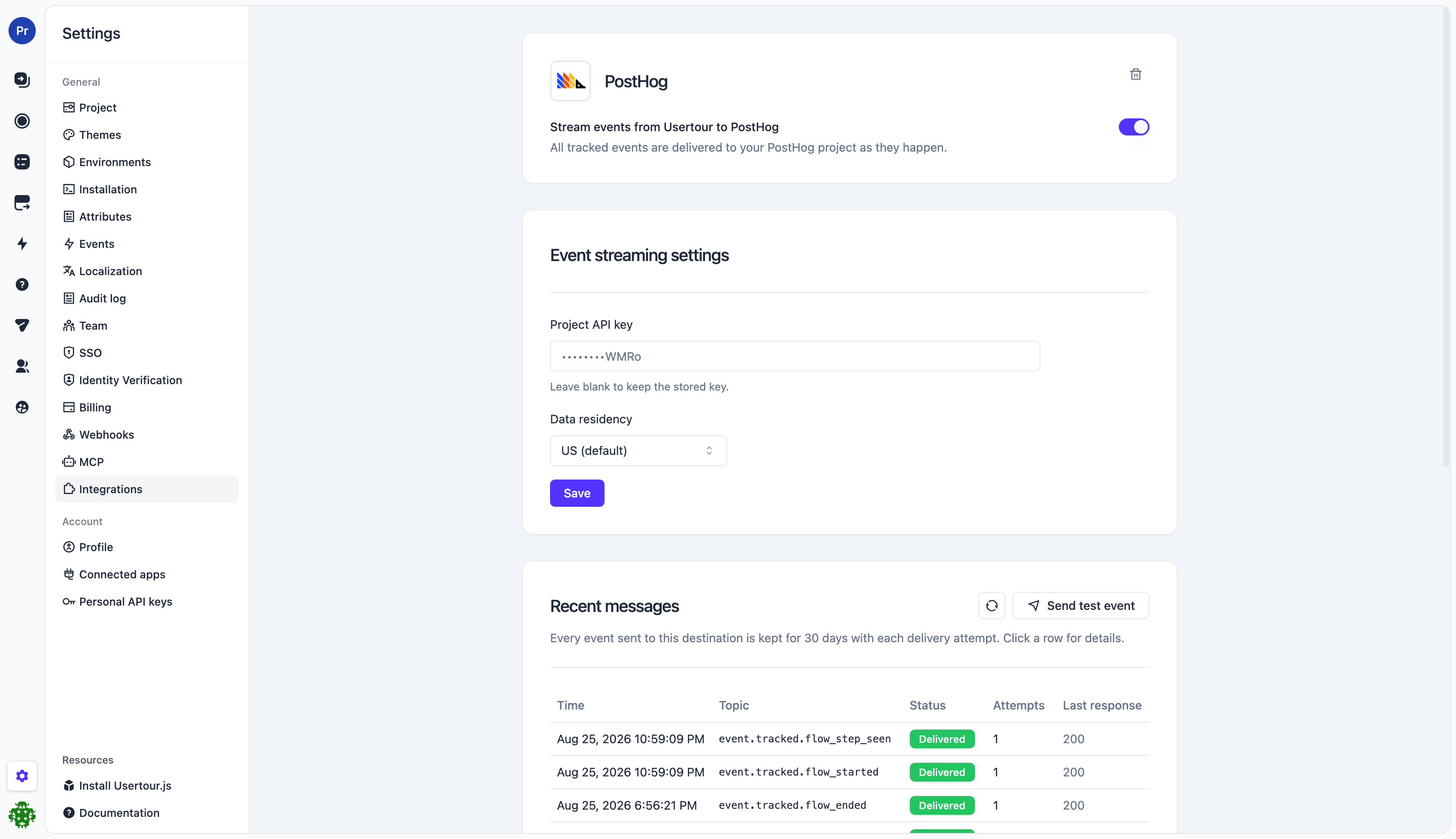 The **message log** at the bottom of the page keeps every delivered event for 30 days, with each delivery attempt and the provider's response — the first place to look when something doesn't arrive.
 ## Provider credentials
Each provider authenticates with a single write credential. All of them are the *write-side* key — safe to think of as "the key the provider's own SDK would embed in your website".
| Provider | Credential | Where to find it |
| --------- | ------------------- | ------------------------------------------------------------------------------------------------------------------------------------------------------- |
| Amplitude | **API key** | Amplitude project settings (each Amplitude project has its own API key) |
| Heap | **App ID** | Heap account settings, under Projects — the numeric ID of the environment |
| Mixpanel | **Project token** | Mixpanel project settings (the *token*, not an API secret or service account) |
| PostHog | **Project API key** | PostHog project settings — starts with `phc_`. Not a personal API key (`phx_`), which the capture endpoint rejects |
| Segment | **Write key** | On a Segment *source*: create an **HTTP API** source, then Settings → API Keys. Cloud sources don't have write keys — it must be an event-stream source |
Amplitude, Mixpanel, PostHog, and Segment offer EU data residency; set the region to match your provider project. Heap has a single region.
## What gets sent
Each tracked event becomes one `track`-style event at the destination:
* **Event name** — the event's code name, exactly as shown in **Settings → Events** (`flow_completed`, `checklist_task_clicked`, your custom event names, …).
* **User** — the user's ID as you identified them with `usertour.identify()`, so events line up with the same users your own instrumentation reports.
* **Timestamp** — the moment the event happened in the user's session, not the moment it was delivered.
* **Properties** — the event's attributes (`flow_id`, `flow_name`, `flow_step_number`, `page_url`, survey answers, …) plus the content session id, named by type: `flow_session_id`, `checklist_session_id`, `launcher_session_id`, `banner_session_id`, or `resource_center_session_id`. Use it to group one user's run through the same flow into a session or funnel.
* **Message id** — a stable id passed as the provider's deduplication key (Amplitude `insert_id`, Mixpanel `$insert_id`, Segment `messageId`), so a retried delivery never double-counts.
Events are delivered server-to-server, so provider-side device and geo enrichment (browser, city, country) does not apply — the event carries its own context attributes such as `page_url` and viewport size instead.
## Delivery and reliability
Delivery runs through the same pipeline as [webhooks](/developers/webhooks#delivery-retries-and-the-circuit-breaker):
* Events are queued and typically arrive within a couple of seconds.
* A failed delivery is retried on a backoff schedule spanning roughly **24 hours**, so a provider outage self-heals without losing events.
* If every attempt keeps failing (most commonly: a revoked or mistyped key), the integration **cools down** — deliveries are held, not dropped, and resume automatically.
* After **7 days** of continuous failure the integration is switched off automatically and the project owner is emailed. Fix the key and flip the switch back on — new events stream again from that moment.
## Troubleshooting
* **Nothing arrives:** check the message log — each row shows the provider's HTTP response. A `401`/`403` means the credential is wrong; re-enter it and use **Send test event** to verify.
* **Auto-disabled badge:** the integration failed continuously for a week. The most common cause is a rotated or revoked key — update it and re-enable.
* **Events look duplicated in the provider:** they shouldn't be — retries share the original message id. If you see duplicates with *different* ids, check whether another pipeline (e.g. the provider's own SDK on your site) reports the same actions.
* **Region mismatch:** a key from an EU project sent to the US endpoint (or vice versa) is rejected by the provider — make sure the data residency setting matches the project the key belongs to.
## Removing an integration
The trash icon on the provider's page removes the configuration: streaming stops immediately, and the stored key and the message log are deleted. Your data already delivered to the provider is not affected.
## Provider credentials
Each provider authenticates with a single write credential. All of them are the *write-side* key — safe to think of as "the key the provider's own SDK would embed in your website".
| Provider | Credential | Where to find it |
| --------- | ------------------- | ------------------------------------------------------------------------------------------------------------------------------------------------------- |
| Amplitude | **API key** | Amplitude project settings (each Amplitude project has its own API key) |
| Heap | **App ID** | Heap account settings, under Projects — the numeric ID of the environment |
| Mixpanel | **Project token** | Mixpanel project settings (the *token*, not an API secret or service account) |
| PostHog | **Project API key** | PostHog project settings — starts with `phc_`. Not a personal API key (`phx_`), which the capture endpoint rejects |
| Segment | **Write key** | On a Segment *source*: create an **HTTP API** source, then Settings → API Keys. Cloud sources don't have write keys — it must be an event-stream source |
Amplitude, Mixpanel, PostHog, and Segment offer EU data residency; set the region to match your provider project. Heap has a single region.
## What gets sent
Each tracked event becomes one `track`-style event at the destination:
* **Event name** — the event's code name, exactly as shown in **Settings → Events** (`flow_completed`, `checklist_task_clicked`, your custom event names, …).
* **User** — the user's ID as you identified them with `usertour.identify()`, so events line up with the same users your own instrumentation reports.
* **Timestamp** — the moment the event happened in the user's session, not the moment it was delivered.
* **Properties** — the event's attributes (`flow_id`, `flow_name`, `flow_step_number`, `page_url`, survey answers, …) plus the content session id, named by type: `flow_session_id`, `checklist_session_id`, `launcher_session_id`, `banner_session_id`, or `resource_center_session_id`. Use it to group one user's run through the same flow into a session or funnel.
* **Message id** — a stable id passed as the provider's deduplication key (Amplitude `insert_id`, Mixpanel `$insert_id`, Segment `messageId`), so a retried delivery never double-counts.
Events are delivered server-to-server, so provider-side device and geo enrichment (browser, city, country) does not apply — the event carries its own context attributes such as `page_url` and viewport size instead.
## Delivery and reliability
Delivery runs through the same pipeline as [webhooks](/developers/webhooks#delivery-retries-and-the-circuit-breaker):
* Events are queued and typically arrive within a couple of seconds.
* A failed delivery is retried on a backoff schedule spanning roughly **24 hours**, so a provider outage self-heals without losing events.
* If every attempt keeps failing (most commonly: a revoked or mistyped key), the integration **cools down** — deliveries are held, not dropped, and resume automatically.
* After **7 days** of continuous failure the integration is switched off automatically and the project owner is emailed. Fix the key and flip the switch back on — new events stream again from that moment.
## Troubleshooting
* **Nothing arrives:** check the message log — each row shows the provider's HTTP response. A `401`/`403` means the credential is wrong; re-enter it and use **Send test event** to verify.
* **Auto-disabled badge:** the integration failed continuously for a week. The most common cause is a rotated or revoked key — update it and re-enable.
* **Events look duplicated in the provider:** they shouldn't be — retries share the original message id. If you see duplicates with *different* ids, check whether another pipeline (e.g. the provider's own SDK on your site) reports the same actions.
* **Region mismatch:** a key from an EU project sent to the US endpoint (or vice versa) is rejected by the provider — make sure the data residency setting matches the project the key belongs to.
## Removing an integration
The trash icon on the provider's page removes the configuration: streaming stops immediately, and the stored key and the message log are deleted. Your data already delivered to the provider is not affected.