> ## Documentation Index
> Fetch the complete documentation index at: https://docs.usertour.io/llms.txt
> Use this file to discover all available pages before exploring further.
# Launchers
> Learn how to create and customize launchers to highlight features and provide quick access to help
## What are Launchers?
Think of Launchers as little helpers you can place anywhere in your app. They're like small beacons or icons that can grab your users' attention or provide helpful hints. Unlike guided tours, these work independently - you can use them to highlight important features or add quick explanations wherever you need them.
## Creating Launchers
### Getting Started
Creating a launcher is pretty straightforward:
1. Head over to [Usertour](https://app.usertour.io) and sign in
2. Look for **Launchers** in the sidebar and click it
3. Hit the **Create launcher** button
4. Give your launcher a name that makes sense
5. Click **Create launcher** and you're ready to go!
Just like flows and checklists, you'll need to publish your launcher for it to work.
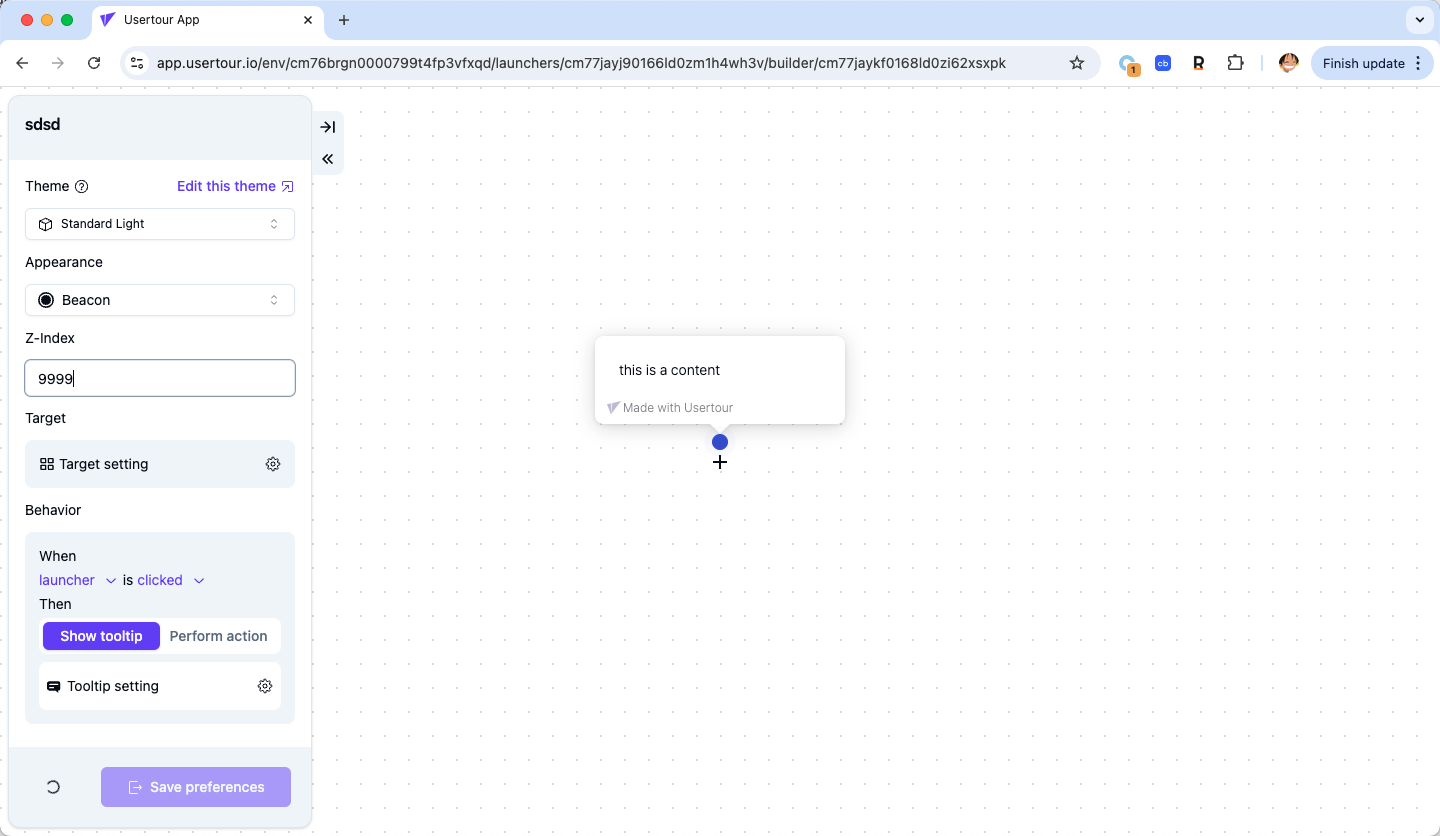
Here's what you'll see when building your launcher:
 ### What You Can Customize
When setting up your launcher, you have three main areas to configure:
**Appearance** - What should it look like? You can choose between a beacon, button, icon, or keep it hidden. You'll also pick which part of your app it should stick to.
**Behavior** - How should it work? You can make it activate when someone clicks or hovers over it, and decide whether to show a helpful tooltip or trigger an action (like starting a tour or going to a specific page).
**Tooltip Settings** - If you're showing a tooltip, you can customize where it appears and whether the launcher disappears after someone uses it for the first time.
### Making Your Launcher Visible
Want your launcher to actually show up for users? You'll need to set up some conditions in the left panel of your launcher's detail page. This lets you control when and where it appears.
For the complete guide on setting up conditions, check out our [Starting Guide](/how-to-guides/starting-flows).
Don't forget to install [Usertour.js](/developers/usertourjs-reference/installation) in your app - without it, your launchers won't work for your users.
## Great Ways to Use Launchers
### Create Attention-Grabbing Hotspots
Perfect for highlighting cool features in your app! When users hover over these hotspots, they'll see helpful tooltips with more info and maybe even a button to start a guided tour.
### What You Can Customize
When setting up your launcher, you have three main areas to configure:
**Appearance** - What should it look like? You can choose between a beacon, button, icon, or keep it hidden. You'll also pick which part of your app it should stick to.
**Behavior** - How should it work? You can make it activate when someone clicks or hovers over it, and decide whether to show a helpful tooltip or trigger an action (like starting a tour or going to a specific page).
**Tooltip Settings** - If you're showing a tooltip, you can customize where it appears and whether the launcher disappears after someone uses it for the first time.
### Making Your Launcher Visible
Want your launcher to actually show up for users? You'll need to set up some conditions in the left panel of your launcher's detail page. This lets you control when and where it appears.
For the complete guide on setting up conditions, check out our [Starting Guide](/how-to-guides/starting-flows).
Don't forget to install [Usertour.js](/developers/usertourjs-reference/installation) in your app - without it, your launchers won't work for your users.
## Great Ways to Use Launchers
### Create Attention-Grabbing Hotspots
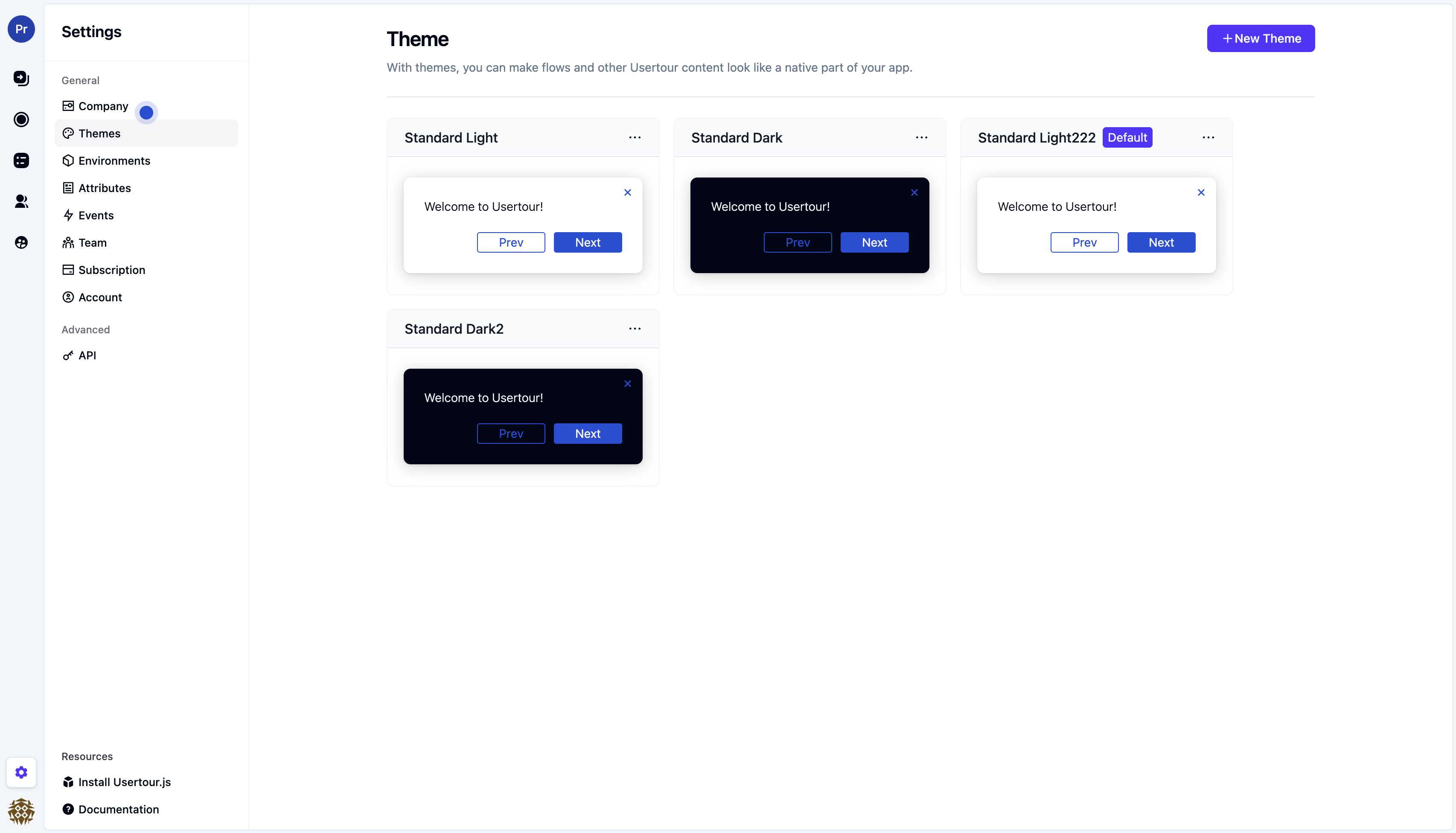
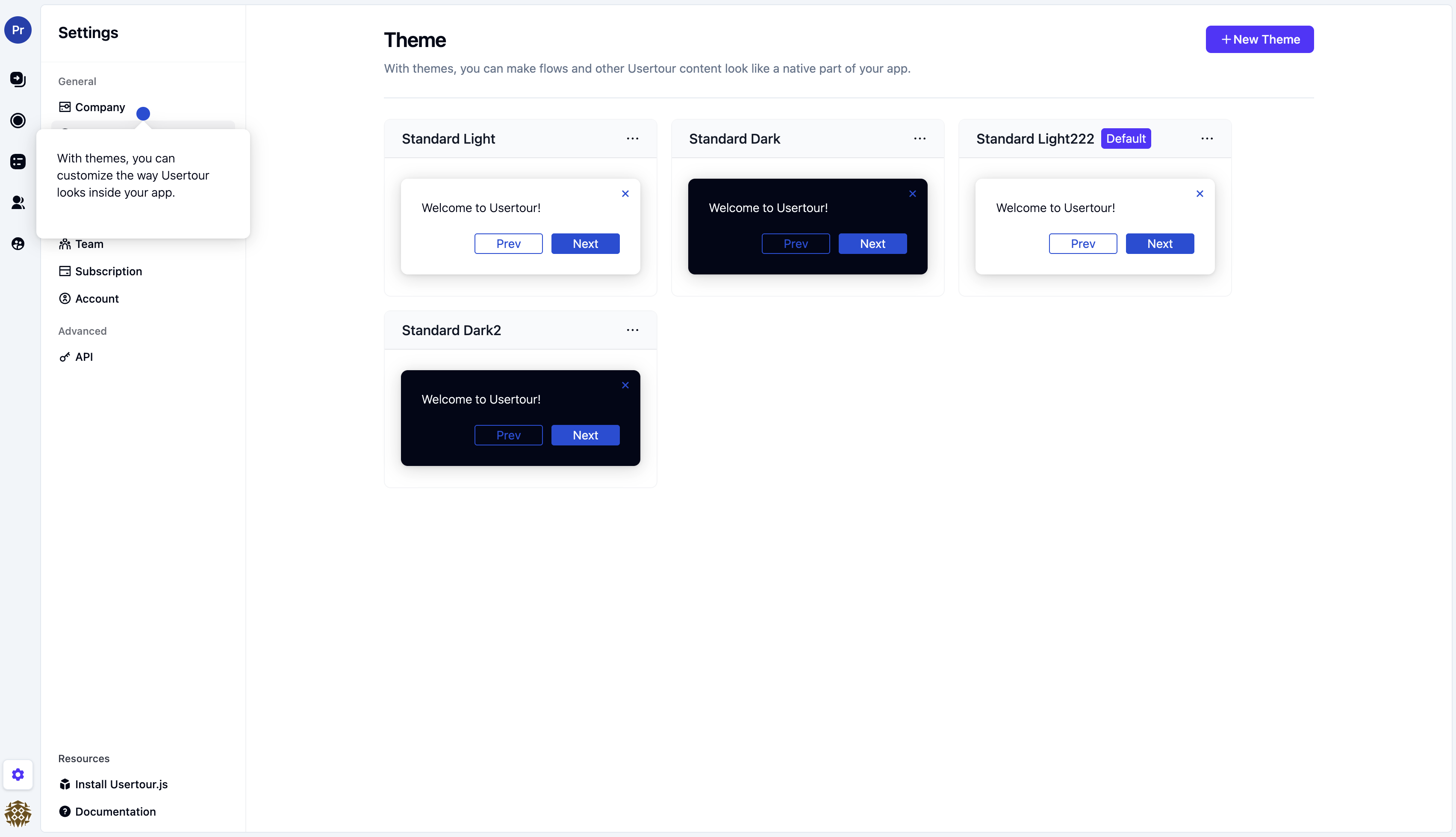
Perfect for highlighting cool features in your app! When users hover over these hotspots, they'll see helpful tooltips with more info and maybe even a button to start a guided tour.
 ### Add Helpful Explanation Icons
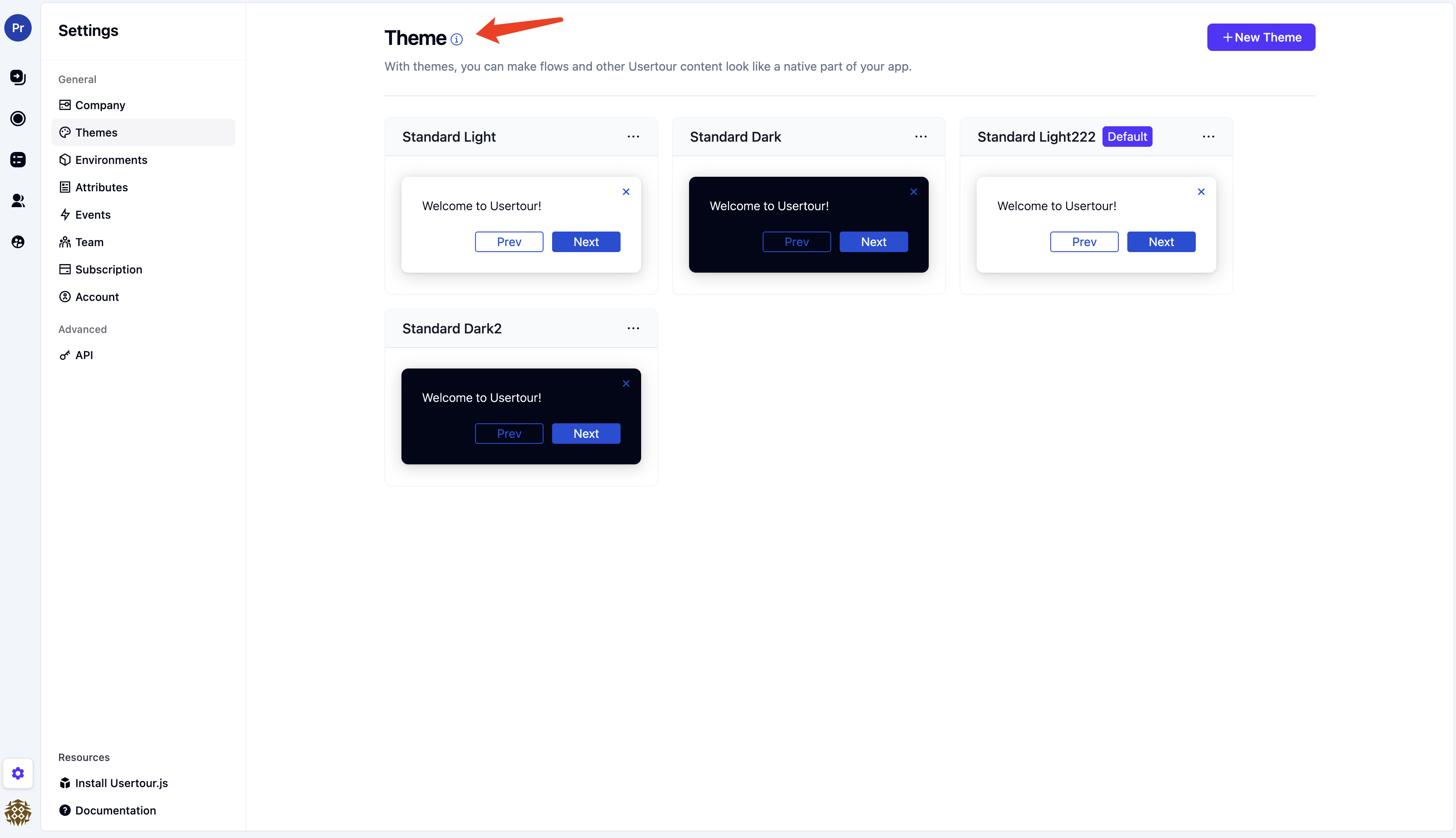
Sometimes your app has features that need a bit more explanation than what's obvious. Place small icon launchers next to these elements to give users that extra context they need.
### Add Helpful Explanation Icons
Sometimes your app has features that need a bit more explanation than what's obvious. Place small icon launchers next to these elements to give users that extra context they need.
 ### Make Your Launchers Look Great
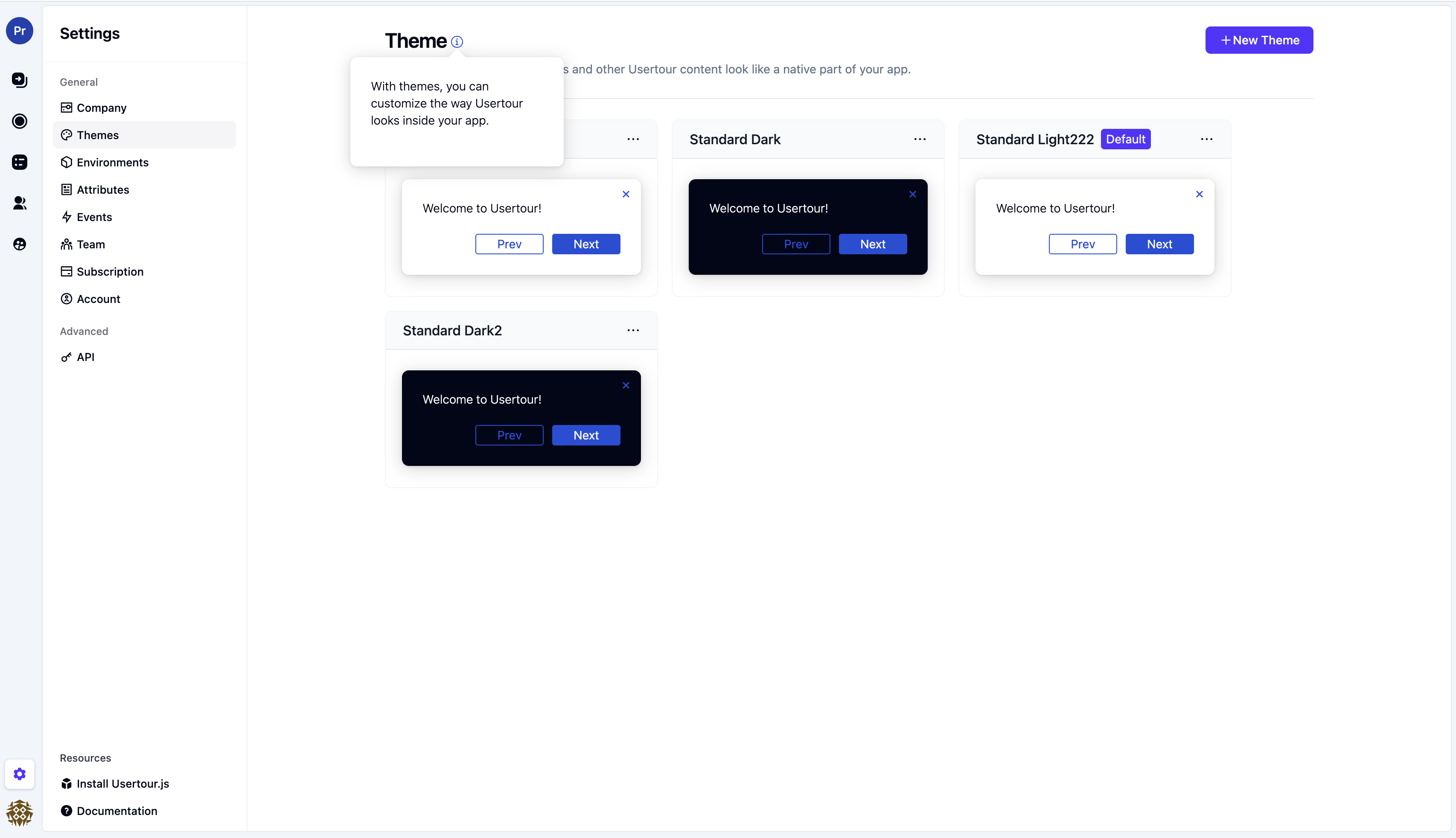
Want to match your launchers to your app's style? Head over to [Settings -> Themes](https://app.usertour.io/project/1/settings/themes) to customize how they look. We've got a whole guide on [customizing themes](/how-to-guides/customizing-themes) to help you out.
### Fixing Display Issues
Sometimes your launcher might appear on top of something when you want it behind. If that happens, you can adjust the "z-index" setting. Just go to your launcher, click on Advanced settings, and you'll find the z-index option there.
### Make Your Launchers Look Great
Want to match your launchers to your app's style? Head over to [Settings -> Themes](https://app.usertour.io/project/1/settings/themes) to customize how they look. We've got a whole guide on [customizing themes](/how-to-guides/customizing-themes) to help you out.
### Fixing Display Issues
Sometimes your launcher might appear on top of something when you want it behind. If that happens, you can adjust the "z-index" setting. Just go to your launcher, click on Advanced settings, and you'll find the z-index option there.