> ## Documentation Index
> Fetch the complete documentation index at: https://docs.usertour.io/llms.txt
> Use this file to discover all available pages before exploring further.
# Two-Factor Authentication
> Add a second verification step to your account using an authenticator app, plus recovery codes for backup access.
Two-factor authentication (2FA) adds a second step when you sign in. After your password or social login is verified, Usertour also asks for a six-digit code from an authenticator app such as [Google Authenticator](https://support.google.com/accounts/answer/1066447), [Authy](https://authy.com/), [Microsoft Authenticator](https://www.microsoft.com/en-us/security/mobile-authenticator-app/), or [1Password](https://support.1password.com/one-time-passwords/).
This makes it much harder for an attacker to sign in even if your password is compromised.
## Enable 2FA on your account
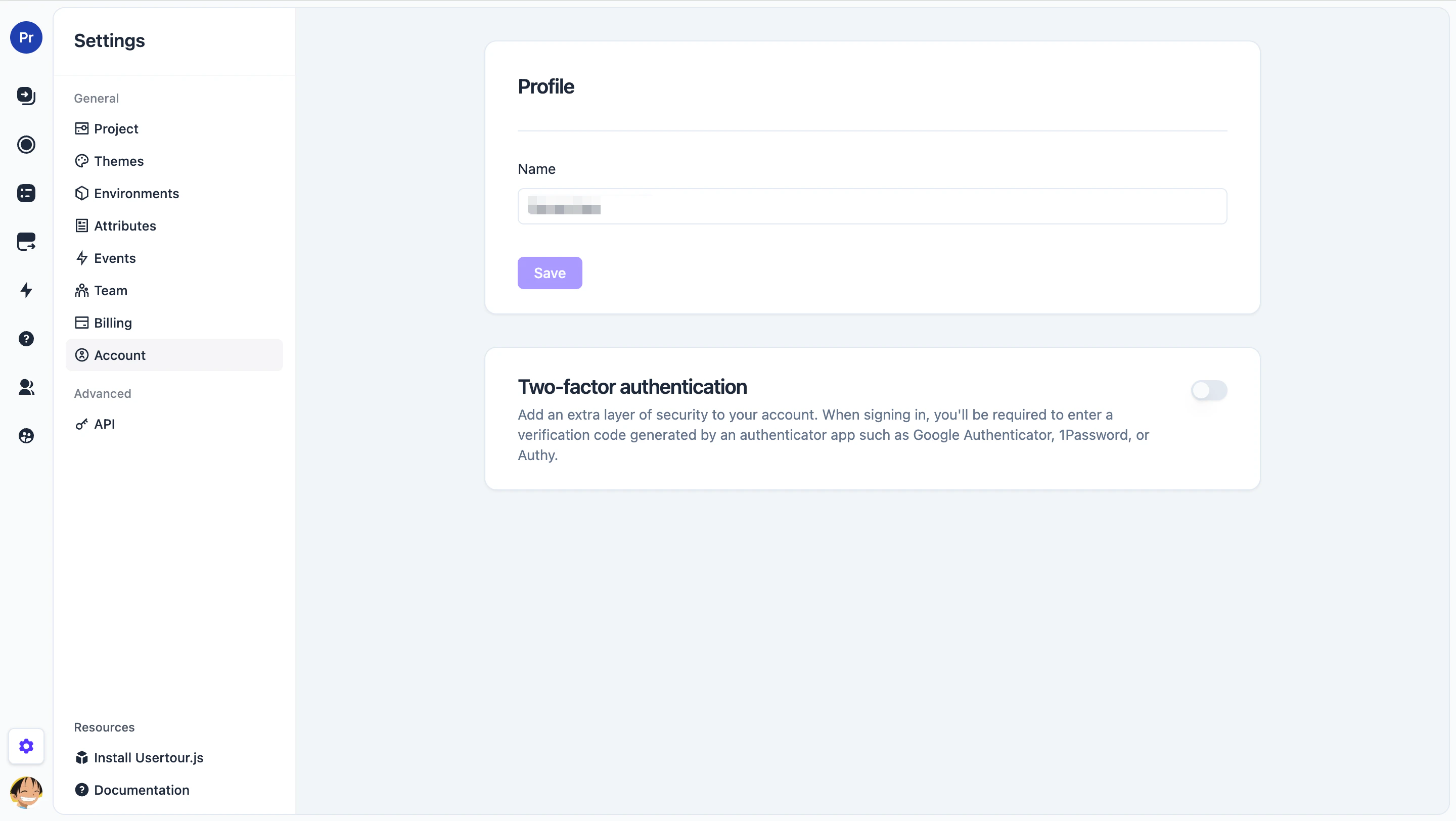
1. Go to **Settings → Account**.
2. Find the **Two-factor authentication** section and turn the toggle on.
 ### Step 1 — Scan the QR code
Open your authenticator app and scan the QR code shown in the setup dialog. If your app doesn't support scanning, click **Can't scan? Enter this code manually** to copy the secret as text.
### Step 1 — Scan the QR code
Open your authenticator app and scan the QR code shown in the setup dialog. If your app doesn't support scanning, click **Can't scan? Enter this code manually** to copy the secret as text.
 ### Step 2 — Enter the verification code
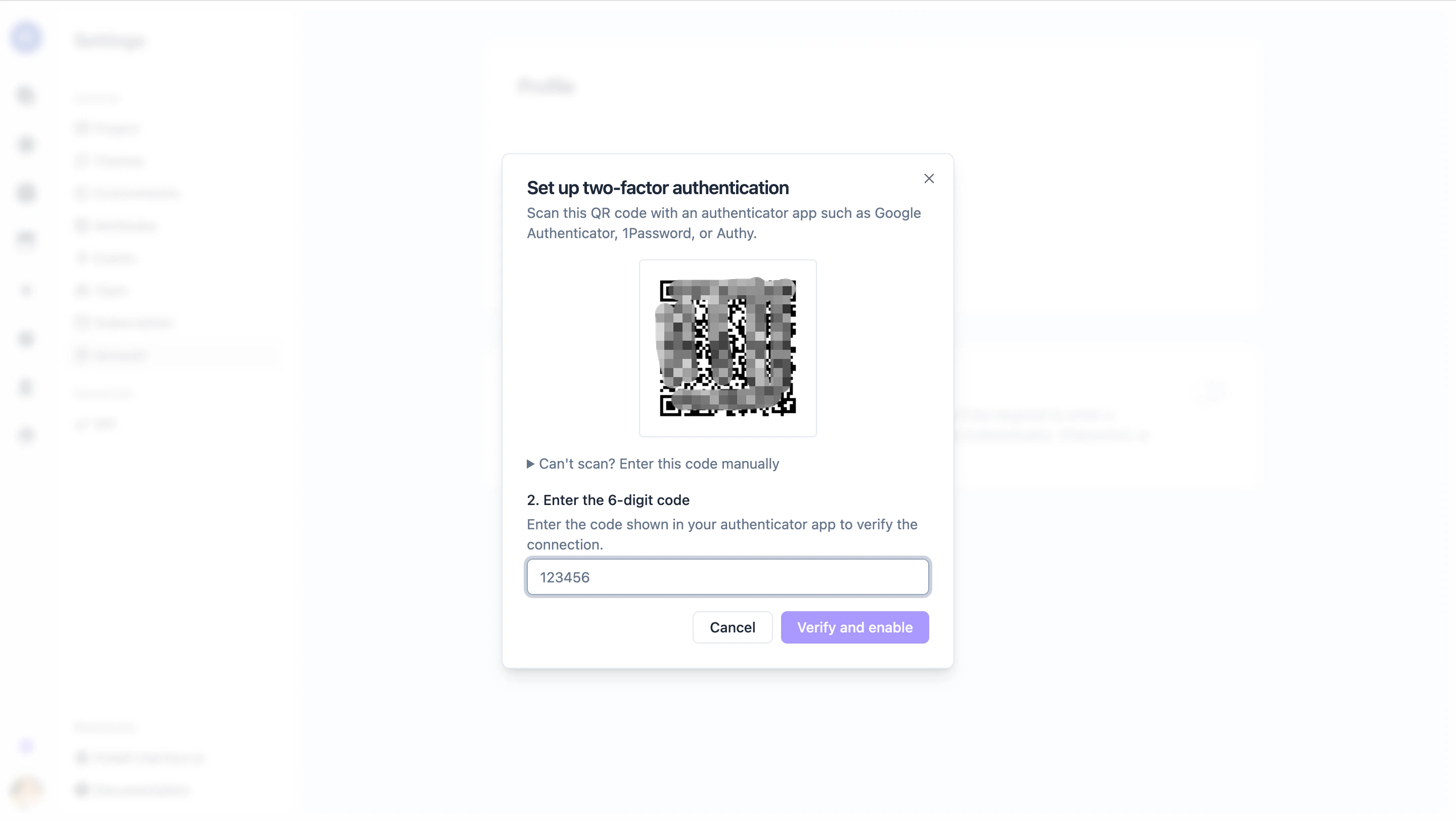
Type the six-digit code your authenticator app shows for Usertour, then click **Verify and enable**.
### Step 2 — Enter the verification code
Type the six-digit code your authenticator app shows for Usertour, then click **Verify and enable**.
 ### Step 3 — Save your recovery codes
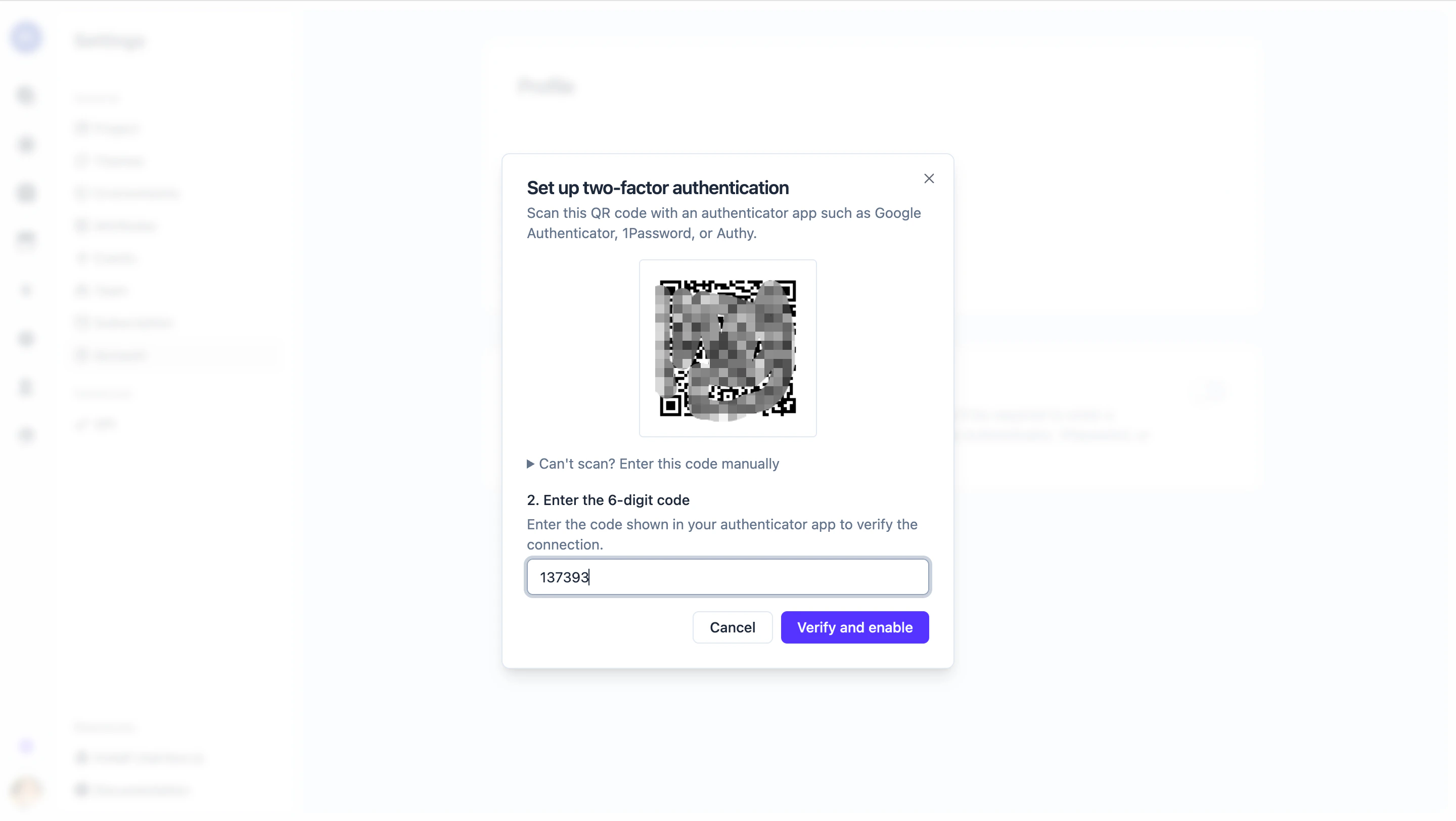
Usertour shows ten one-time **recovery codes**. Each can be used once if you lose access to your authenticator app.
* Click **Download** to save them as a text file, or **Copy all** to put them on the clipboard.
* Tick **I have saved my recovery codes** to unlock the **Finish** button.
### Step 3 — Save your recovery codes
Usertour shows ten one-time **recovery codes**. Each can be used once if you lose access to your authenticator app.
* Click **Download** to save them as a text file, or **Copy all** to put them on the clipboard.
* Tick **I have saved my recovery codes** to unlock the **Finish** button.
 Recovery codes are shown **once**. Store them somewhere safe — a password
manager is a good fit. If you lose them **and** lose access to your
authenticator app, you will need an administrator to help you back in.
## Sign in with 2FA
After 2FA is enabled, the sign-in flow has one extra step:
1. Enter your email and password (or use Google / GitHub).
2. On the next screen, enter the six-digit code from your authenticator app and click **Verify**.
Recovery codes are shown **once**. Store them somewhere safe — a password
manager is a good fit. If you lose them **and** lose access to your
authenticator app, you will need an administrator to help you back in.
## Sign in with 2FA
After 2FA is enabled, the sign-in flow has one extra step:
1. Enter your email and password (or use Google / GitHub).
2. On the next screen, enter the six-digit code from your authenticator app and click **Verify**.
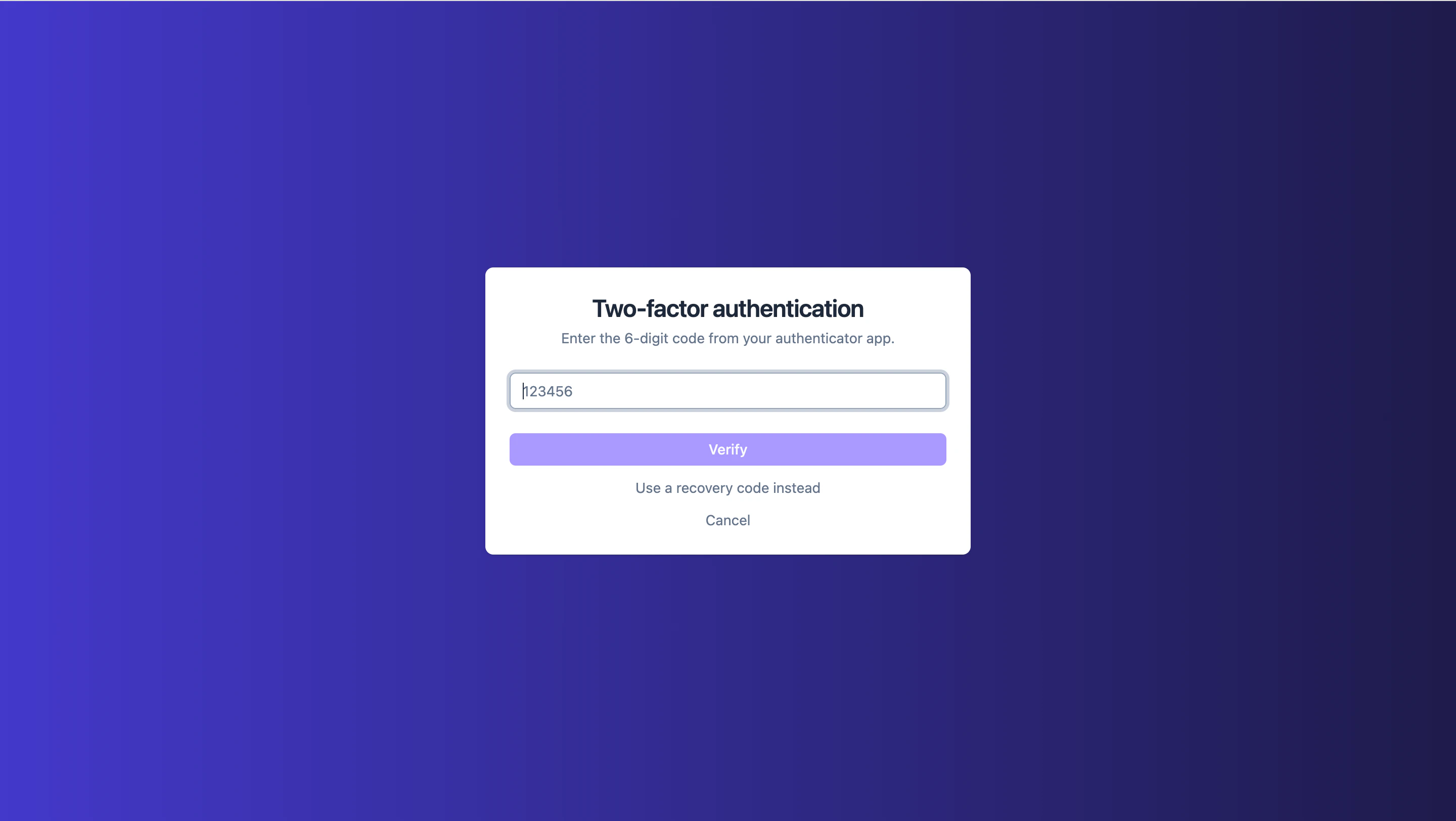 ### Use a recovery code instead
If you don't have your authenticator handy, click **Use a recovery code instead** on the verification screen and paste one of the codes you saved during setup.
### Use a recovery code instead
If you don't have your authenticator handy, click **Use a recovery code instead** on the verification screen and paste one of the codes you saved during setup.
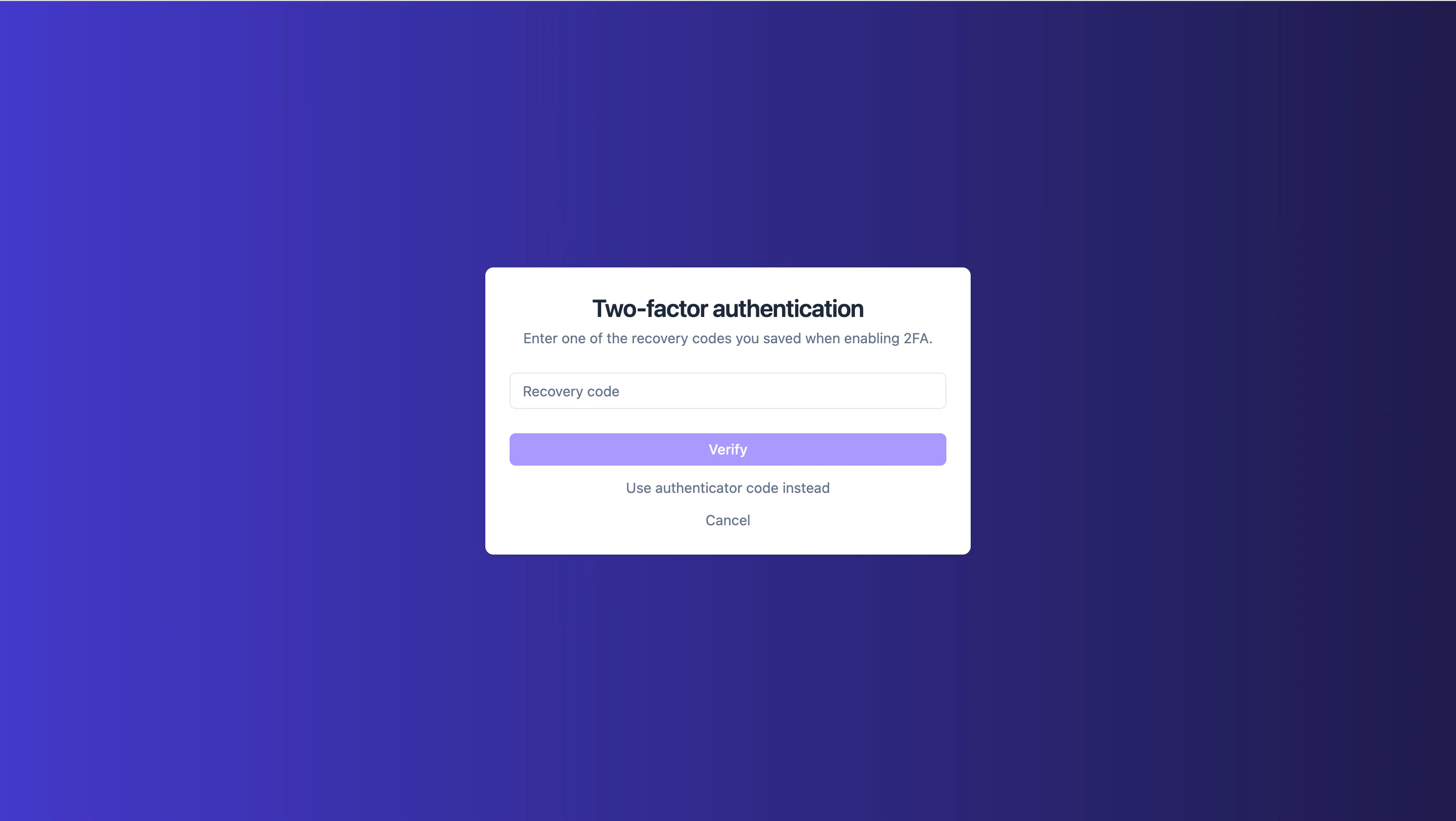 Each recovery code works **once**. We recommend [regenerating the list](#regenerate-recovery-codes) when you've used most of them.
## Regenerate recovery codes
If you've used most of your codes, or you think the list may have been exposed:
1. Open **Settings → Account → Two-factor authentication**.
2. Click **Regenerate recovery codes**.
3. Enter a current authenticator code to confirm.
4. Save the new list — the previous codes stop working immediately.
Each recovery code works **once**. We recommend [regenerating the list](#regenerate-recovery-codes) when you've used most of them.
## Regenerate recovery codes
If you've used most of your codes, or you think the list may have been exposed:
1. Open **Settings → Account → Two-factor authentication**.
2. Click **Regenerate recovery codes**.
3. Enter a current authenticator code to confirm.
4. Save the new list — the previous codes stop working immediately.
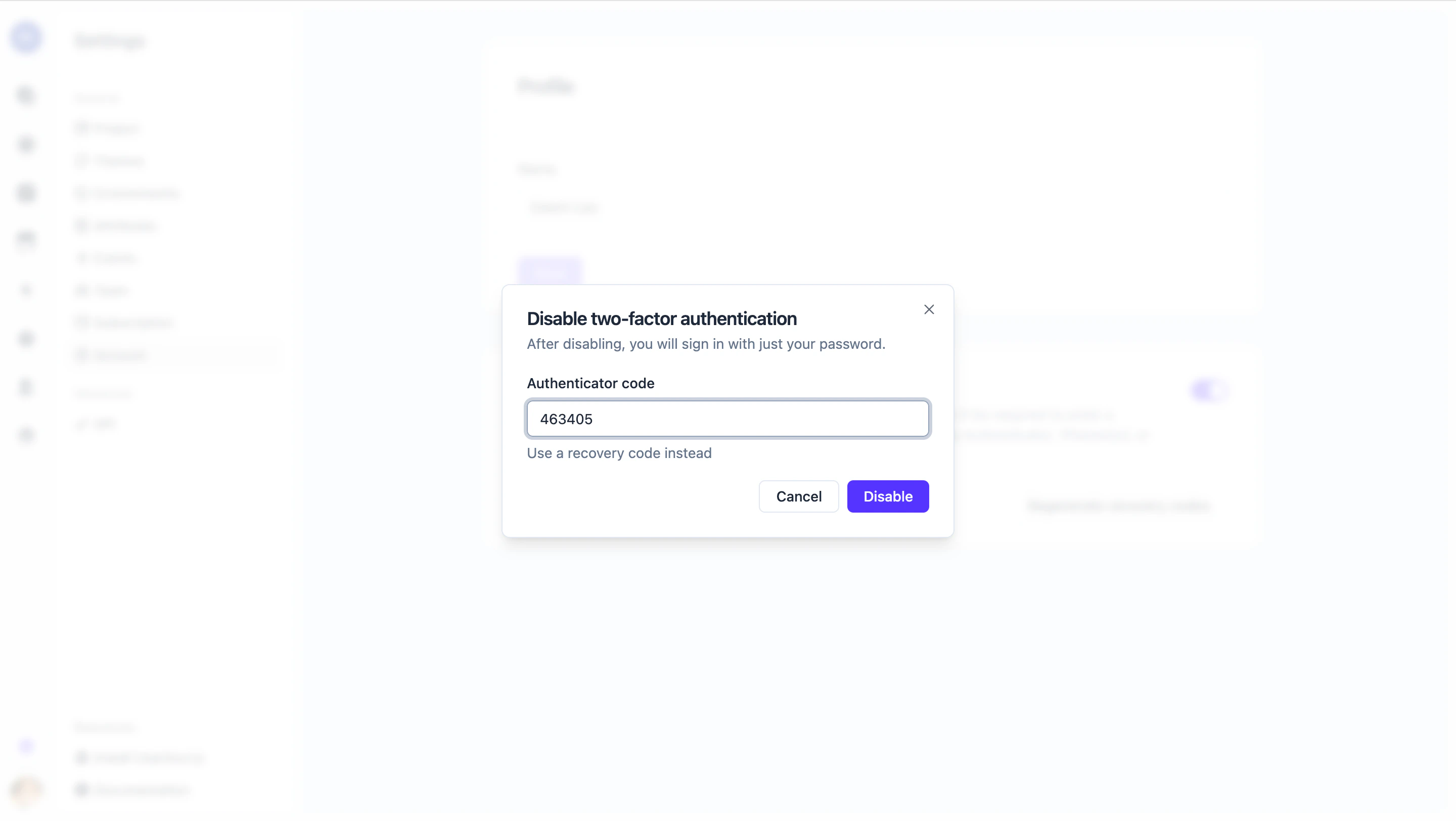
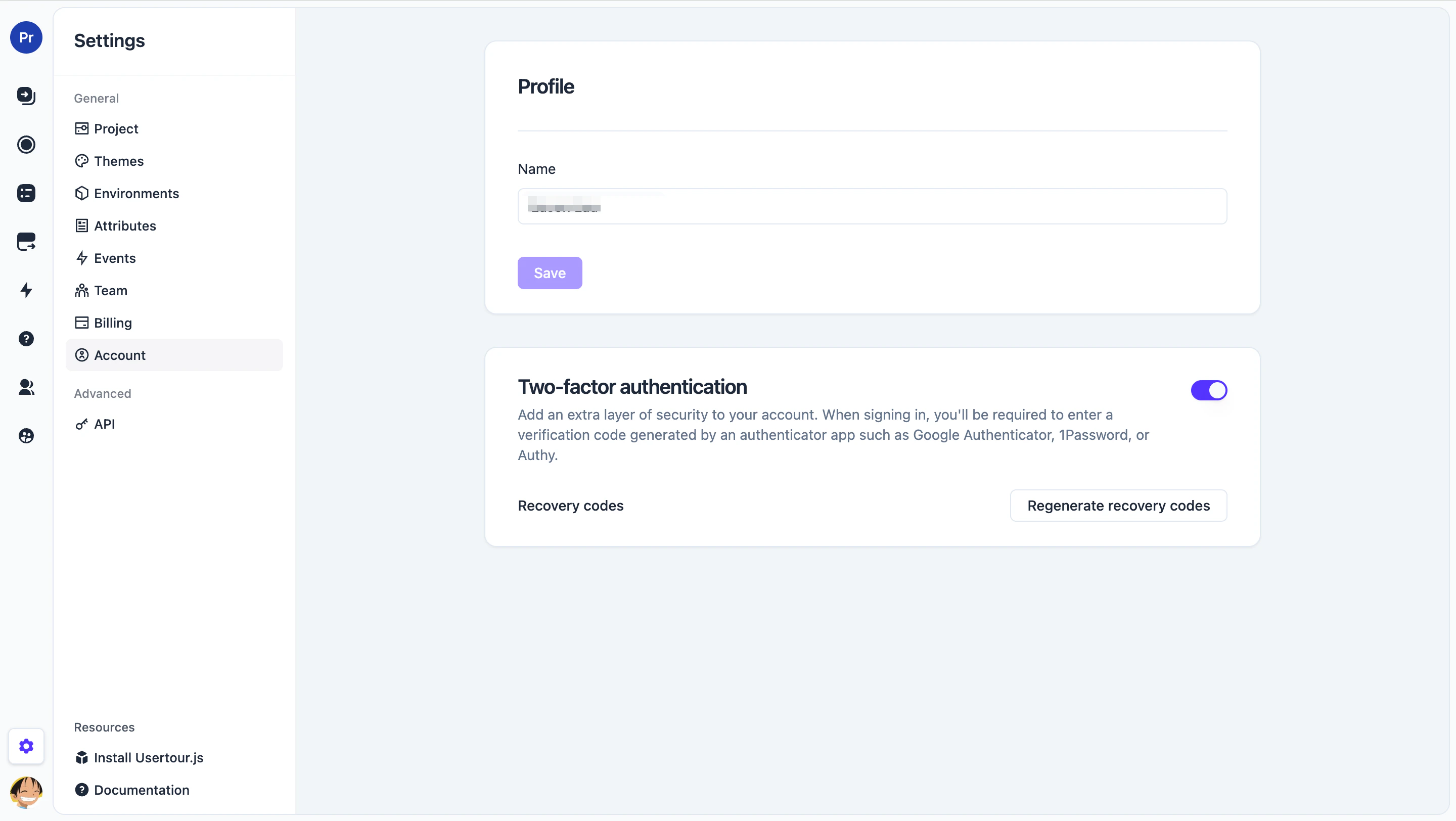 ## Disable 2FA
1. Open **Settings → Account → Two-factor authentication**.
2. Turn the toggle off.
3. Enter a current authenticator code (or a recovery code) to confirm.
## Disable 2FA
1. Open **Settings → Account → Two-factor authentication**.
2. Turn the toggle off.
3. Enter a current authenticator code (or a recovery code) to confirm.
 On self-hosted deployments, if your instance administrator has turned on
**Require 2FA for all users**, the disable toggle is locked. See [Two-factor
authentication in System
Admin](/open-source/system-admin#two-factor-authentication) for details.
## Lost your authenticator app?
* **If you still have a recovery code**, sign in with it (see [Use a recovery code instead](#use-a-recovery-code-instead)), then **regenerate recovery codes** and re-enable 2FA on your new device.
* **If you have no recovery codes left**, contact your account administrator. On self-hosted deployments, a System Admin can reset 2FA on your account directly in the database — see [Emergency 2FA reset](/open-source/system-admin#emergency-2fa-reset).
On self-hosted deployments, if your instance administrator has turned on
**Require 2FA for all users**, the disable toggle is locked. See [Two-factor
authentication in System
Admin](/open-source/system-admin#two-factor-authentication) for details.
## Lost your authenticator app?
* **If you still have a recovery code**, sign in with it (see [Use a recovery code instead](#use-a-recovery-code-instead)), then **regenerate recovery codes** and re-enable 2FA on your new device.
* **If you have no recovery codes left**, contact your account administrator. On self-hosted deployments, a System Admin can reset 2FA on your account directly in the database — see [Emergency 2FA reset](/open-source/system-admin#emergency-2fa-reset).