> ## Documentation Index
> Fetch the complete documentation index at: https://docs.usertour.io/llms.txt
> Use this file to discover all available pages before exploring further.
# Users and Segments
> Learn how to manage users and create targeted segments for personalized experiences
## Overview
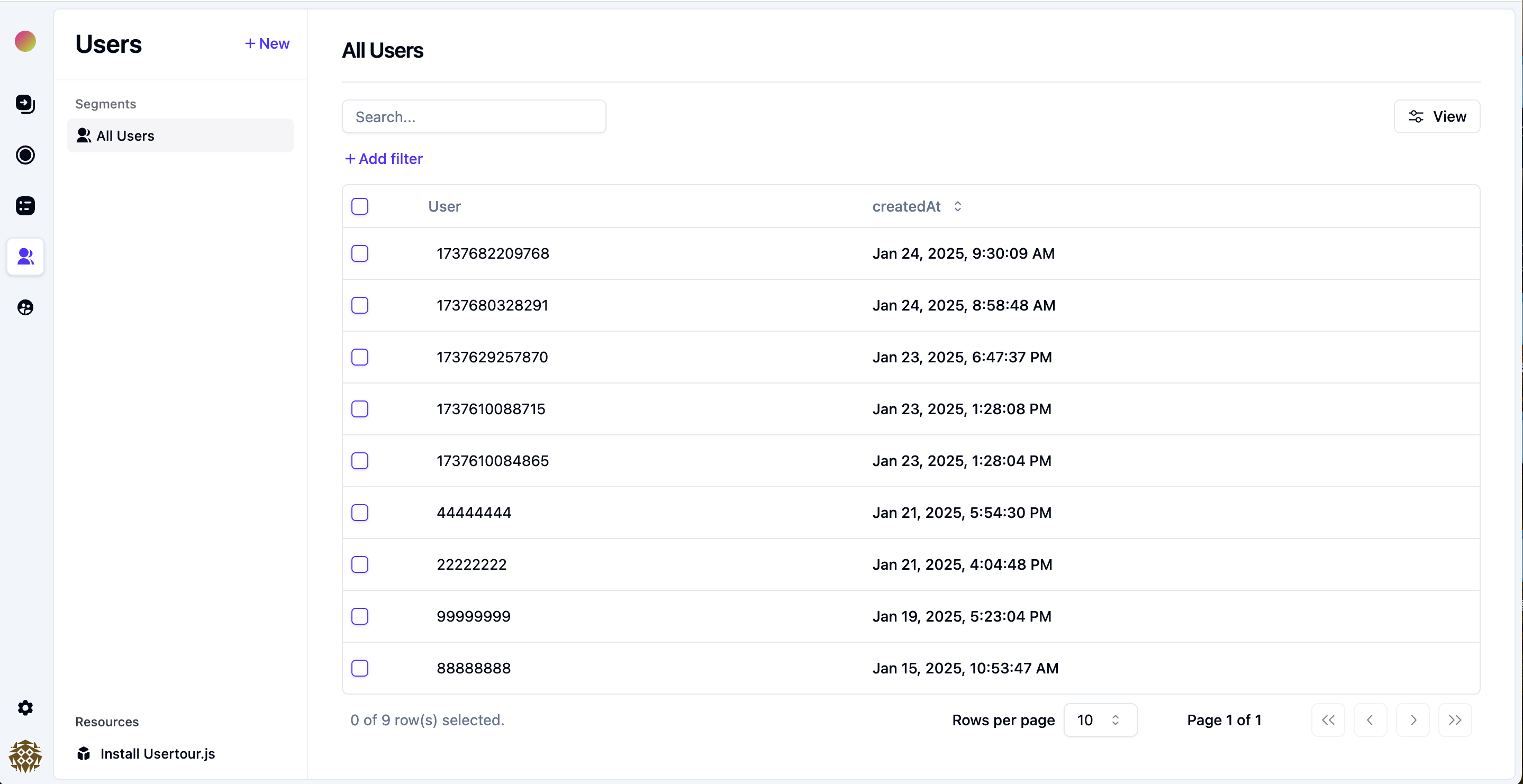
Want to know who's using your product and how they're using it? The Users page is your window into user behavior. It shows you everyone who's been identified by Usertour in your application, making it easy to:
* See who's active
* Understand user patterns
* Create targeted experiences
* Track engagement
* Personalize your approach
 ## Understanding User Segments
Think of segments as different groups of users you want to target. We offer three ways to create these groups:
### Default Segments
These are your ready-to-use segments, like "All users". They're created automatically and can't be changed - perfect for broad targeting.
### Attribute-Based Segments
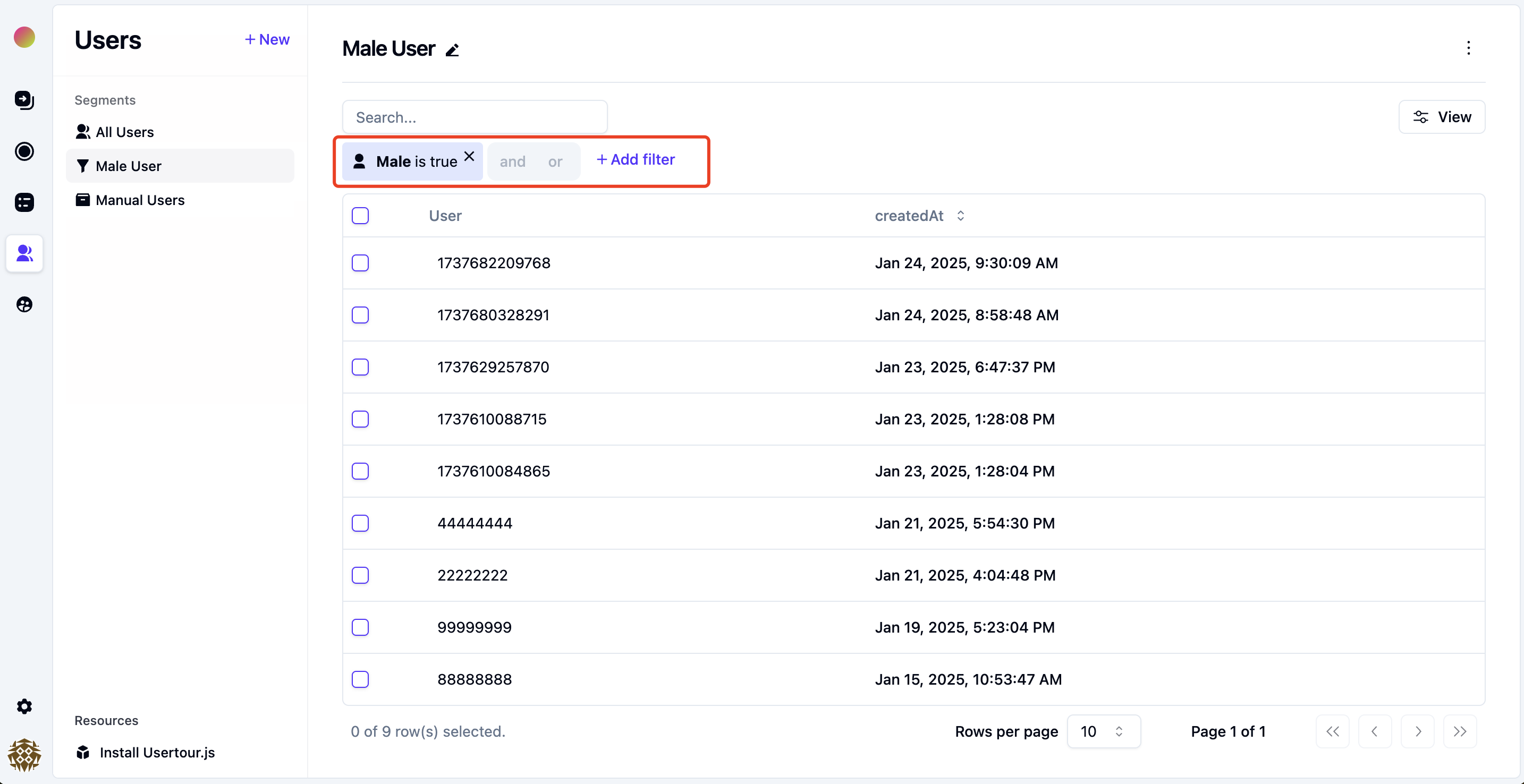
Need to target users based on specific characteristics? This is where you'll create segments based on user or company attributes:
1. Head to the Users page
2. Look for the filter panel on the left
3. Pick the attributes you want to filter by
4. Choose which columns to show
5. Hit **Save segment** to either update an existing one or create a new one
## Understanding User Segments
Think of segments as different groups of users you want to target. We offer three ways to create these groups:
### Default Segments
These are your ready-to-use segments, like "All users". They're created automatically and can't be changed - perfect for broad targeting.
### Attribute-Based Segments
Need to target users based on specific characteristics? This is where you'll create segments based on user or company attributes:
1. Head to the Users page
2. Look for the filter panel on the left
3. Pick the attributes you want to filter by
4. Choose which columns to show
5. Hit **Save segment** to either update an existing one or create a new one
 > **Heads up**: If you're using `identify()` in `usertour.js`, remember that User ID and Company ID aren't automatically created as attributes. To use them in filters, you'll need to send them as attributes in the second argument.
### Manual Segments
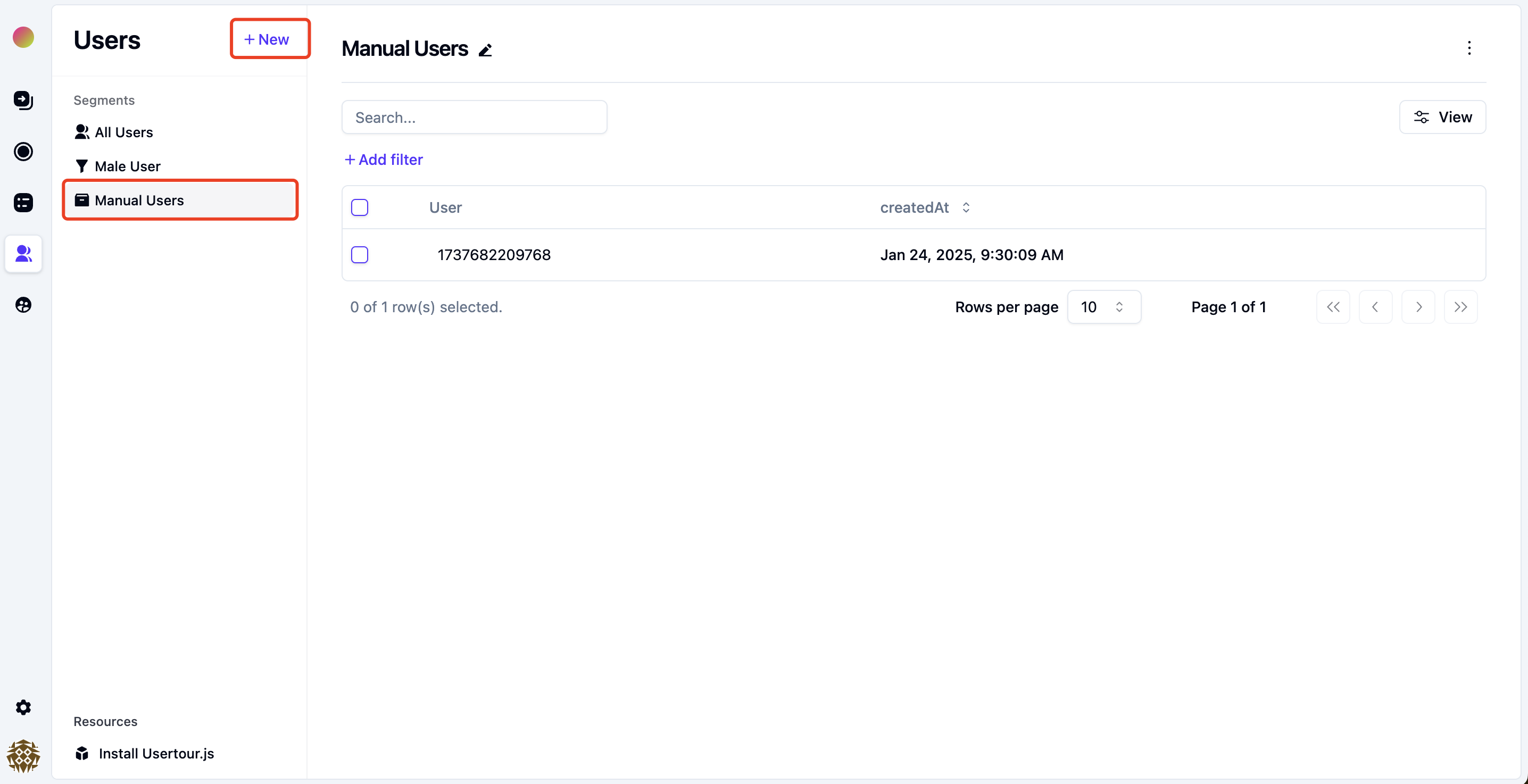
Got a list of specific users you want to target? Maybe from a spreadsheet or your CRM? Manual segments are perfect for this:
1. Click the **+ New** button above the segment list
2. Pick your users from the list
3. Match them by email or user ID
4. Save and you're done!
> **Heads up**: If you're using `identify()` in `usertour.js`, remember that User ID and Company ID aren't automatically created as attributes. To use them in filters, you'll need to send them as attributes in the second argument.
### Manual Segments
Got a list of specific users you want to target? Maybe from a spreadsheet or your CRM? Manual segments are perfect for this:
1. Click the **+ New** button above the segment list
2. Pick your users from the list
3. Match them by email or user ID
4. Save and you're done!
 #### Add Users to Manual Segments
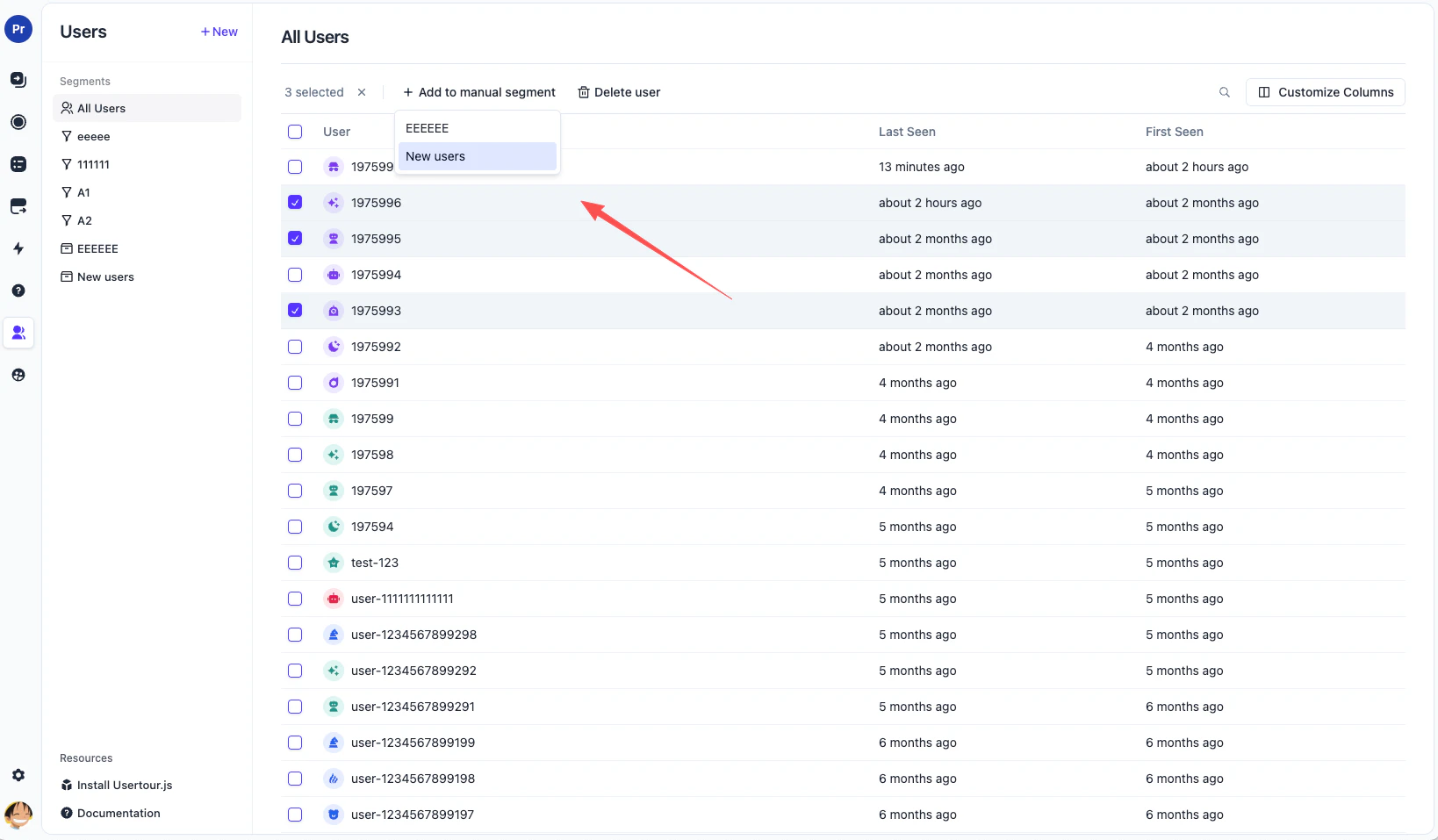
Need to add more users to a manual segment later? You can do that directly from the Users list:
1. Go to the Users page
2. Select one or more users using the checkboxes
3. Click **Add to manual segment** above the table
4. Choose the manual segment you want to update
5. Confirm to add the selected users
#### Add Users to Manual Segments
Need to add more users to a manual segment later? You can do that directly from the Users list:
1. Go to the Users page
2. Select one or more users using the checkboxes
3. Click **Add to manual segment** above the table
4. Choose the manual segment you want to update
5. Confirm to add the selected users