> ## Documentation Index
> Fetch the complete documentation index at: https://docs.usertour.io/llms.txt
> Use this file to discover all available pages before exploring further.
# Deploy with Coolify
> Deploy Usertour using Coolify - a simple and fast way to get started
**Development/Testing Environment**:\
We strongly recommend using Docker Compose for development and testing environments. This provides a quick and easy setup with all dependencies included.
**Production Environment**:\
For production deployments, we do **not** recommend using Docker Compose with Redis and PostgreSQL included. Instead:
* Deploy Redis and PostgreSQL using cloud services (AWS, Google Cloud, etc.) or build your own infrastructure with high availability
* Deploy only the Usertour application using the published [Docker Hub](https://hub.docker.com/r/usertour/usertour/) image and configure Redis and PostgreSQL through environment variables
## Coolify Deployment Guide
### What is Coolify?
Coolify is an open-source, self-hostable platform-as-a-service (PaaS) that simplifies the deployment of applications. It provides a user-friendly interface for managing Docker containers, databases, and other services.
### Prerequisites
Before deploying Usertour with Coolify, ensure you have a Coolify instance running (see [Coolify installation guide](https://coolify.io/docs/installation)).
### Deployment Steps
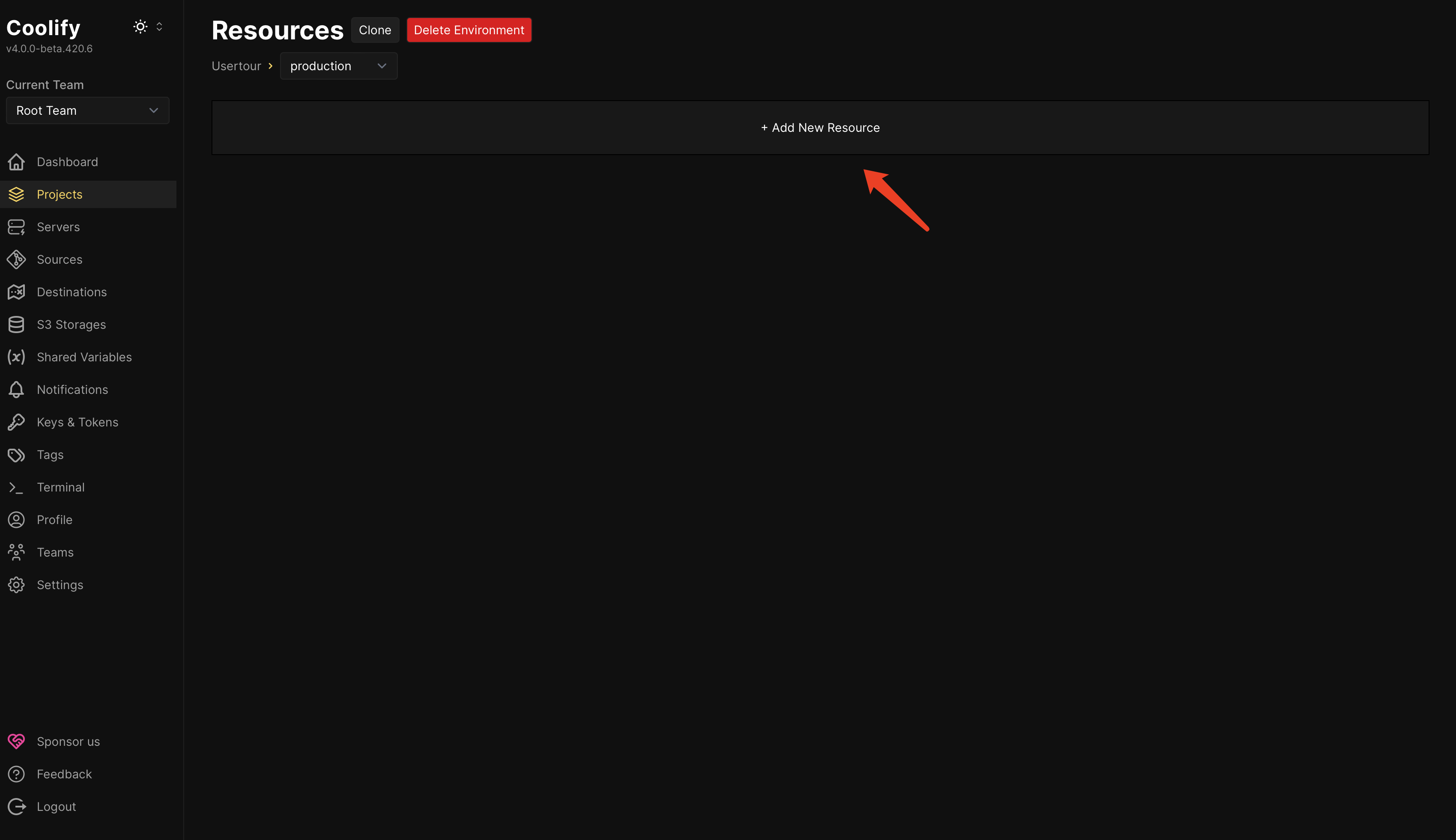
1. **Create a New Resource in Coolify**
Navigate to your Coolify dashboard, open your project, and click the **Add New Resource** button.
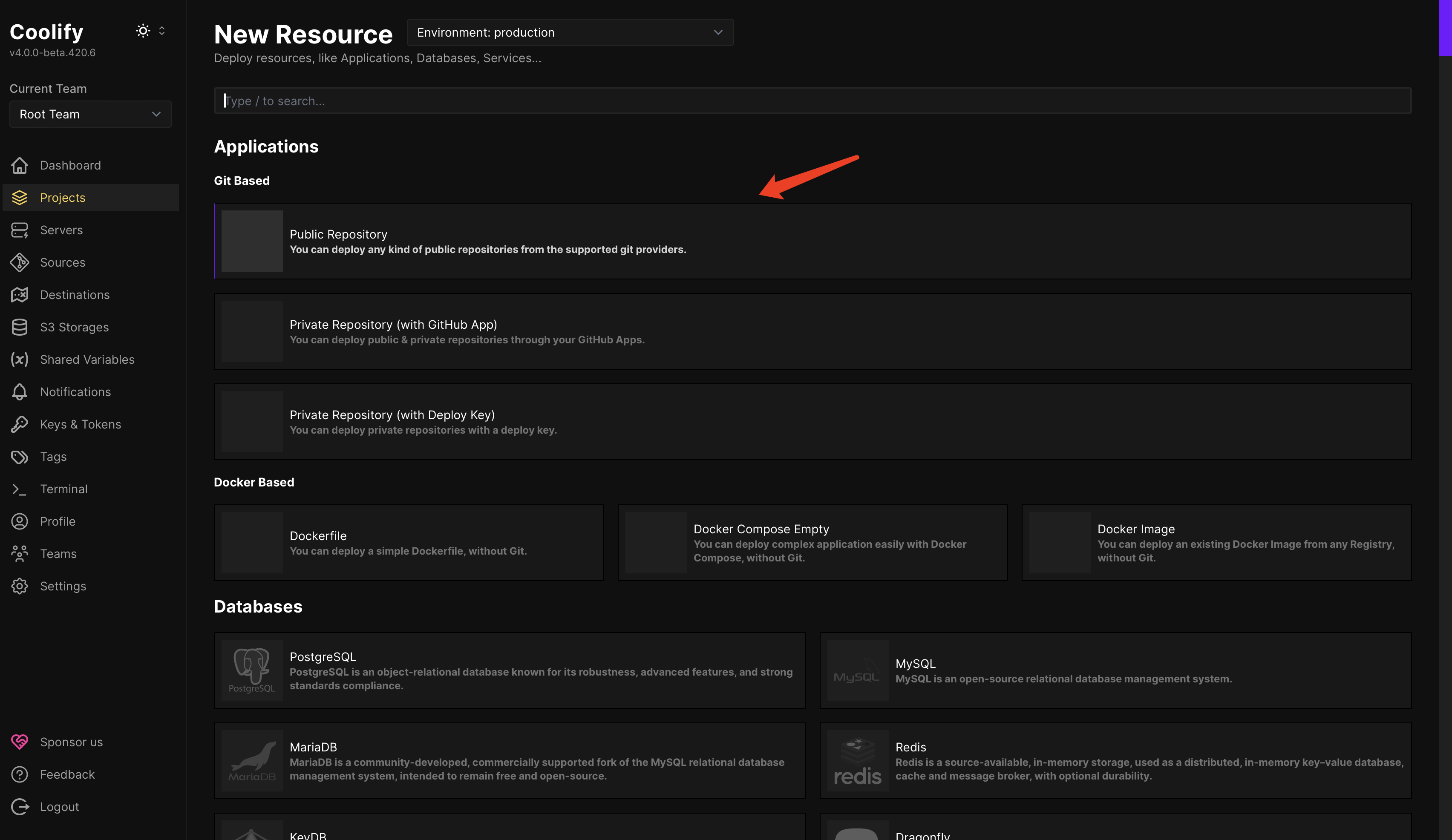
 2. **Select Deployment Method**
Choose **Public Repository** as your deployment option.
If you're using your own repository, please select **Public Repository** or **Private Repository** based on your repository's visibility settings.
2. **Select Deployment Method**
Choose **Public Repository** as your deployment option.
If you're using your own repository, please select **Public Repository** or **Private Repository** based on your repository's visibility settings.
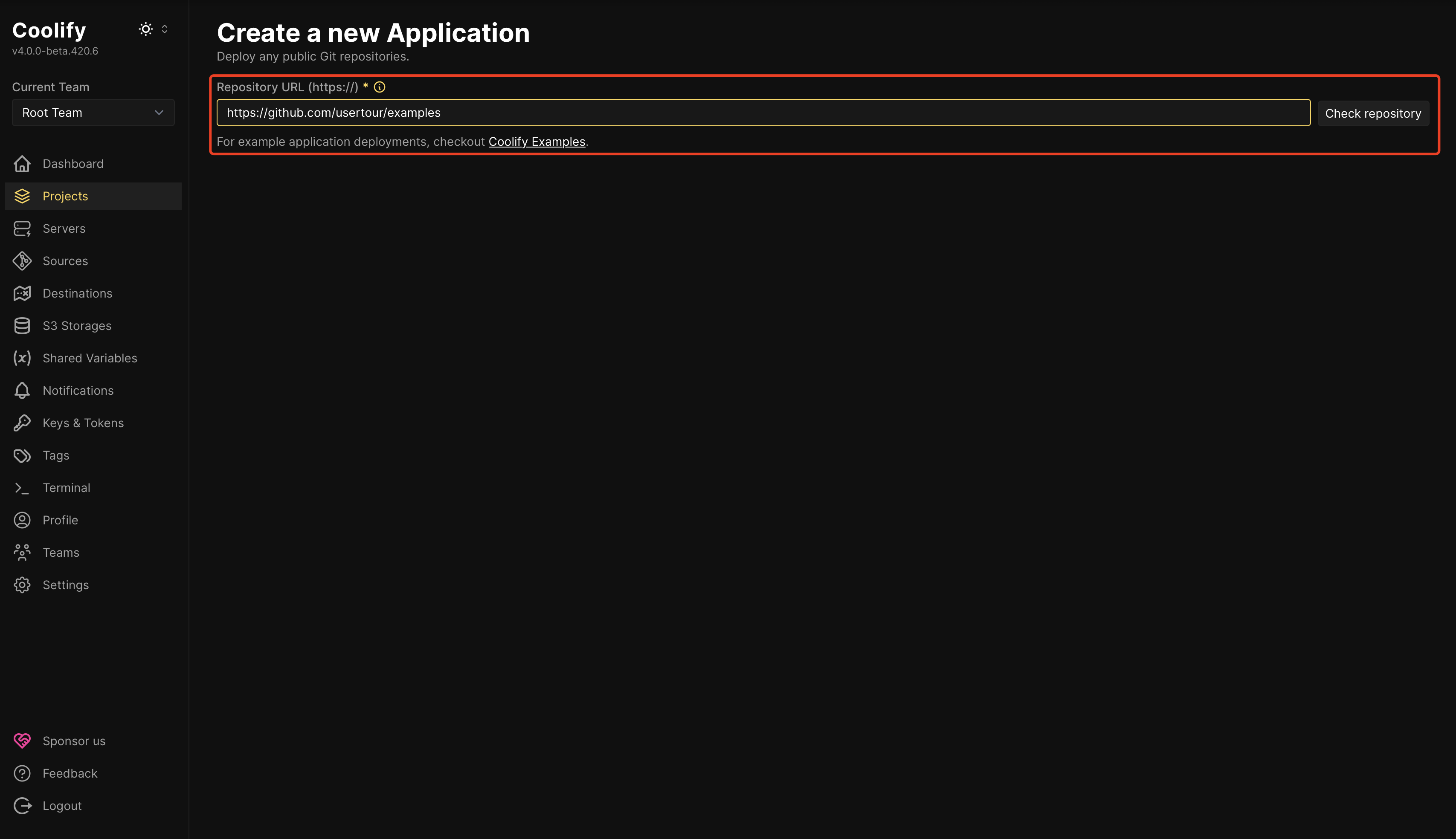
 3. **Configure Repository URL**
Enter the following repository URL (this is an example, we recommend using your own configuration):
```
https://github.com/usertour/examples
```
Then click **Check repository** to validate the connection.
**Recommendation**: We suggest cloning the code to your own repository and maintaining the configuration yourself for better control and customization.
3. **Configure Repository URL**
Enter the following repository URL (this is an example, we recommend using your own configuration):
```
https://github.com/usertour/examples
```
Then click **Check repository** to validate the connection.
**Recommendation**: We suggest cloning the code to your own repository and maintaining the configuration yourself for better control and customization.
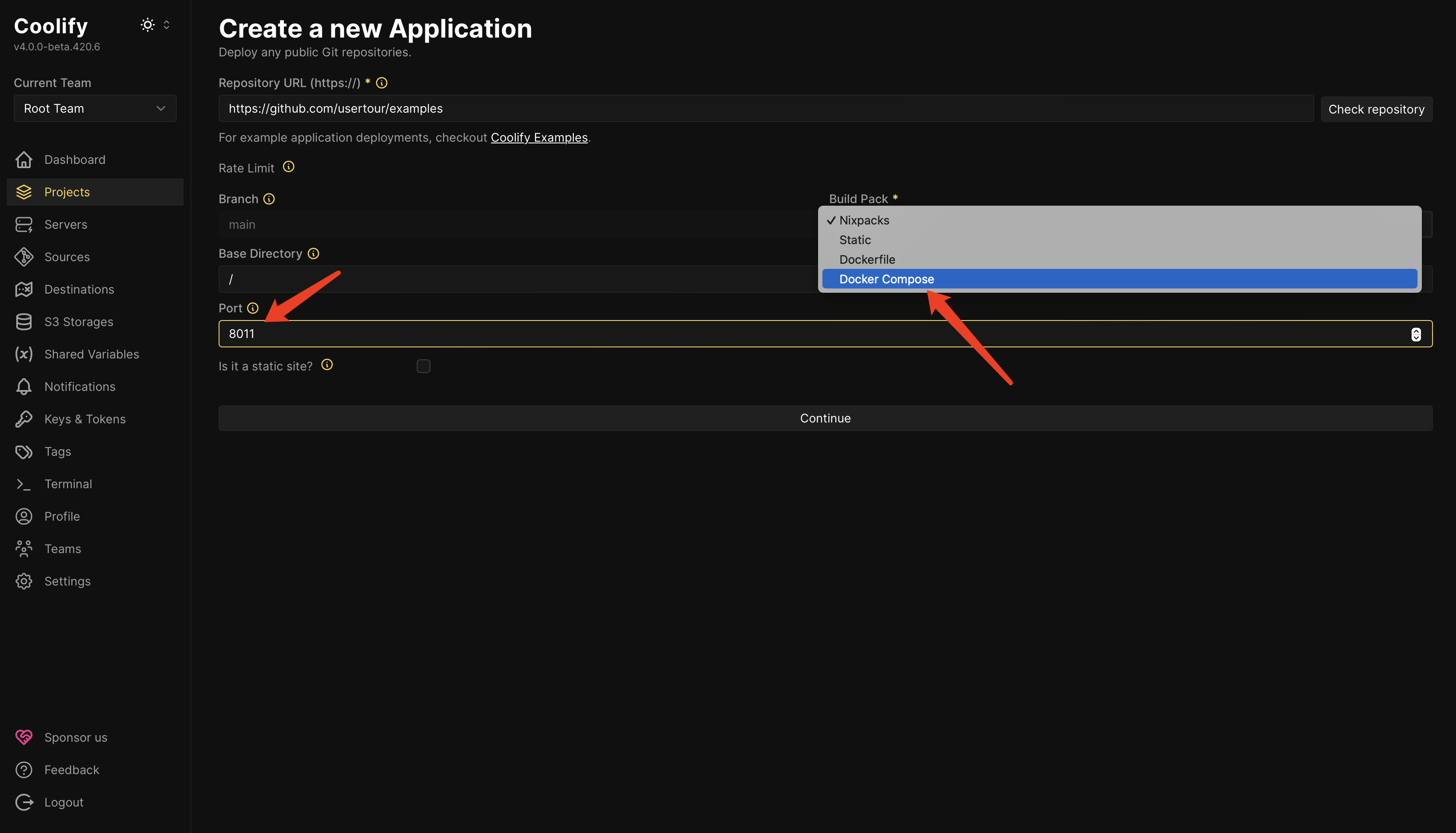
 4. **Select Build Pack**
Choose **Docker Compose** as your build pack and click the **Continue** button.
You can also choose **Dockerfile** to deploy only Usertour (without Redis and PostgreSQL).
4. **Select Build Pack**
Choose **Docker Compose** as your build pack and click the **Continue** button.
You can also choose **Dockerfile** to deploy only Usertour (without Redis and PostgreSQL).
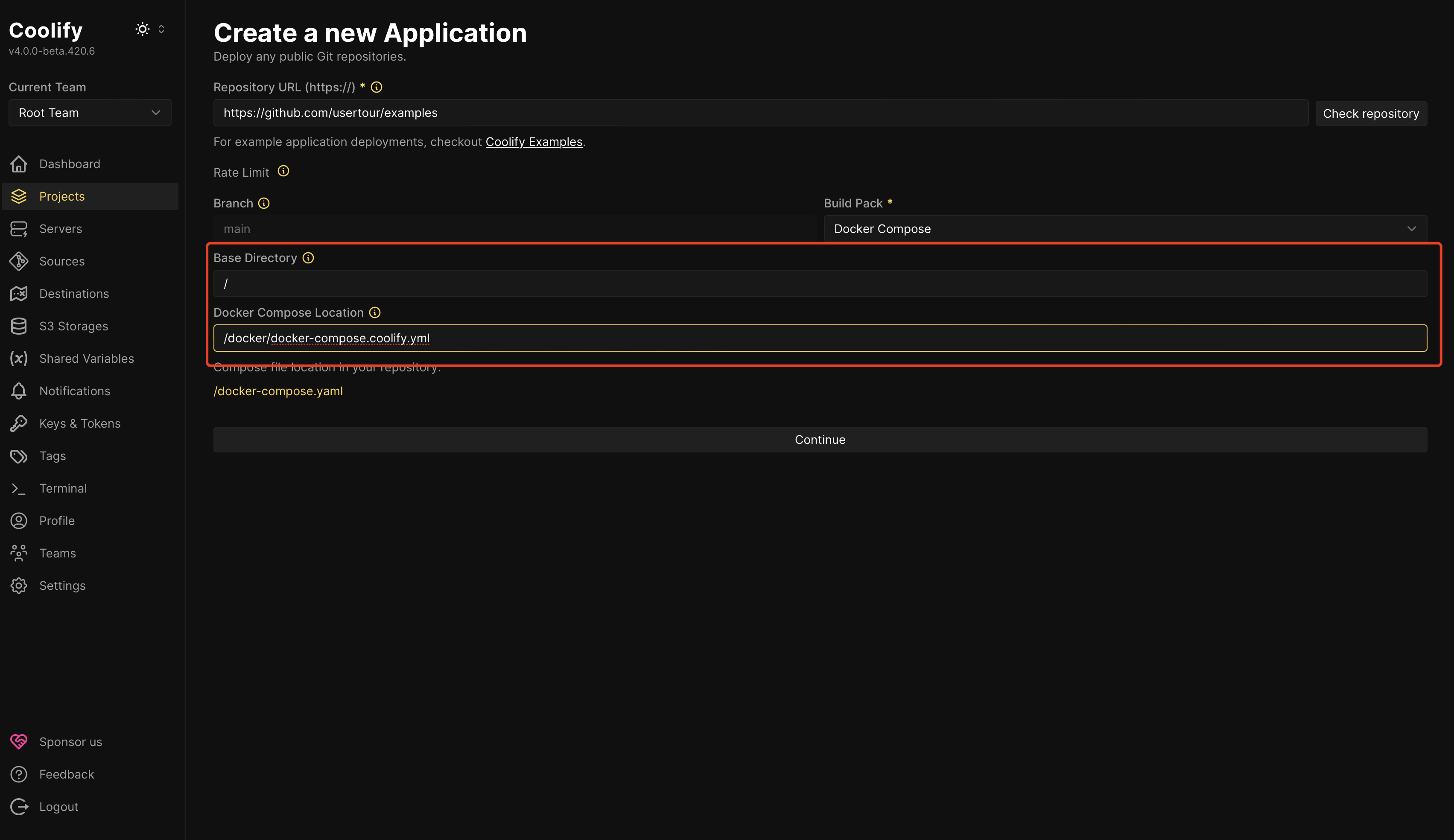
 5. **Configure Docker Compose Location**
Update the **Docker Compose location** to:
```
/docker/docker-compose.coolify.yml
```
If you're using your own repository, please configure this path according to your repository's directory structure.
5. **Configure Docker Compose Location**
Update the **Docker Compose location** to:
```
/docker/docker-compose.coolify.yml
```
If you're using your own repository, please configure this path according to your repository's directory structure.
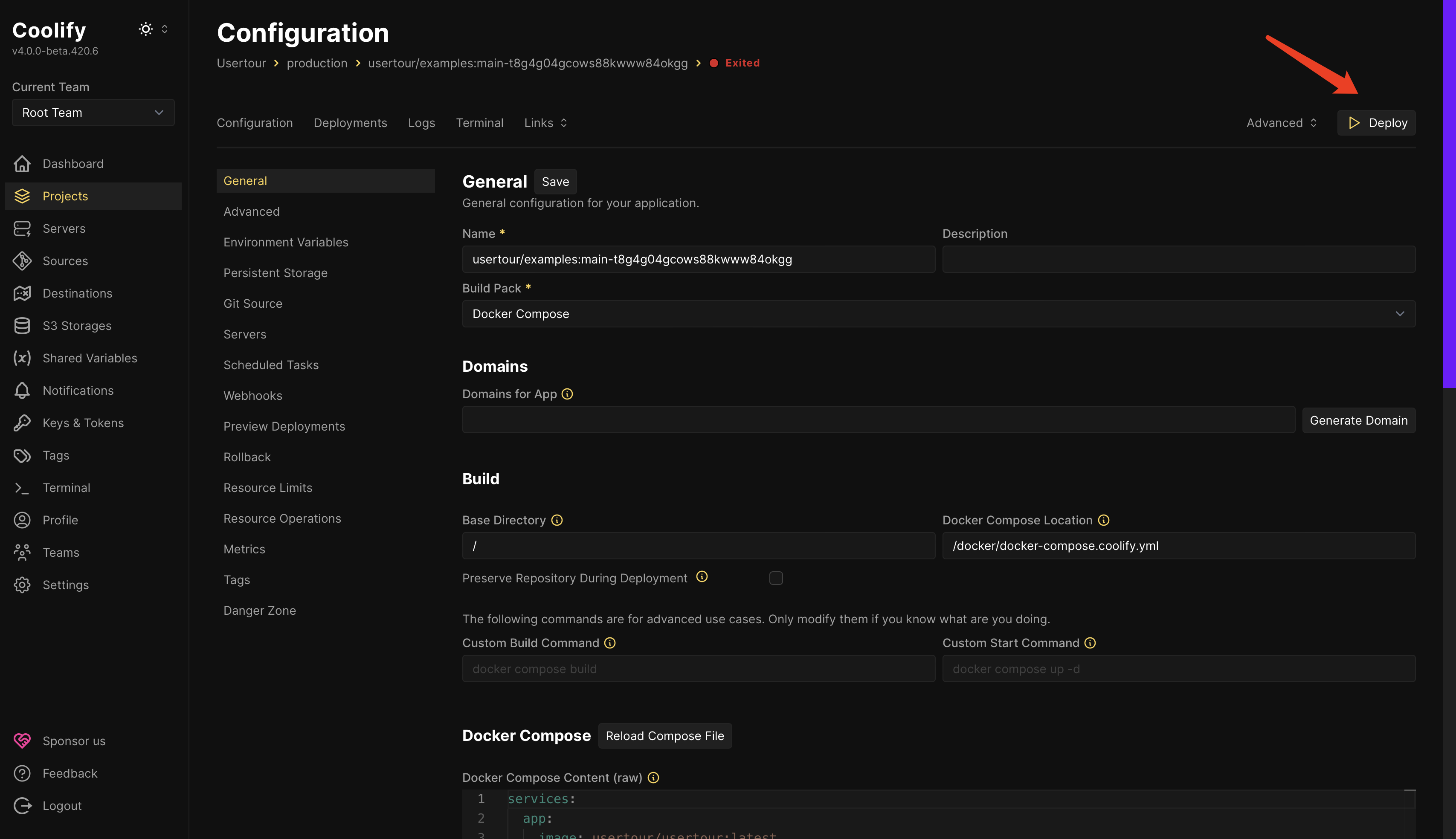
 6. **Initiate Deployment**
Click the **Deploy** button to start the deployment process.
6. **Initiate Deployment**
Click the **Deploy** button to start the deployment process.
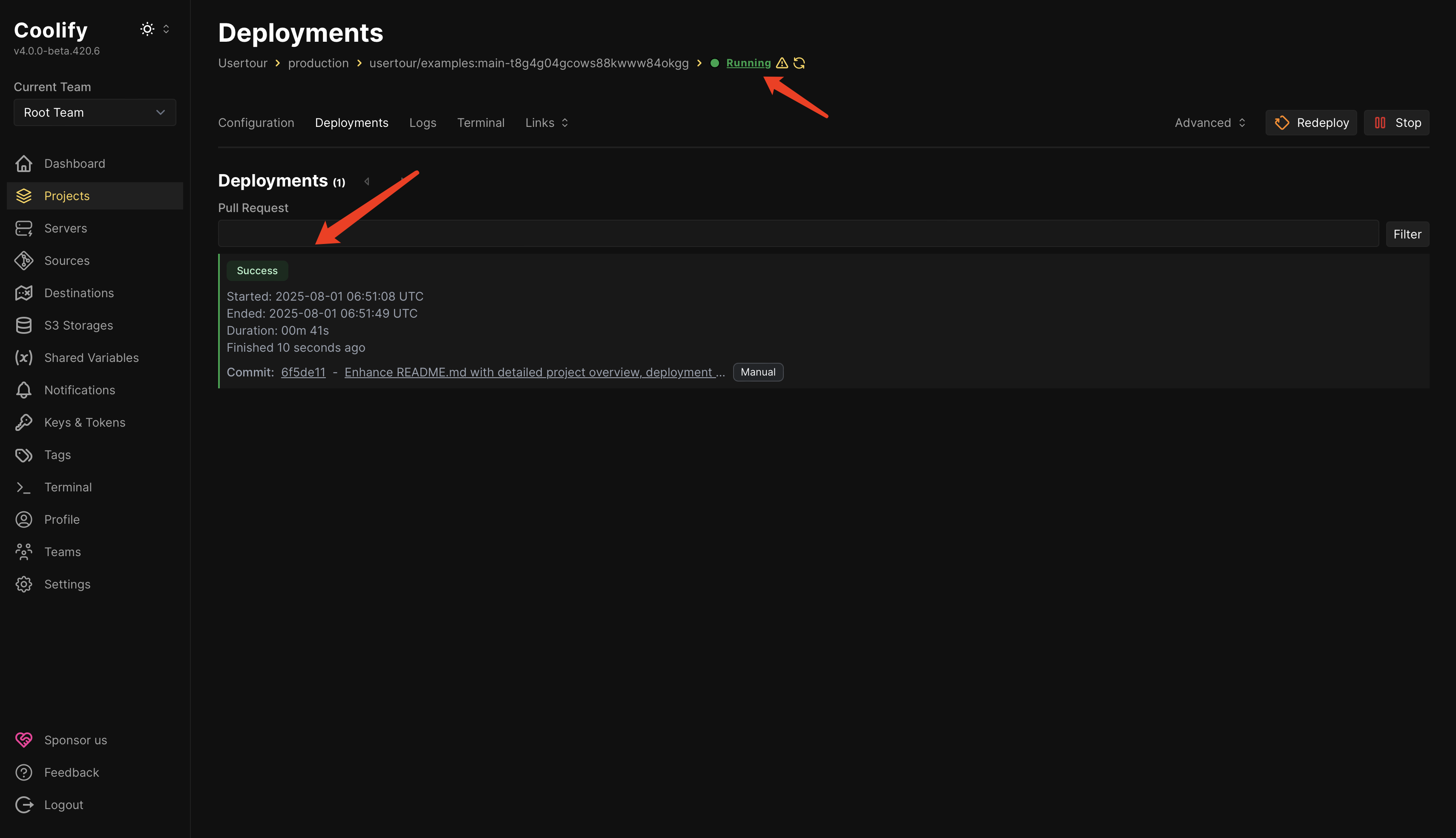
 7. **Verify Deployment Status**
Once deployment completes successfully, you should see:
* Green **Running** status
* **Deployments** showing **success**
7. **Verify Deployment Status**
Once deployment completes successfully, you should see:
* Green **Running** status
* **Deployments** showing **success**
 ### Accessing Usertour
1. **Initial Access**
* Navigate to `http://:8011` or your configured domain and port
* Note: Usertour runs on HTTP by default. For HTTPS, you'll need to set up a reverse proxy
2. **Set up the first admin account**
* Open the site in your browser
* On a fresh self-hosted deployment, Usertour will guide you to create the first **System Admin** account
* After setup, sign in with that account and open **System Admin** from the account menu
3. **Upgrading older deployments**
* If you are upgrading from an older self-hosted version and do not yet have a **System Admin**, assign one manually before signing in
* A PostgreSQL example is available in the [System Admin guide](/open-source/system-admin)
* If you are running version `0.5.0` or earlier, the seeded bootstrap admin is still `lisa@simpson.com` with password `secret42`
### Next Steps
Review the [System Admin guide](/open-source/system-admin) to configure instance settings, authentication, subscription, users, and projects.
To enable content delivery and user tracking, install Usertour.js in your application. See the [Usertour.js installation guide](/open-source/usertourjs) for detailed instructions.
### Accessing Usertour
1. **Initial Access**
* Navigate to `http://:8011` or your configured domain and port
* Note: Usertour runs on HTTP by default. For HTTPS, you'll need to set up a reverse proxy
2. **Set up the first admin account**
* Open the site in your browser
* On a fresh self-hosted deployment, Usertour will guide you to create the first **System Admin** account
* After setup, sign in with that account and open **System Admin** from the account menu
3. **Upgrading older deployments**
* If you are upgrading from an older self-hosted version and do not yet have a **System Admin**, assign one manually before signing in
* A PostgreSQL example is available in the [System Admin guide](/open-source/system-admin)
* If you are running version `0.5.0` or earlier, the seeded bootstrap admin is still `lisa@simpson.com` with password `secret42`
### Next Steps
Review the [System Admin guide](/open-source/system-admin) to configure instance settings, authentication, subscription, users, and projects.
To enable content delivery and user tracking, install Usertour.js in your application. See the [Usertour.js installation guide](/open-source/usertourjs) for detailed instructions.