> ## Documentation Index
> Fetch the complete documentation index at: https://docs.usertour.io/llms.txt
> Use this file to discover all available pages before exploring further.
# License Management
> Manage instance-level and project-level licenses for self-hosted Usertour deployments
If you're running Usertour in self-hosted mode, there are two ways to license it:
* **instance-level licenses**
* **project-level licenses**
In most cases, you'll want to start with an **instance license**. It gives you one place to manage licensing for the whole deployment.
That said, **project licenses** are still useful when one project needs to be handled differently from the rest of the instance.
## Instance license
An instance license applies to the deployment as a whole. This is usually the cleanest setup for self-hosted teams, especially when you want one admin entry point instead of managing licensing project by project.
An instance license is usually the right choice when:
* you want one primary subscription entry point
* you want to manage licensing centrally as a system admin
* multiple projects should inherit licensing from the same deployment
### Entering an instance license
Starting from version `0.6.0`, self-hosted deployments include [**System Admin**](/open-source/system-admin). If you want to manage licensing at the instance level, go to:
* **System Admin > Subscription**
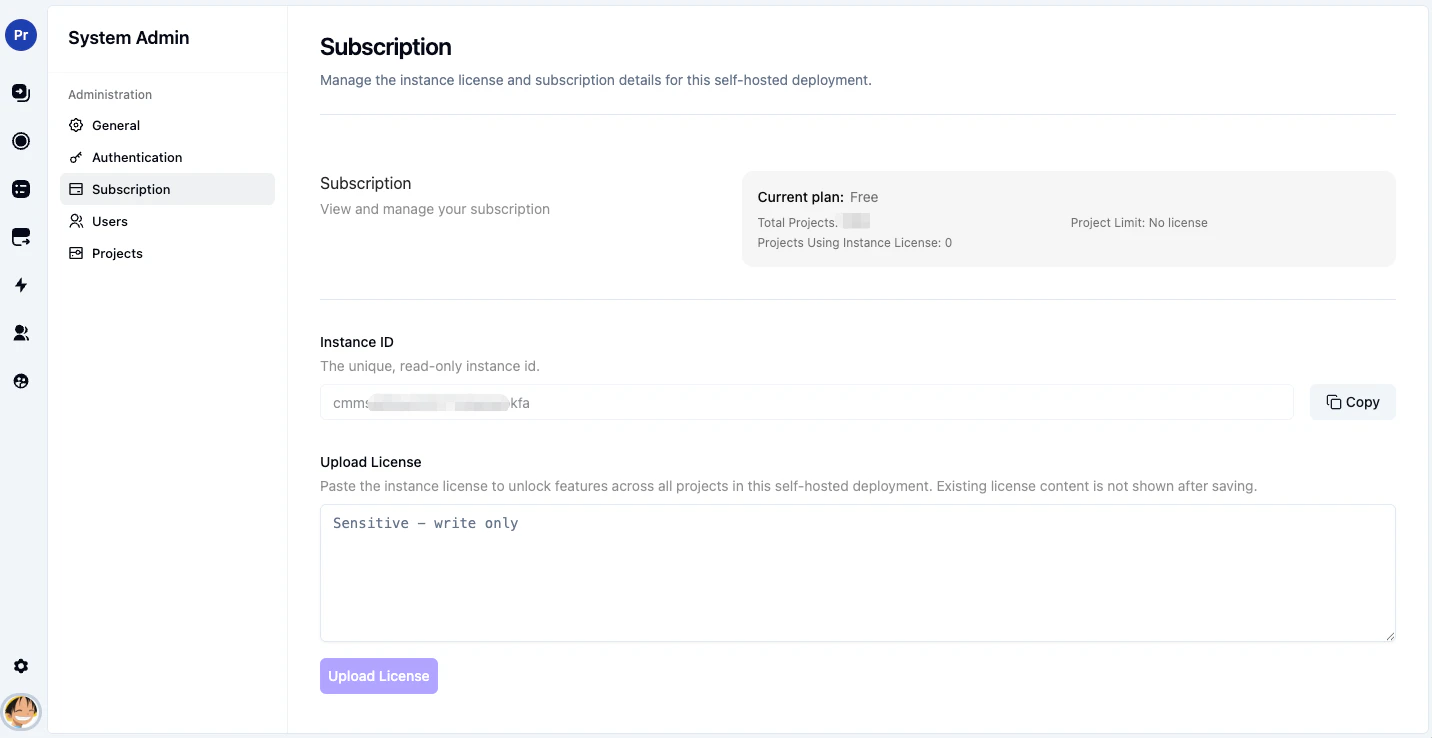
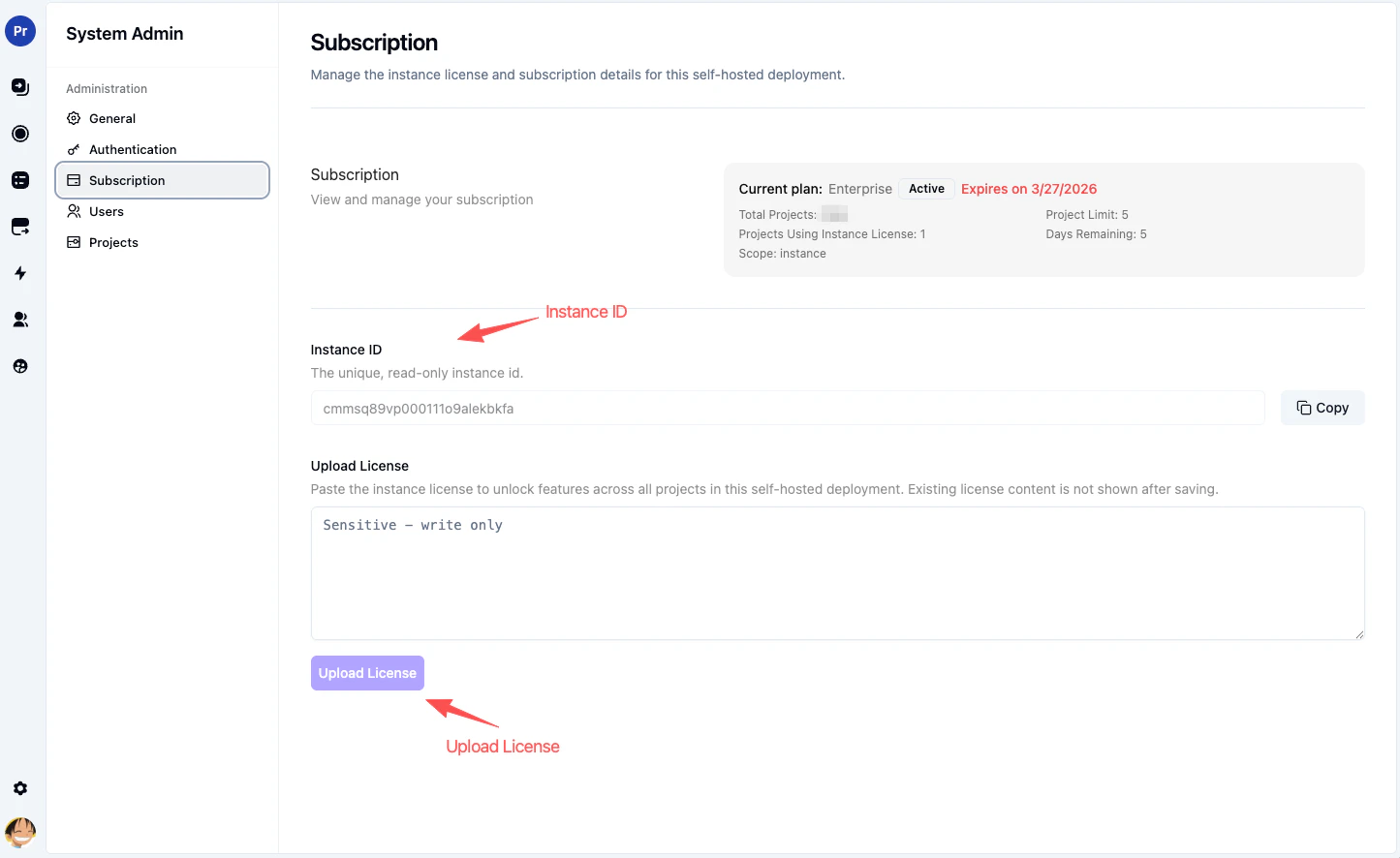
Paste the instance license into the write-only license field, then click **Upload License**.
> Saved license content is not shown again after it has been verified and stored.
Before activation, the subscription page shows the unlicensed state and the write-only license field:
 After a successful activation, the current plan, expiration date, and instance license usage details are shown on the page:
 ### Assigning projects to use the instance license
If your instance license has a limited `projectLimit`, a system admin can decide which projects should use it.
Go to:
* **System Admin > Projects**
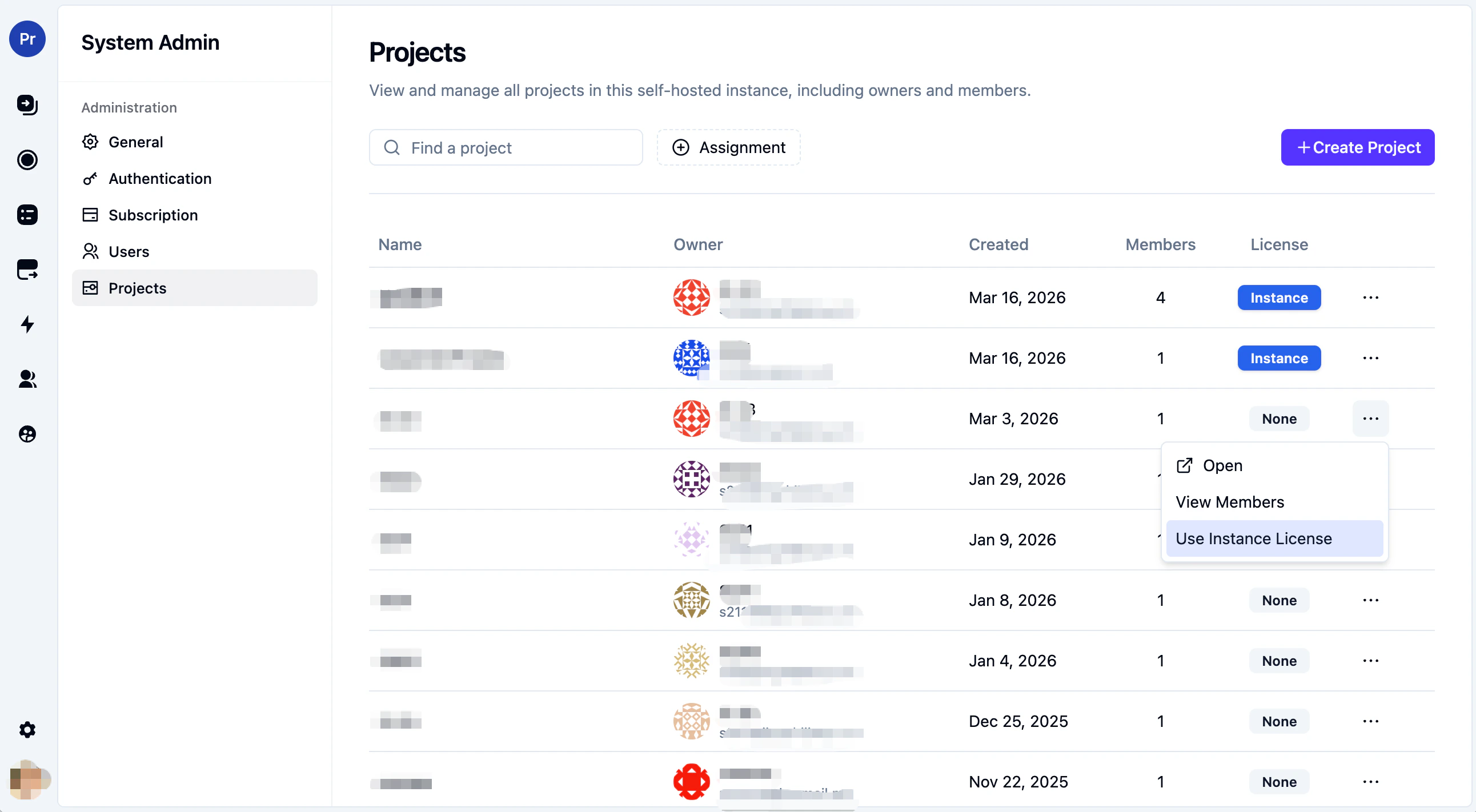
From there, turn on **Use Instance License** for the projects that should consume the instance-level entitlement.
This is useful when:
* only a subset of projects should remove branding
* you want to prioritize specific projects under a limited instance license
* you want to keep project licenses available for special cases
If the instance license is unlimited, you usually don't need to do this manually. Projects can inherit instance licensing automatically.
### Assigning projects to use the instance license
If your instance license has a limited `projectLimit`, a system admin can decide which projects should use it.
Go to:
* **System Admin > Projects**
From there, turn on **Use Instance License** for the projects that should consume the instance-level entitlement.
This is useful when:
* only a subset of projects should remove branding
* you want to prioritize specific projects under a limited instance license
* you want to keep project licenses available for special cases
If the instance license is unlimited, you usually don't need to do this manually. Projects can inherit instance licensing automatically.
 ## Project license
Project licenses are still supported, and they are useful when a specific project needs to be treated independently.
You can manage a project license from:
* **Project Settings > Subscription**
Project licenses are useful when:
* a specific project needs separate licensing from the rest of the instance
* you want a project to be managed independently
* a project should have its own license scope even when the instance already has an instance-level license
If you want to control whether this project-level entry point appears in the UI, use:
* **System Admin > General**
* **Allow project-level subscription management**
When this setting is disabled:
* the project settings sidebar no longer shows **Subscription**
* instance-level subscription becomes the preferred UI entry point
* existing project licenses continue to work
This setting only affects the UI entry point. It does **not** disable project-level licensing itself.
## Precedence
If a project has both an instance license available and its own project license:
1. **Project license** takes precedence for that project
2. otherwise, the project can use the **instance license**
That gives you a nice balance: you can manage most licensing centrally at the instance level, while still handling exceptions on a single project when needed.
## Entering a project license
If project-level subscription management is enabled, go to:
* **Project Settings > Subscription**
Then paste the project license into the **Subscription** page and submit it.
> Saved license content is not shown again after it has been verified and stored.
## Project license
Project licenses are still supported, and they are useful when a specific project needs to be treated independently.
You can manage a project license from:
* **Project Settings > Subscription**
Project licenses are useful when:
* a specific project needs separate licensing from the rest of the instance
* you want a project to be managed independently
* a project should have its own license scope even when the instance already has an instance-level license
If you want to control whether this project-level entry point appears in the UI, use:
* **System Admin > General**
* **Allow project-level subscription management**
When this setting is disabled:
* the project settings sidebar no longer shows **Subscription**
* instance-level subscription becomes the preferred UI entry point
* existing project licenses continue to work
This setting only affects the UI entry point. It does **not** disable project-level licensing itself.
## Precedence
If a project has both an instance license available and its own project license:
1. **Project license** takes precedence for that project
2. otherwise, the project can use the **instance license**
That gives you a nice balance: you can manage most licensing centrally at the instance level, while still handling exceptions on a single project when needed.
## Entering a project license
If project-level subscription management is enabled, go to:
* **Project Settings > Subscription**
Then paste the project license into the **Subscription** page and submit it.
> Saved license content is not shown again after it has been verified and stored.
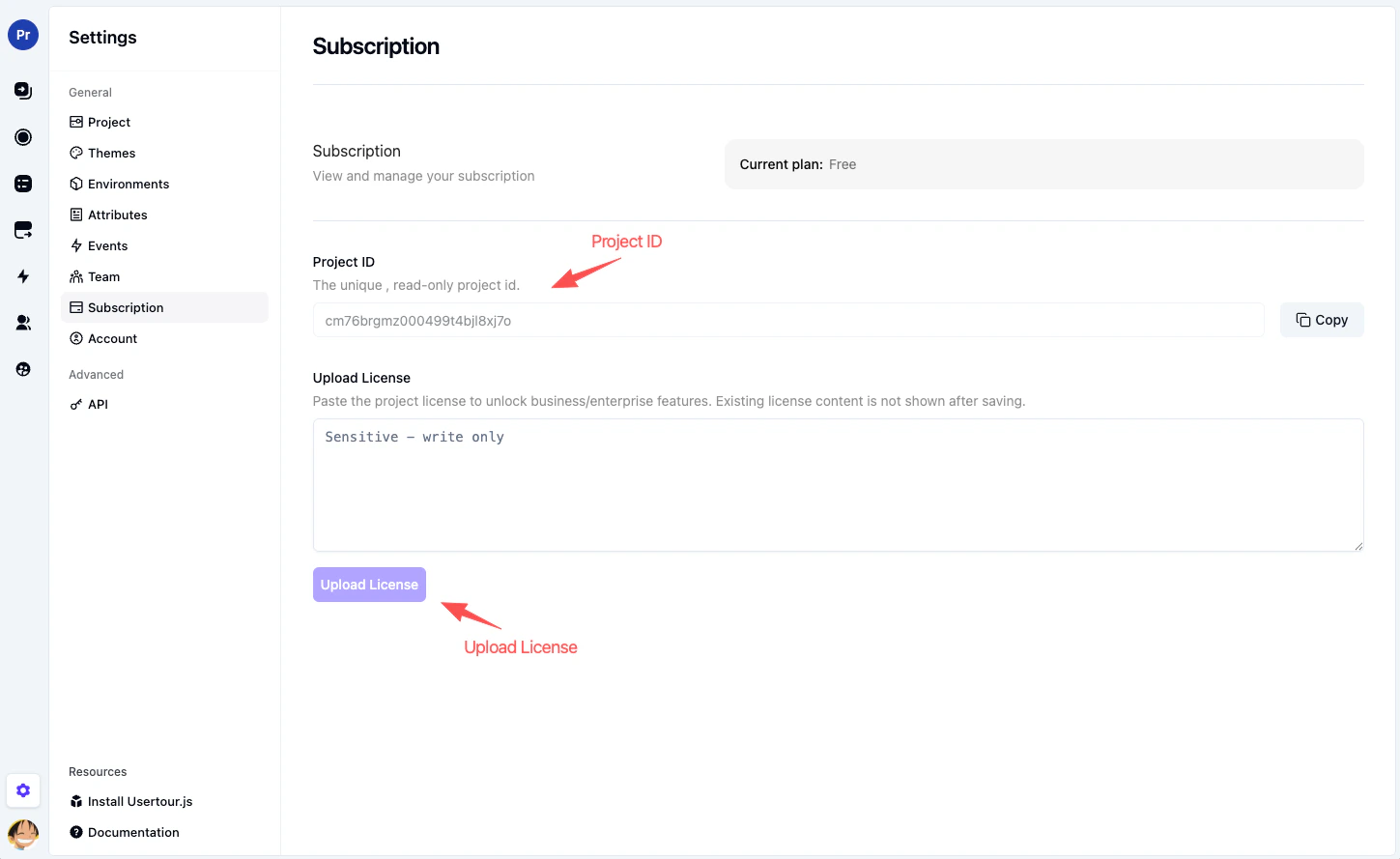 After a successful upload, the current plan changes to the licensed plan and the expiration date is shown on the page.
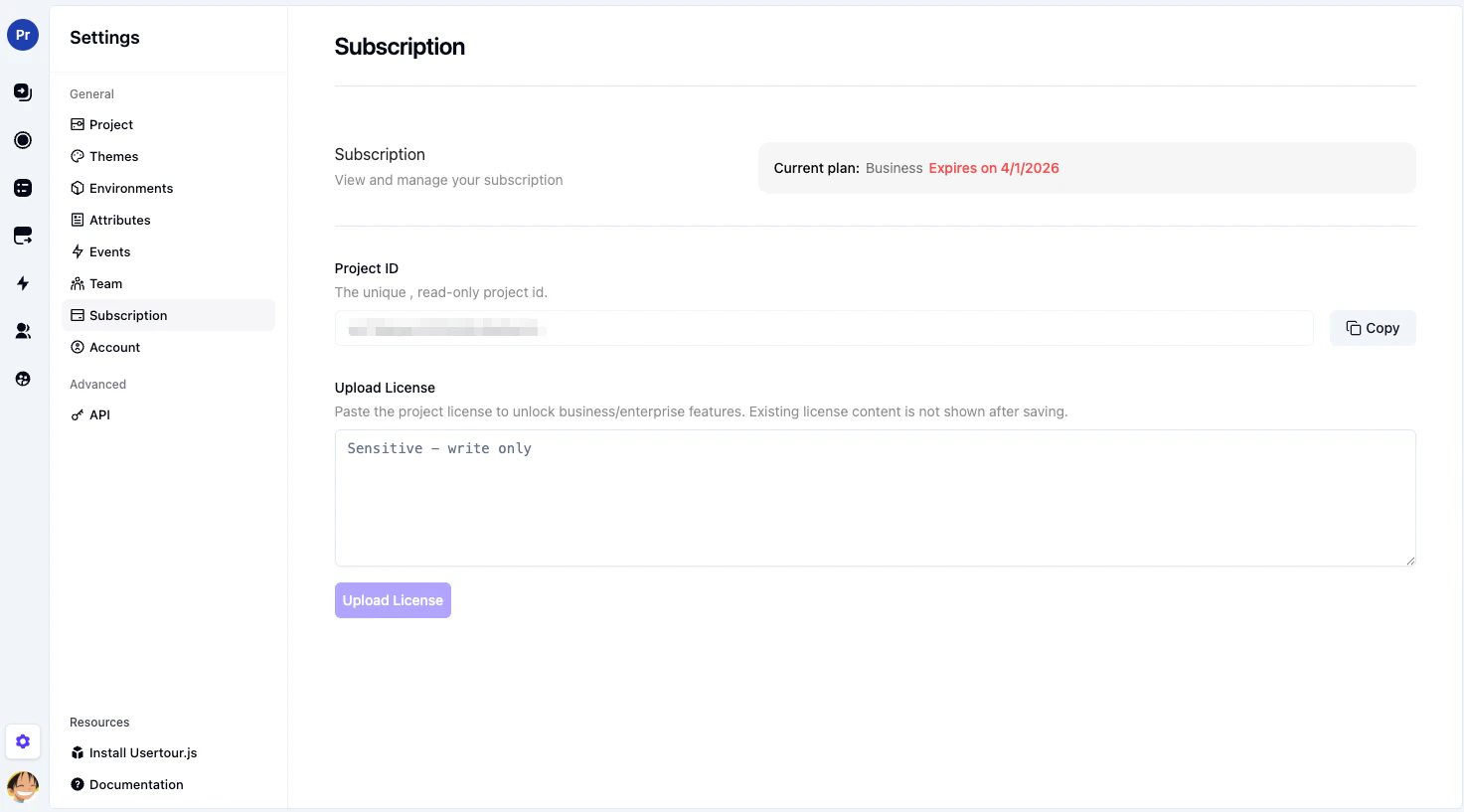 ## Legacy project license UI
If you're using an older self-hosted project settings UI, project-level licensing may still appear as a file upload flow instead of the newer paste-and-submit form.
In those older versions:
* go to **Project Settings > Subscription**
* click **Upload License**
* upload the project license file you received from Usertour
> If you're using a version earlier than `0.3.0`, you won't see this configuration option. Version `0.3.0` shows `Update License`, while later versions show `Upload License`.
## Related pages
* [System Admin](/open-source/system-admin)
* [Business + Enterprise](/open-source/business-enterprise)
* [Deploy with Docker](/open-source/self-hosting)
## Legacy project license UI
If you're using an older self-hosted project settings UI, project-level licensing may still appear as a file upload flow instead of the newer paste-and-submit form.
In those older versions:
* go to **Project Settings > Subscription**
* click **Upload License**
* upload the project license file you received from Usertour
> If you're using a version earlier than `0.3.0`, you won't see this configuration option. Version `0.3.0` shows `Update License`, while later versions show `Upload License`.
## Related pages
* [System Admin](/open-source/system-admin)
* [Business + Enterprise](/open-source/business-enterprise)
* [Deploy with Docker](/open-source/self-hosting)