

Scenario
/settings/team first. Then the application loads permissions, team data, and feature access. Only after those checks finish does the invite button appear.
If the flow only uses a page rule, it can start as soon as the route matches:
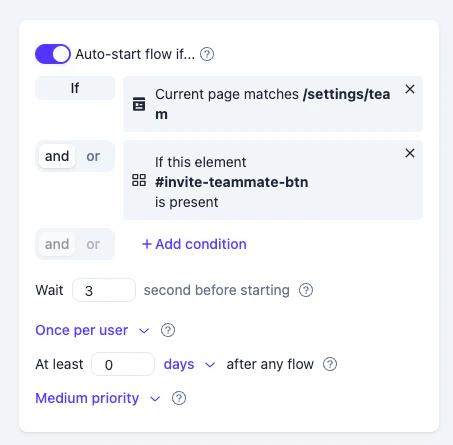
Where This Rule Fits
Use Element is present when the first step of a flow depends on UI that is rendered conditionally or asynchronously. Common examples include:- A button that appears after permissions are loaded.
- A table that appears after data is fetched.
- A feature card that appears only for eligible users.
- An empty state that appears only when the user has no records.
- A panel that appears after a tab, filter, or SPA route finishes rendering.
The Wait Setting
The wait setting is often misunderstood.Wait 3 seconds does not mean:
Wait 3 seconds, the flow starts about 3 seconds after the button becomes visible.
This is useful when the element appears during an animation, layout shift, or slow rendering phase. In most cases, a short wait of 1-3 seconds is enough.
Why This Works
This rule works because Usertour separates two kinds of knowledge. The server can decide whether a user is eligible for a flow. It knows the published content, page rules, frequency settings, priority, user attributes, and historical activity. The browser knows the live screen. It can tell whether the selected element is actually visible to the user. For element-based rules, the SDK checks the page in the browser and reports the element state back to Usertour. Once the other start rules and the browser-side element check both match, Usertour starts the flow session. This is why the rule is reliable in modern applications: it waits for the screen the user can actually interact with.If The Flow Does Not Start
When a flow using Element is present does not start, the issue is usually one of these:- Is the user on the matching page?
- Is the element visible for this user’s role or plan?
- Is the element inside a closed tab, menu, accordion, or modal?
- Did you select a temporary loader instead of the final UI?
- Is the flow blocked by frequency, such as “Once per user”?
Choosing The Element
Choose an element that proves the user can follow the first step of the flow. Good targets include:- The button the first tooltip points to
- A loaded table, form, or settings panel
- A stable empty state
- A feature card that only appears for eligible users
- Loading spinners
- Skeleton placeholders
- Toast messages
- Text that changes per user
- Elements that appear briefly and then disappear