

Beta. The MCP endpoint is new and evolving with the v2
API — tools and behavior may still change.
Breaking changes will be called out in the changelog. Feedback is welcome.
Endpoint
content:create, user:write, segment:create, theme:update,
session:manage, …).
Self-hosting? Use your own API host +
/mcp. The discovery metadata, the
WWW-Authenticate challenge, and the consent redirect are all derived from
your instance’s public URLs, so behind a reverse proxy make sure forwarded
headers (X-Forwarded-Proto / Host) are correct — or pin them with
API_URL (every public URL) or MCP_SERVER_URL (just
the MCP endpoint) — and that APP_HOMEPAGE_URL points
at your real, browser-reachable app URL (the consent step redirects there).
OAuth 2.1 also requires the endpoint to be reachable over HTTPS (loopback
is exempt).Connect with OAuth (one-click)
Clients that support remote MCP servers over OAuth (Claude Code, Claude’s custom connectors, Cursor, Codex, VS Code, ChatGPT, …) need no token to copy — you give them the endpoint and they run the login for you. On first use the client discovers the authorization server, registers itself (Dynamic Client Registration), and opens your browser to authorize. The flow is OAuth 2.1 with PKCE. The snippets below use the Cloud endpoint — self-hosting, substitute your own/mcp URL. Settings → MCP in the app shows the same per-client steps with
your instance’s URL pre-filled. To serve MCP on its own domain, set
MCP_SERVER_URL to the full public endpoint — it drives the Settings display
and the OAuth discovery metadata together, and that domain must also proxy
/oauth/* and /.well-known/oauth-* (the shipped nginx config does).
Claude Code
Claude Code
Install the plugin — it registers the MCP
connection and the authoring skills in one:Then run Self-hosting? Set your server URL in the shell you launch Claude Code from
(the plugin defaults to Cloud):
/mcp inside Claude Code to authorize — the Usertour authorization
screen opens in your browser.Prefer the MCP connection only (without the skills)? One shell command:Cursor
Cursor
One click:
Add to Cursor
— Cursor opens with the server pre-filled and walks you through authorization.Prefer manual setup? Cursor → Settings → MCP → Add new MCP server, or add to
Optional: also install the authoring skill for workflow guidance:
~/.cursor/mcp.json:Codex (CLI & IDE extension)
Codex (CLI & IDE extension)
Register the server — shared by Codex’s CLI and IDE extension (not Codex Cloud):Codex supports OAuth natively and prompts you to authorize the first time you
use a Usertour tool. To authorize right away instead:Optional: also install the authoring skill for workflow guidance:
VS Code (Copilot Chat)
VS Code (Copilot Chat)
One click: Add to VS Code — VS Code prompts to
install the server with the values pre-filled.Prefer manual setup? Open the Command Palette and run MCP: Open User
Configuration to open your Save — the server is available next time you chat with Copilot in Agent mode.
First use prompts you to authorize.
mcp.json, then add this entry — the root key is
servers, not
mcpServers (the #1 copy-paste mistake coming from a Cursor/Claude config):ChatGPT
ChatGPT
Open chatgpt.com/plugins, enable Developer
mode, and click New Plugin (requires a paid ChatGPT plan). Set the name
(
Usertour) and the MCP Server URL (https://mcp.usertour.io/mcp), leave
Authentication on OAuth, and submit — ChatGPT opens the Usertour
authorization screen. Approve to connect.Claude (claude.ai)
Claude (claude.ai)
Open Claude’s connector settings
and click Add → Add custom connector. Set the name (
Usertour), paste the Server URL
(https://mcp.usertour.io/mcp), and click Add — Claude opens the Usertour
authorization screen. Pick the project, environments, and access level, then
approve.Other clients
Other clients
Any client that reads an
mcpServers config (Continue, Zed, …): add the entry
below. The authorization flow runs automatically on first use.Authorizing
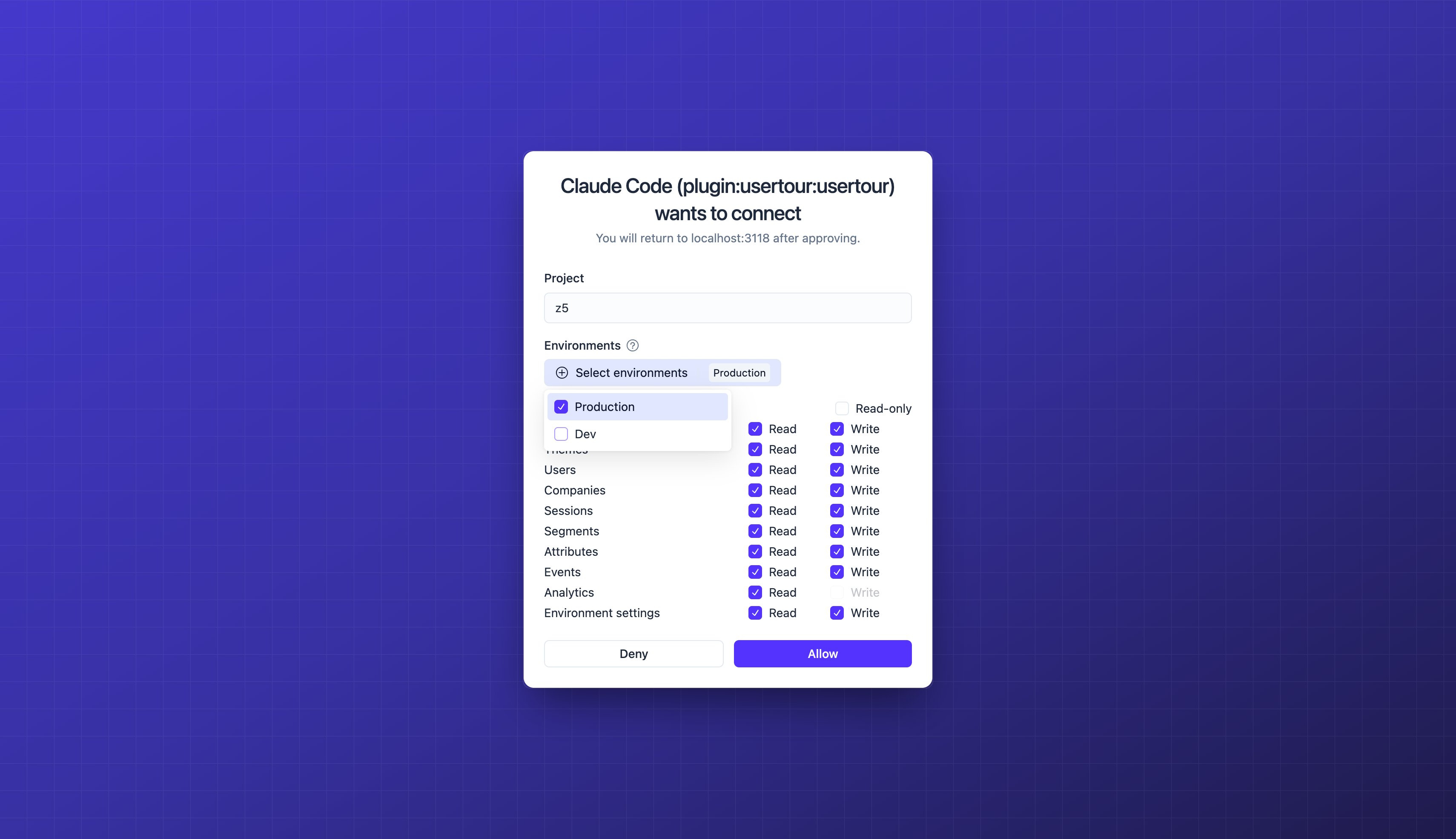
When the browser opens, you sign in to Usertour (if you aren’t already) and the consent screen lets you shape exactly what the app gets:- Project — the one project the connection may act in (fixed when you only have one).
- Environment access — which of that project’s environments it can act on. Environment-targeted permissions (publishing, end-user data, sessions, …) require at least one; with several environments none are pre-selected, so handing an agent Production is always an explicit choice.
- Permissions — what the app asked for, capped by your role on that project. Everything grantable starts checked; uncheck what you don’t want to hand over, or flip Read-only to drop every write in one click.
Managing connected apps
Every app you’ve authorized is listed under Settings → Connected apps, with the project it can act in, the access it was granted, and when it was last used. Revoke cuts it off immediately — its tokens stop working on the next call.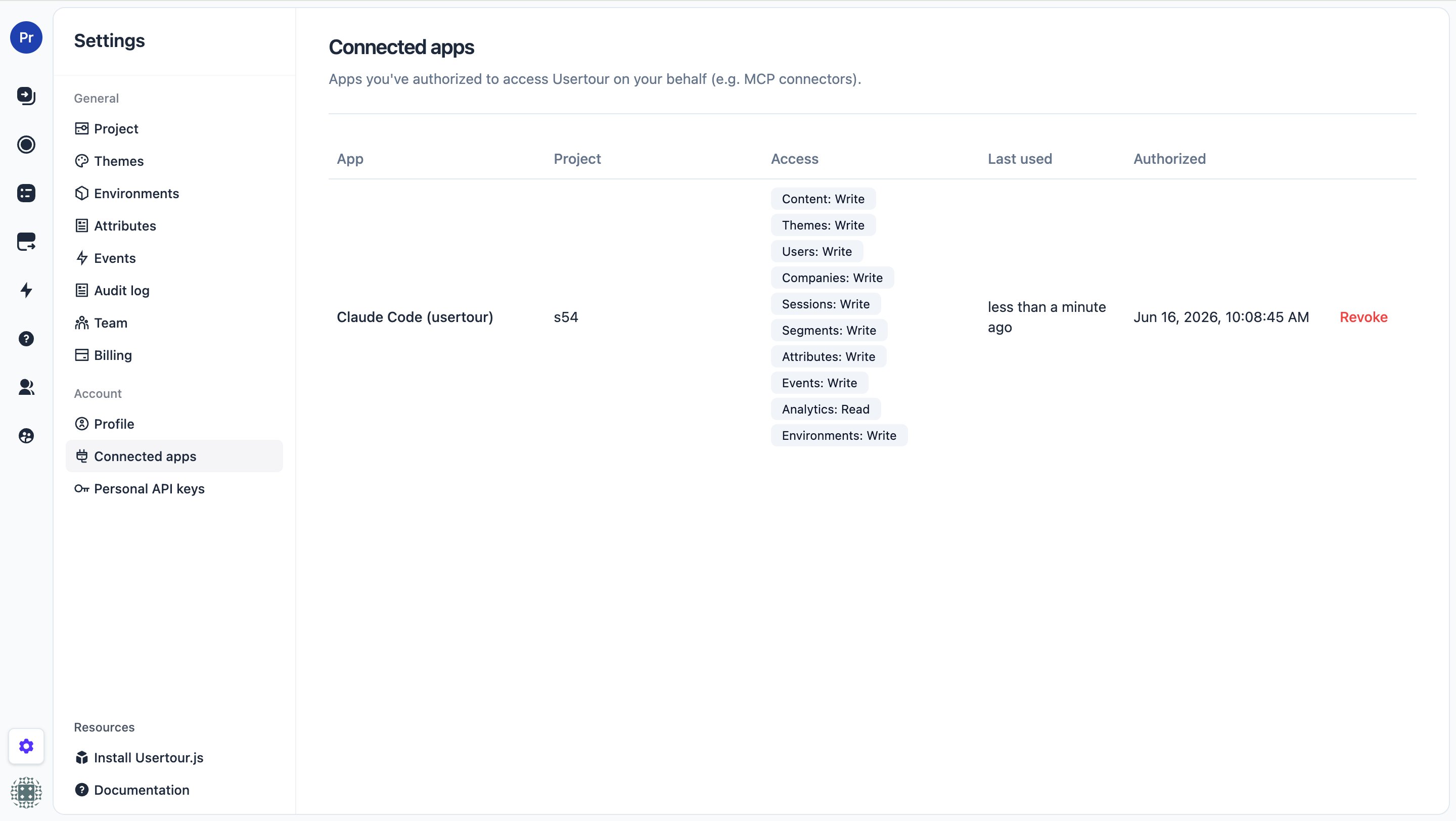
Connect with a personal token
Clients that don’t support OAuth (or stdio-only clients) use a personal token. Bridge to the HTTP endpoint withmcp-remote:
Use a single-project token with only the scopes the agent needs. To let it
author, include the write scopes — otherwise only read tools appear.
Tools
The server ships a routing map as MCP server instructions in the initialize handshake — which tool serves which intent, and to readget_authoring_guide
before authoring — so an agent starts oriented without spending a tool call.
Every tool carries MCP annotations (readOnlyHint / destructiveHint) so a
client can gate calls: read tools run freely, while destructive writes
(delete_*, unpublish_*, end_session, …) are flagged so the client can ask
for confirmation first.
Read
Every
list_* tool pages with cursor / limit. The named-resource lists —
list_content, list_segments, list_themes, list_environments,
list_event_definitions, list_attribute_definitions — also take a name
filter (case-insensitive substring against the display name). list_content
additionally filters by type, published, and a created-at range; list_segments
by bizType; list_sessions by completed.
get_authoring_guide returns the in-band conventions for building usable content
(lifecycle, step types, goto-by-key, the markdown subset, per-type requirements) —
an agent should read it before authoring.
get_content_version with expand: ["steps"] returns the decompiled steps — read
them before editing with update_content_version.
diagnose_content answers “why isn’t my content showing?” by evaluating the SAME
runtime gates the SDK uses (published / user identified / start rules / frequency /
session state) as a per-gate checklist; list_references answers “who still uses
this attribute / event / segment / theme / content” before you delete it.
Write
Content write tools take the same representation
as the REST endpoints (markdown blocks,
{{ attribute }} placeholders, rules);
update_content_version carries steps, startRules / hideRules, themeId,
and data. The rest mirror their REST bodies one-to-one. Give each step a key
and wire goto_step to it to author a multi-step flow (forward or cyclic links)
in a single call — see step identifiers.
Theme settings are writable as a partial patch: send only the fields you
change (colors, fonts, sizes, …) — they’re field-merged onto the current
settings, and “Auto” hover/active colors are derived server-side. Conditional
variations are writable too, with the same condition set the theme builder’s
variation editor offers. Call get_theme_schema for the exact writable fields
and their ranges; media assets (avatars, logo, custom icons) are still set in
the theme builder.
publish_content rejects content that wouldn’t render — no theme, a tooltip step
with no target, an empty checklist, a launcher with no anchor, and so on. Call
validate_content_version after authoring and before publishing to get the list
of { ok, errors, warnings }; errors are exactly what blocks publish.
Read-only by default (prompt-injection safety)
Untrusted text reaches an agent through read tools — session answers and custom user/company attributes can contain anything, including instructions. To stop an injected instruction from triggering a write, give any agent that reads untrusted data read-only access — flip Read-only on the OAuth consent, or mint a token with only read scopes: with no write scopes, no write tools are listed, so there is nothing to exploit. Mint a separate write-scoped token only for trusted automation.Troubleshooting (self-hosted)
405 Not Allowed when connecting
405 Not Allowed when connecting
/mcp path — it must be the full endpoint
(https://your-usertour-host/mcp), not the bare domain. Copy it from
Settings → MCP, which shows the exact URL.Protected resource http://… does not match expected https://…
Protected resource http://… does not match expected https://…
http:// URLs while the client connected
over https://: the https scheme was lost on the way in, usually because a
TLS-terminating proxy in front of the instance (a PaaS edge, Cloudflare, a load
balancer) didn’t get X-Forwarded-Proto: https through the whole chain. Two
fixes, either works:- Pin the URL (simplest): set
API_URLto your publichttps://base — it pins every public URL the instance hands out — orMCP_SERVER_URLto pin just the MCP endpoint. - Fix the header chain: make sure every hop forwards
X-Forwarded-ProtoandHostunchanged, and that you run a current Usertour image.