Documentation Index

Fetch the complete documentation index at: https://docs.usertour.io/llms.txt

Use this file to discover all available pages before exploring further.

Some onboarding steps depend on an action the user performs inside your product. A common example is a textarea. The flow explains what to write, the user enters a value, and the next step should point to a checkbox or another control on the same page. The right tool for this is a step trigger. The trigger watches the input while the current step is showing, then moves the flow forward when the user has filled it in.

Scenario

Suppose the first step asks the user to describe their setup in a textarea. The next step should explain a checkbox that only makes sense after the textarea has been filled.
Step 1:
Tell us about your setup.

Step 2:
Select this checkbox if you want to enable the option.
If the user has to click a Next button after typing, the flow feels slower than the page itself. The better experience is for the flow to continue once the input is complete.

Configure The Trigger

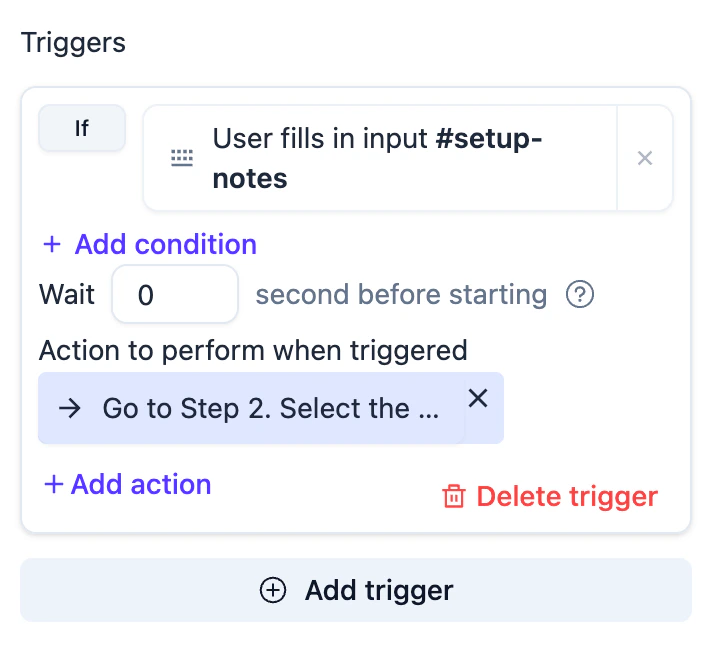
Open the step that asks the user to type, then add a trigger to that step. Select the input element the user should fill. In this example, the selected element is #setup-notes. Use this configuration:
Condition
User fills in input: #setup-notes

Wait
0 seconds

Action
Go to Step: Select the checkbox
Step trigger that moves to the checkbox step after the selected input is filled With this setup, the first step stays active while the user is typing. After #setup-notes receives a new non-empty value and the user pauses, the trigger runs the Go to Step action.

Why This Works

A step trigger belongs to the current step. It watches conditions while that step is being shown. When those conditions match, it performs the configured action. For this use case, the condition is User fills in input. Usertour selects the configured element, listens for input changes, and treats the field as filled only after the value has changed from its original state and is no longer empty. The action is Go to Step. When the condition becomes true, Usertour shows the selected next step. In this case, that next step is the one that points to the checkbox. The result is a flow that follows the user’s work instead of asking the user to confirm something they have already done.

When To Use This Pattern

Use this pattern when one step should continue after the user completes a field on the page. Good examples include:
  • A textarea where the user writes a description.
  • A name field that must be filled before the next instruction.
  • A search box where the next step explains how to choose a result.
  • A form field that appears inside your own product, not inside the Usertour tooltip.
The trigger should be attached to the field that proves the user has completed the action. If the next step explains a checkbox, the trigger usually belongs to the previous input step, not to the checkbox step.

When To Use A Different Condition

Use User fills in input when any new non-empty value is enough. Use Text input value when the next step depends on the actual text. For example, the flow should continue only if the input contains a certain word or matches a specific value. Use Text input value instead of User fills in input if the field may already be filled before the step appears. User fills in input is designed for the moment when the user enters a new value while the step is active. Use an Element condition instead when the page changes after typing, such as when a search result appears and the next step should wait for that result.

Timing

The trigger does not fire on the first keystroke. Usertour waits until the input has changed and the user has stopped typing briefly. This avoids moving the flow forward while the user is still entering text. If the page needs extra time to update after typing, add a short trigger wait before the Go to Step action. Keep it small; the wait is only there to let the page settle, not to guess how long the user will take to type.