

usertour.identify() with any user ID and read or overwrite that user’s attributes.
Identity verification closes this: your backend signs an identity token (a JWT) for each user with a signing secret only you hold, and Usertour rejects identity claims without a valid token.
Key ideas, up front:
- The token is minted on your server, never in frontend code. The signing secret must stay as private as a password.
- One token carries both proofs: the
subclaim proves “this is really user X”; the optionalcompanyIdclaim proves “user X is a member of company Y”. - Enforcement is opt-in per environment. Until you turn it on, unsigned traffic keeps working while Usertour measures your signed-traffic coverage — so you can roll out safely.
- Anonymous users are exempt from signing —
usertour.identifyAnonymous()involves no server round-trip, so it can’t be signed; anonymous IDs are generated by the SDK and can’t collide with your real user IDs. Note that anonymous users cannot callgroup()under enforcement.
How identity tokens work
An identity token is a standard JWT, signed with HS256 using your environment’s signing secret (the fullutv_… string is the key):
Adding an
exp claim is optional. When present, Usertour rejects the token
after it expires — a leaked token stops being replayable. If you set one,
refresh it from your backend before it expires and hand it to the SDK via
usertour.updateUser(attributes, { token }) or
usertour.updateGroup(attributes, { token }) — the SDK applies it to the
connection immediately, including reviving a connection that was rejected
with an expired token.Step 1: Generate a signing secret
Go to Settings → Identity Verification. Each environment has its own secrets — production and staging are isolated, so a leaked staging secret never endangers production. Click Generate secret and copy the value (it looks likeutv_…) into your backend configuration. You can reveal it again later from the same page. Use the full string, including the utv_ prefix, as the HS256 signing key.

Step 2: Pass the token to the SDK
Add the token as the third argument ofidentify(); when you use group(), mint the token with the matching companyId claim:
Loader version: if you install via the usertour.js npm
package, upgrade to 0.0.24 or
later — earlier versions don’t have the
token option in their TypeScript
types. If you install via the HTML snippet, the snippet forwards the option
as-is, but make sure you’re using the current snippet from the installation
guide or your Settings → Installation
page.sub).
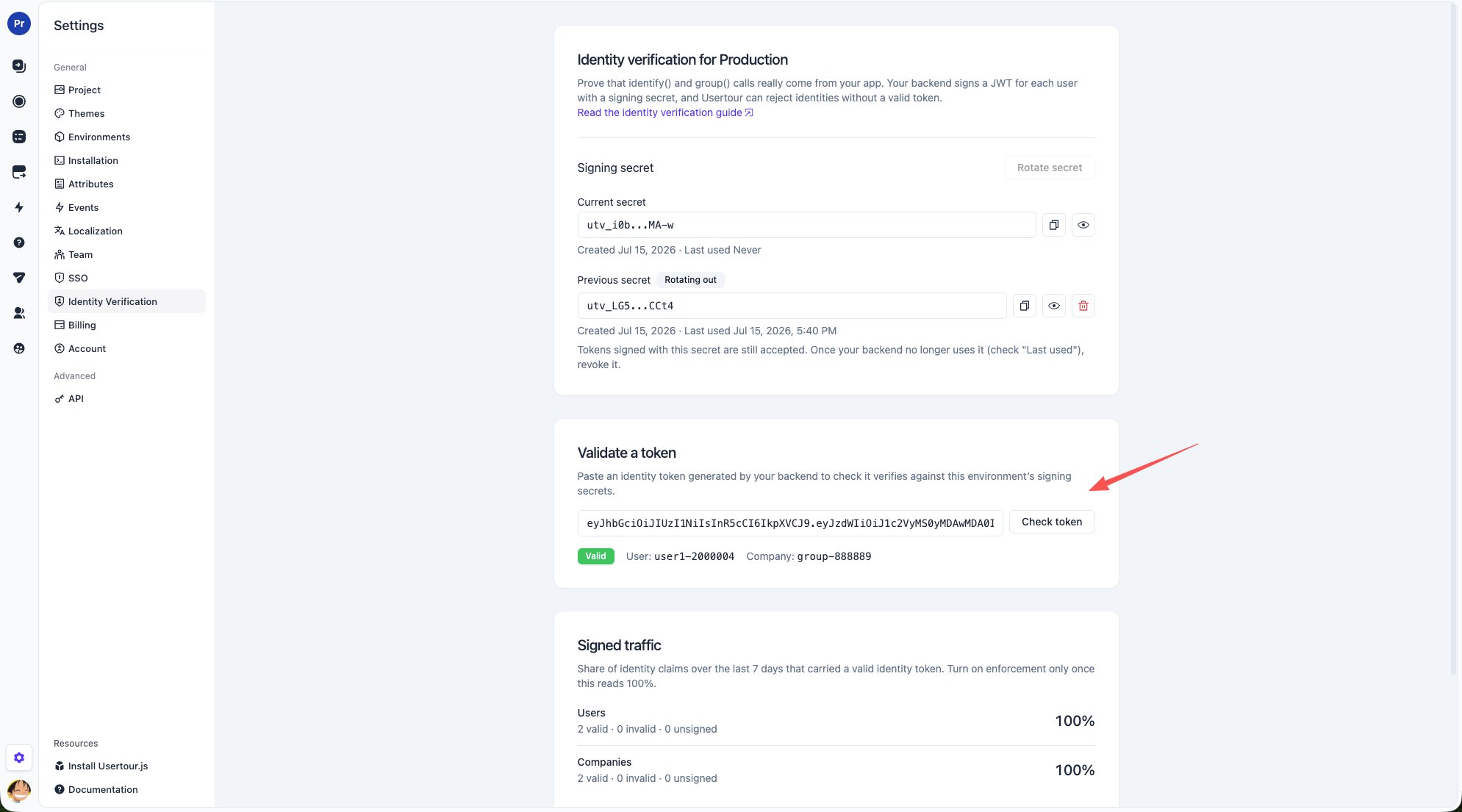
Step 3: Watch coverage, then enforce
Back in Settings → Identity Verification, the Signed traffic card shows what share ofidentify() and group() calls over the last 7 days carried a valid identity token. Anonymous users are listed separately — they can never be signed and don’t count against coverage.
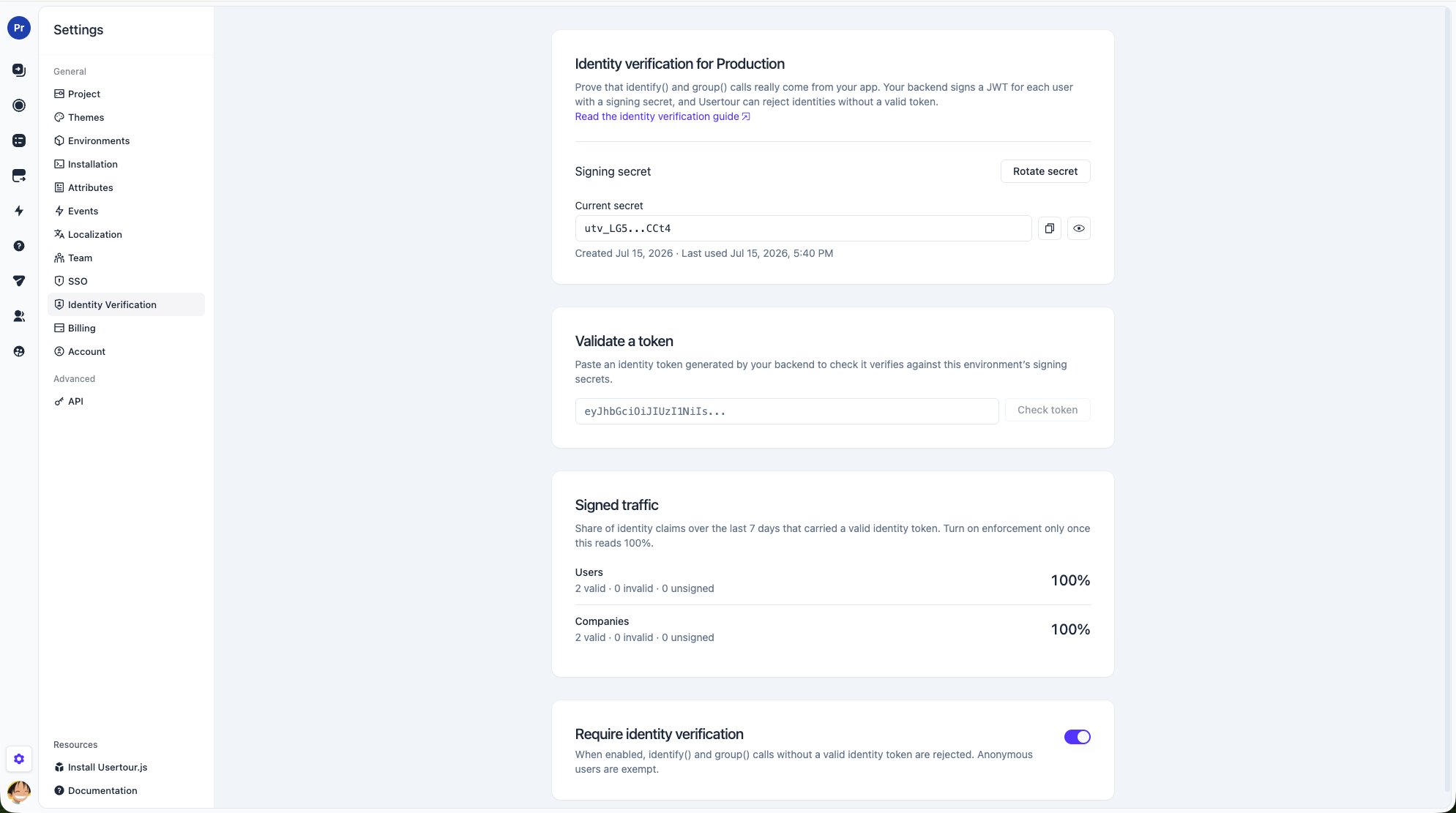
identify()without a valid identity token is rejected, and Usertour does not load for that user.group()without a matchingcompanyIdclaim is rejected.- Anonymous users keep working, but they cannot be associated with a company.
Rotating a secret
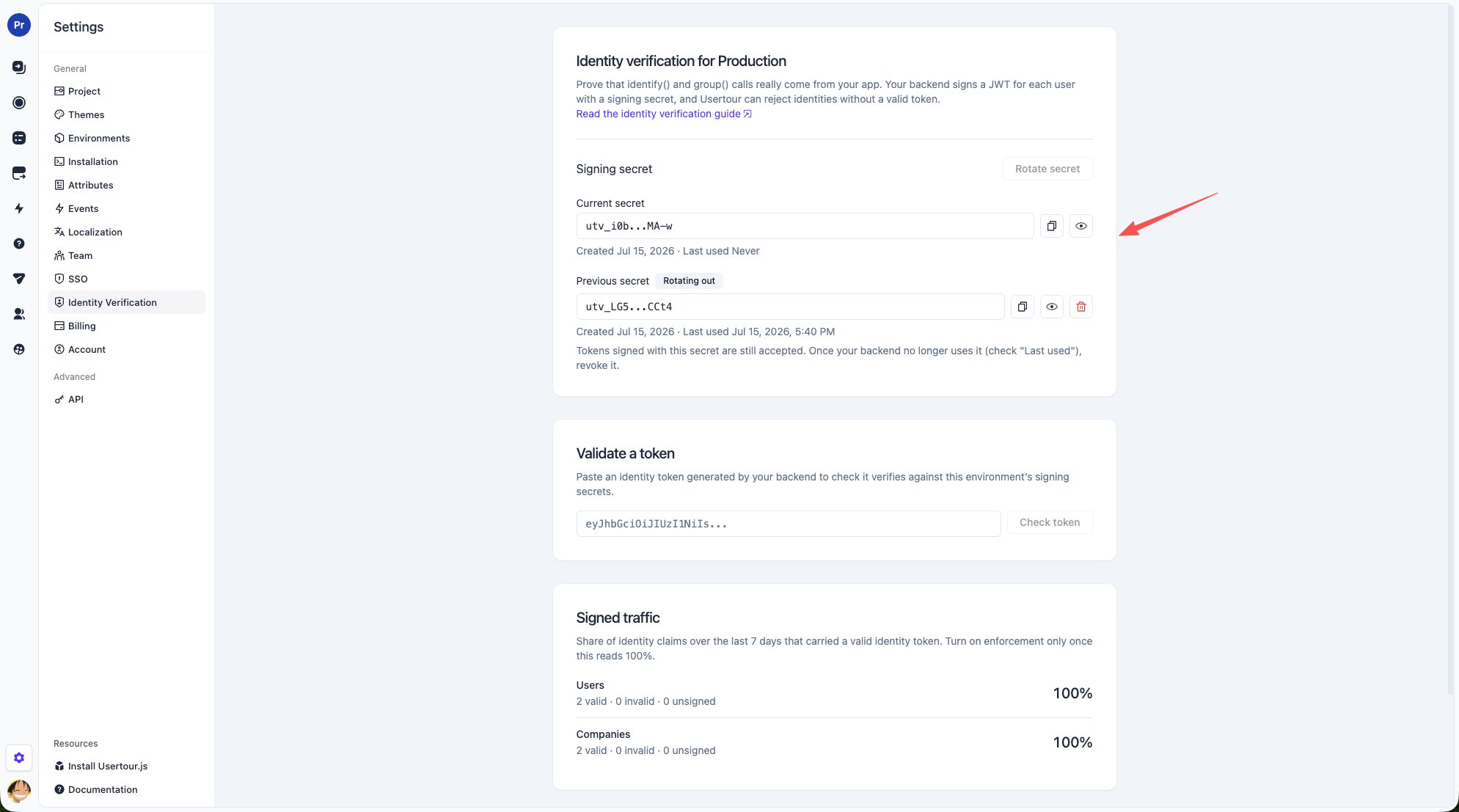
Each environment can hold two active secrets at once — one in use, one rotation slot — and tokens signed with either are accepted. To rotate:- Click Rotate secret to create the new secret.
- Switch every backend signer to the new secret.
- Watch the old secret’s Last used time on the settings page. Once it goes stale, no signer still depends on it.
- Revoke the old secret.
What identity verification does and doesn’t protect
With enforcement on, your environment token stops being a write credential: nobody can impersonate your users, mass-create fake users, or attach users to companies they don’t belong to. It deliberately does not cover:- Published content is still readable with the token — it’s the same content served to your anonymous visitors.
- A real, signed-in user can still change their own attributes. Tokens prove identity, not the truthfulness of attribute values.
- Anonymous junk users can still be created; they can’t touch any real user’s data.