

The element picker
Next to any selector field you’ll see a crosshair picker button. It’s powered by OpenPicker — an open-source browser extension, maintained by the Usertour team, that lets you point at an element on your own site and hands back a CSS selector.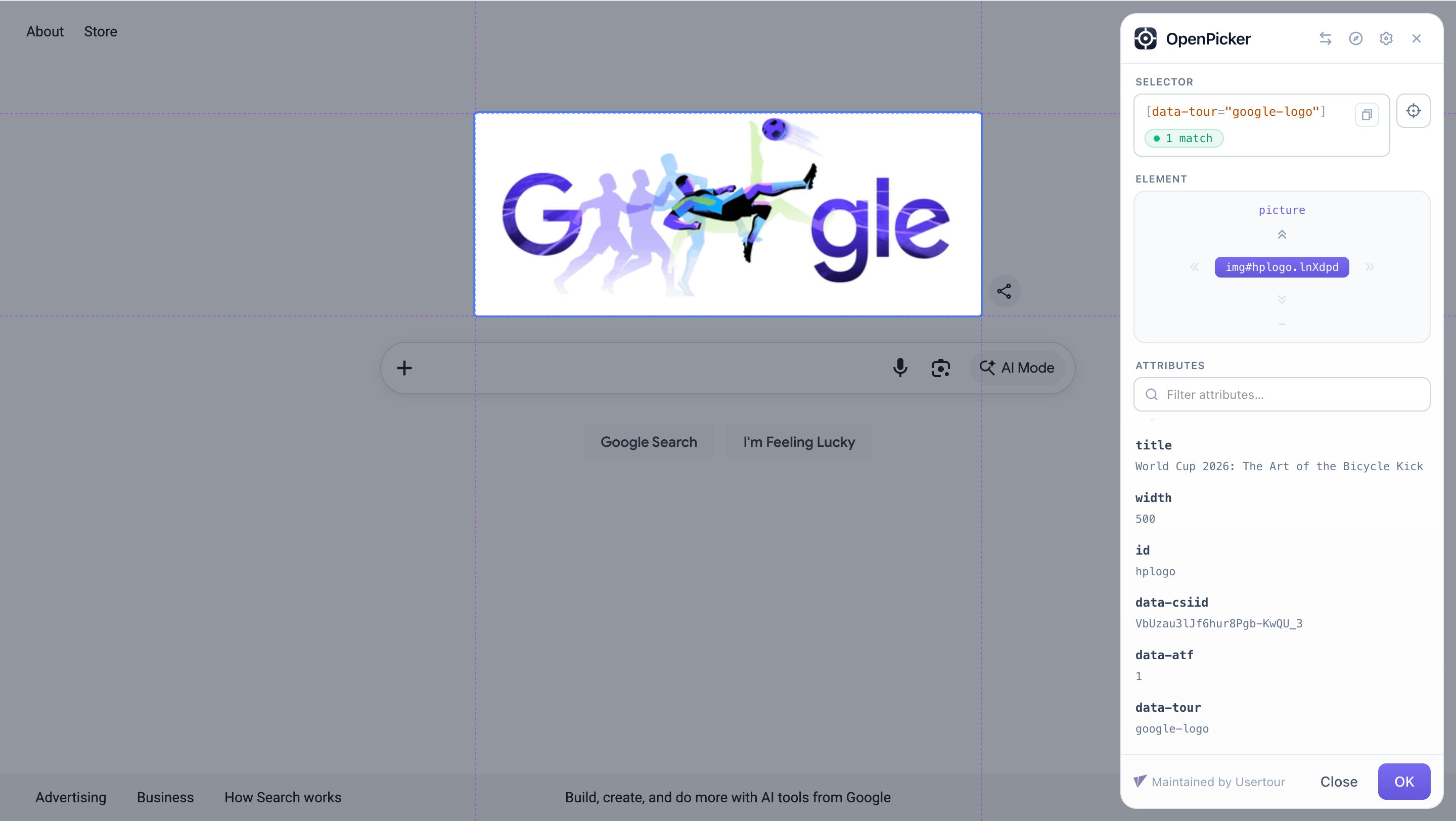
- Click the crosshair button next to the selector field.
- If the OpenPicker extension isn’t installed yet, Usertour prompts you to add it from the Chrome Web Store, then continues automatically.
- Confirm or enter the URL of the page where the element lives — the picker opens that page in a new tab.
- Hover to highlight the element you want and click it. The picker returns a CSS selector — and how many elements it currently matches — back into the field.
OpenPicker can pick on a different tab or origin than the Usertour app. That cross-tab hop is exactly why it’s a browser extension rather than something embedded in the page.
Define stable selectors
This is the most important part of element targeting, and the difference between onboarding that keeps working and onboarding that silently breaks. An auto-generated selector — something likediv > div:nth-child(3) > button.css-1x2y3z — only describes where an element sits today. The next time your app’s markup changes (a redesign, a refactor, even one new wrapper <div>), that selector stops matching, the tooltip loses its anchor, and the flow breaks. A single routine release can take your onboarding down without anyone ever touching Usertour.
The fix is to agree on stable hooks with your developers — usually a dedicated data-* attribute on the elements your flows target:
data-tour attribute is added on purpose, survives restyles and refactors, and doubles as documentation — developers can see an element is referenced by onboarding and won’t remove it by accident. The attribute’s value (billing-upgrade) is the unique id, so there’s no need for a separate id attribute. Treat the elements your flows point at as a contract between your team and your product’s markup.
Why not reuse data-testid?
It’s tempting to point flows at an existing data-testid, but for onboarding it has two traps:
- It may not ship to production. Many teams strip
data-testidfrom production builds to shrink bundles and avoid exposing internals. Onboarding runs in production, so the moment the attribute is stripped, every selector relying on it breaks. - It’s coupled to your test suite. A test id exists for tests; a developer refactoring tests can rename or remove it without realizing onboarding depends on it.
data-tour attribute keeps onboarding decoupled from your tests and guaranteed to reach production.
Make the picker use only your stable attributes
OpenPicker builds selectors from a set of selector rules. Each anchor type — id, class, attribute, and tag — can be turned on or off, and each has an Allow / Ignore regex that controls which names it may use. To make every pick come back as[data-tour="..."]:
- Enable Attribute and set its Allow to
^data-tour$. - Turn off id, class, and tag if those are auto-generated or hashed in your app.
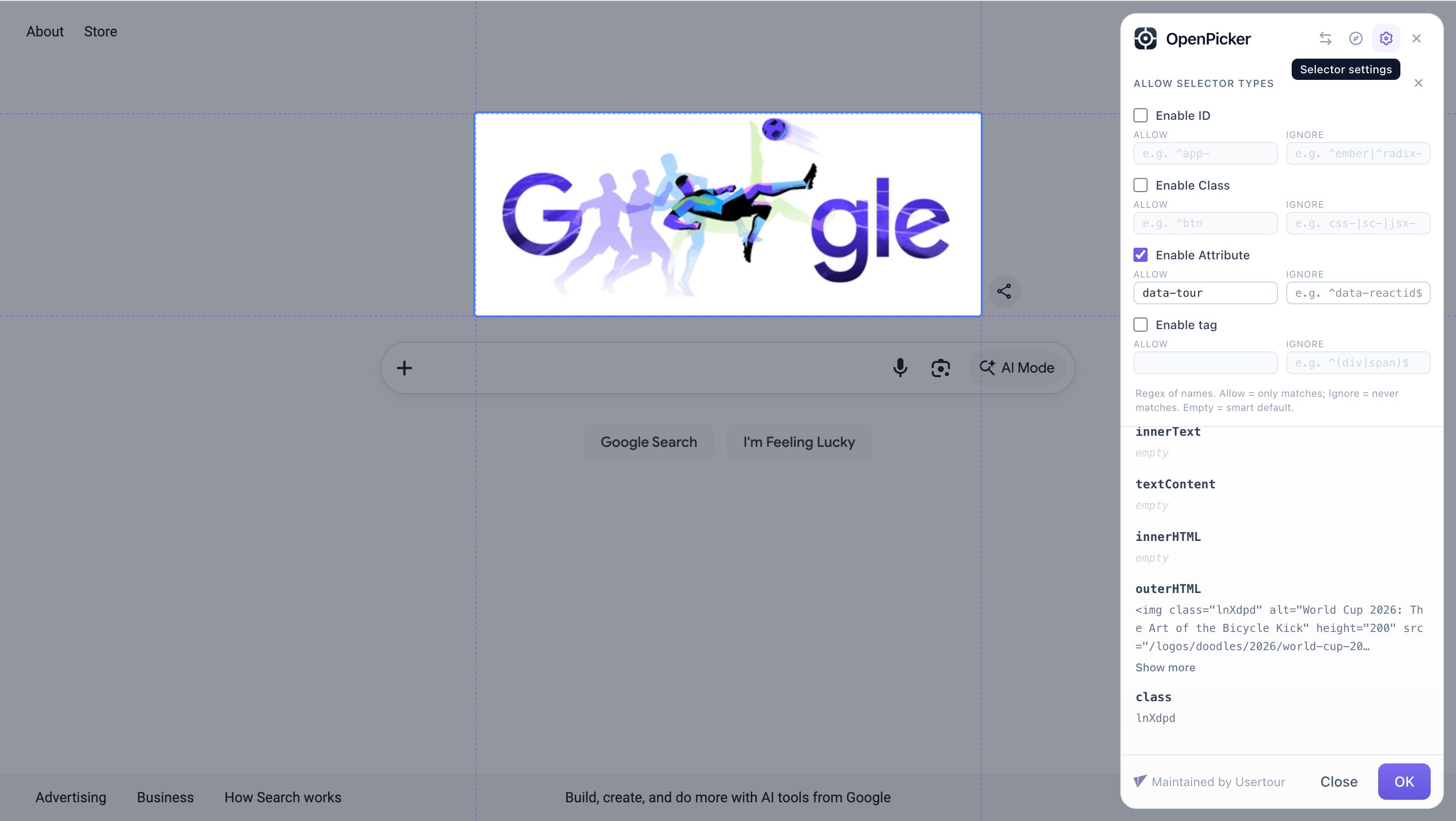
[data-tour="..."] instead of a brittle structural path. And if an element doesn’t have your attribute yet, that’s your cue to ask a developer to add one before you build onboarding on top of it.
Set your rules once in the extension’s Settings
You can adjust these rules mid-pick from the sidebar gear button, but that only applies to the site you’re currently picking on — so you’d repeat it on every site, and it’s easy to forget. To set a default that every pick reuses automatically, configure it once in the extension’s Settings (its options page):- Click the OpenPicker icon in your browser’s toolbar, then choose Settings (or right-click the icon and choose Options).
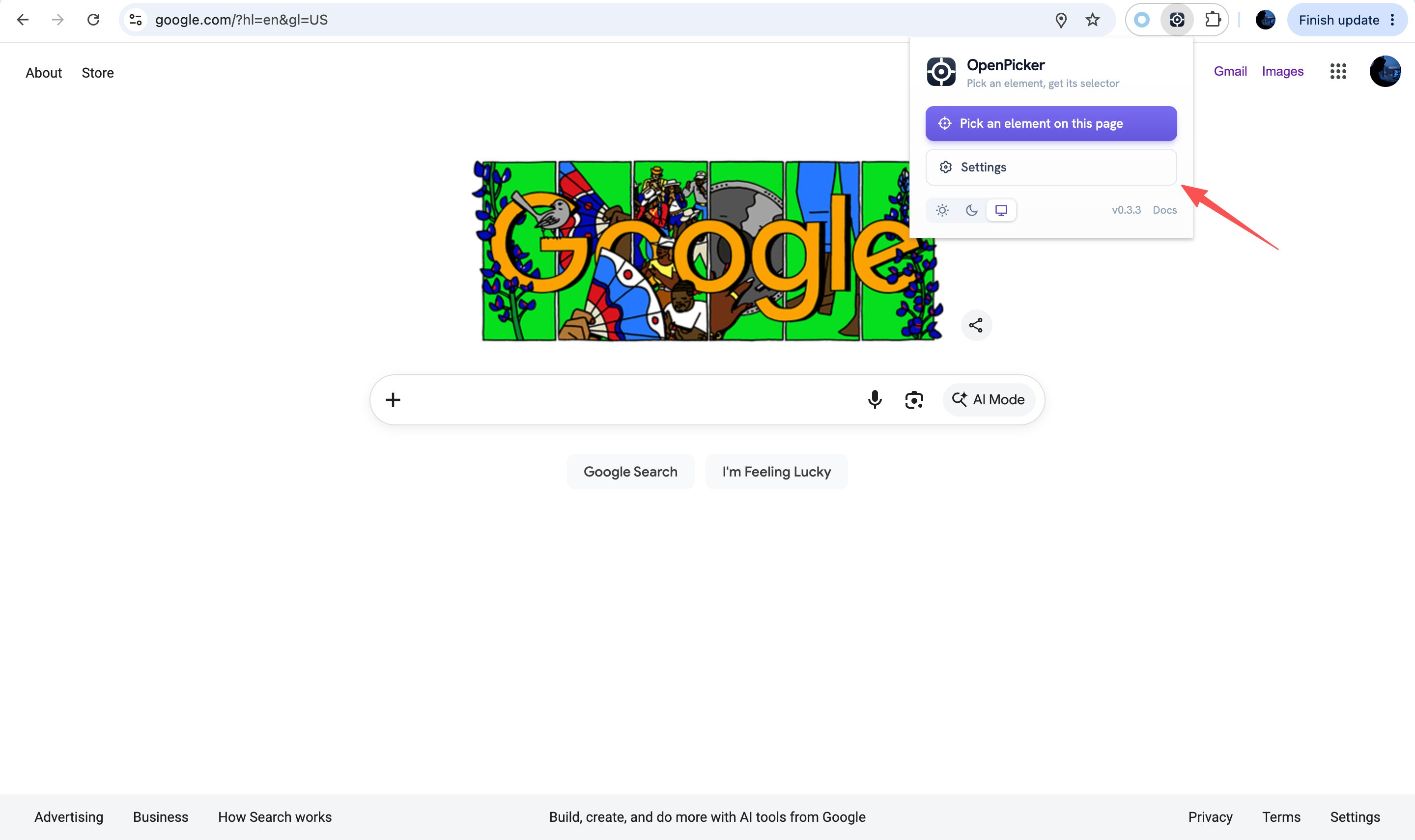
- In the Selector rules section, the Global default applies to every site you pick on — set your
data-tourrule here. Use Per-site rules to override the default for specific origins, e.g. a different attribute on your production app versus a staging environment.
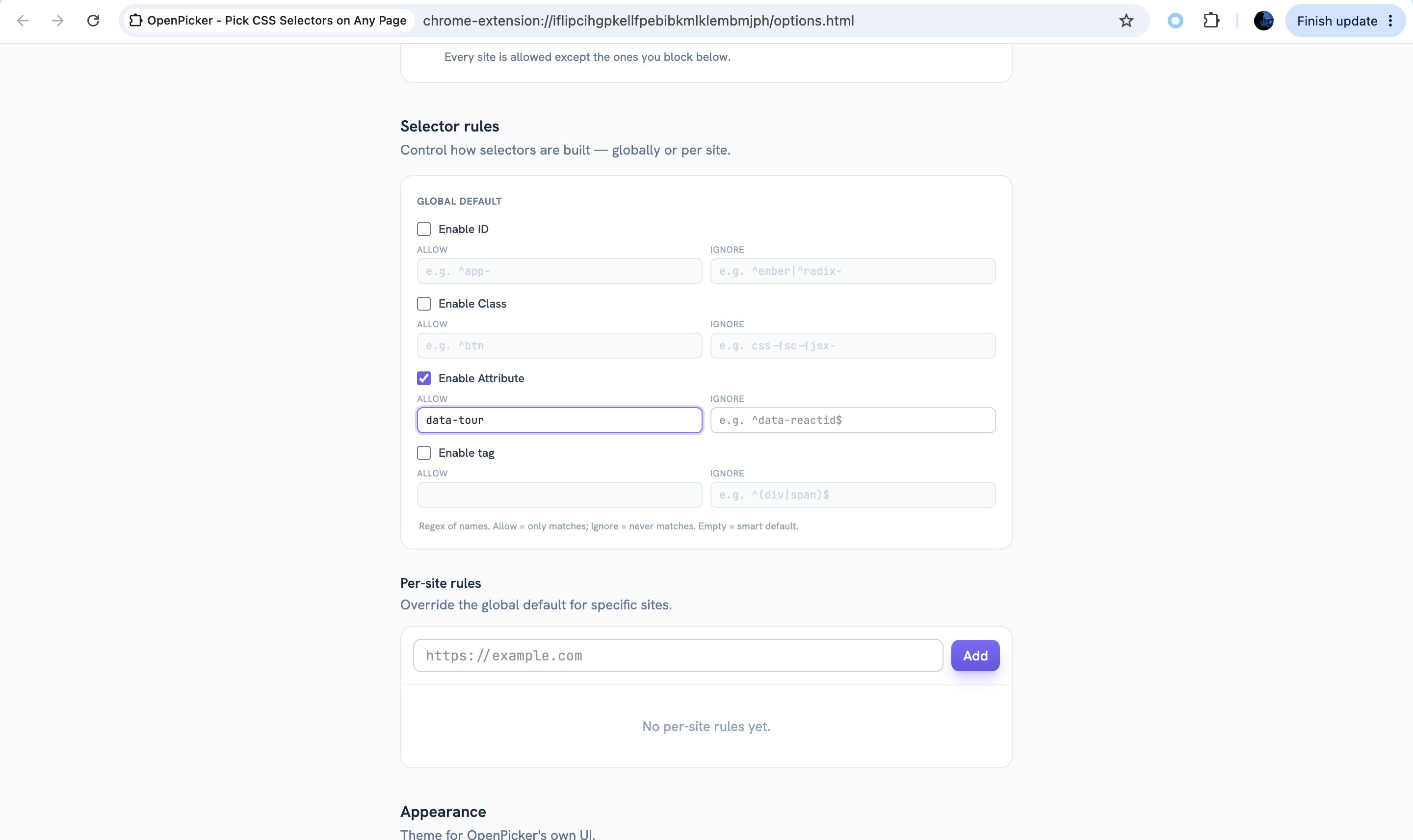
data-tour rule once and never touch it per pick.