

- Events out — every event Usertour tracks streams into your Mixpanel project in real time, with
$insert_iddeduplication. See what gets sent. - Cohorts in — Mixpanel cohorts sync into Usertour as read-only user segments. See cohort sync for how synced segments behave.
Connect
Go to Settings → Integrations → Mixpanel and follow the standard connect flow with:- Credential: the Project token, found in Mixpanel under Settings → Project Settings → Access Keys. It’s the token, not an API secret or a service account — the same value Mixpanel’s own SDK embeds in your website.
- Data residency: US or EU, matching where your Mixpanel project is hosted.
Stream events to Mixpanel
Streaming starts with the first save and is controlled by the switch at the top of the page. Events arrive as Mixpanel track events under the same user IDs your own instrumentation reports; delivery, retries, and the message log are described in the overview.Sync Mixpanel cohorts into Usertour
First flip Sync Mixpanel cohorts to Usertour on and copy your webhook URL (details). Then, in Mixpanel:- Go to Data → Destinations, click Add Destination, and choose Webhook. Give the connection a name and paste your Usertour webhook URL.
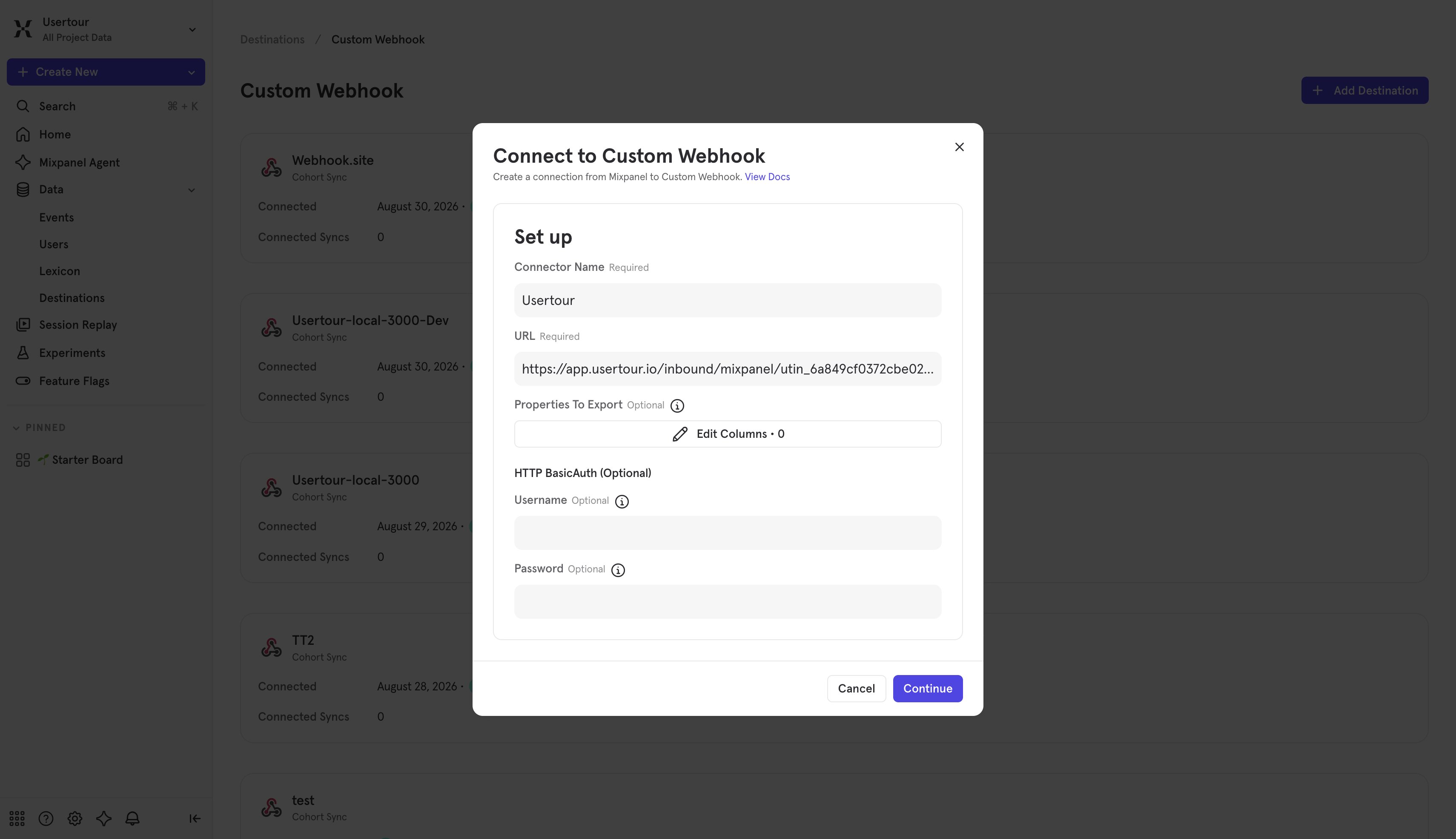
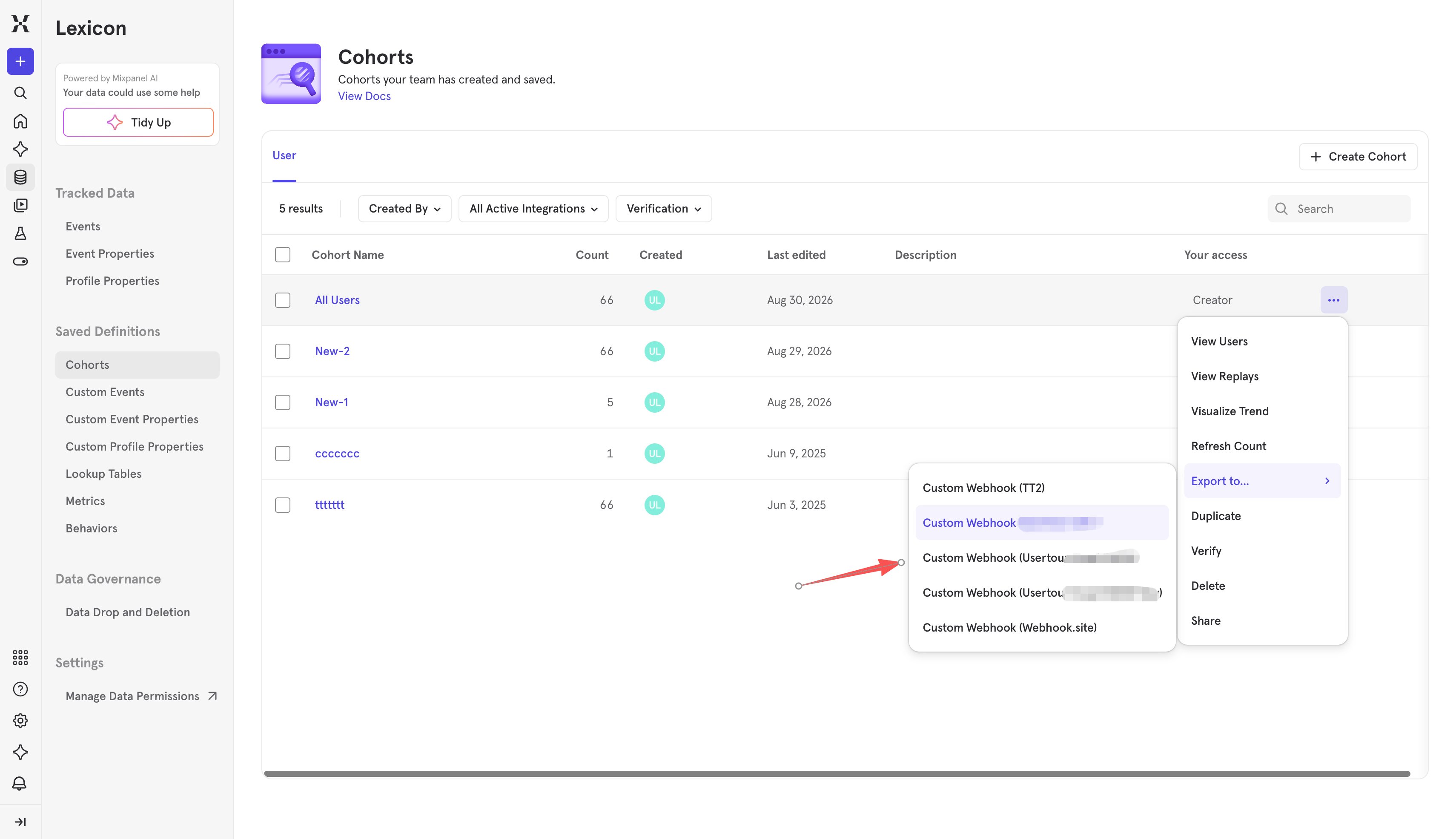
- Sync a cohort to it: either open the webhook connection’s Syncs tab and click Add Cohort Sync, or find the cohort (under Lexicon → Cohorts), open its three-dot menu and choose Export to… → Webhook. Pick a one-time export or a recurring sync (recurring syncs run about every 30 minutes), then start it. The first delivery usually lands within a few minutes — watch the Synced cohorts table in Usertour.
- Only members with a User Profile export. Mixpanel cohort exports carry users that have a People profile — users known only from events export as zero members. If a sync reports “Succeeded” with 0 users, that’s why: make sure your Mixpanel setup calls
people.set(or otherwise creates profiles) for the users you want to sync. - Properties to Export pairs with the user ID property. If you configure a custom user ID property in Usertour (below), that property must also be selected under Properties to Export in the sync configuration — otherwise members arrive without it and are skipped.
Identity matching
By default, a member’sdistinct_id is expected to equal the user ID you pass to usertour.identify(). When they diverge, set the user ID property field in Usertour’s Cohort sync settings card:
- Name a profile property that carries the Usertour user ID, and select the same property under Properties to Export.
- If you use Mixpanel’s Identity Merge and the canonical
distinct_idends up being a pre-login device ID, set the field to$user_id— it carries the ID youridentify()call provided and is always included in the export.
Troubleshooting
- A sync succeeded but the segment is empty: the cohort’s members have no User Profiles — see the profile note above.
- Unresolved count is non-zero: the configured user ID property isn’t selected under Properties to Export, or the name doesn’t match. Fixed configurations read 0 again on the next delivery.
- Mixpanel shows the sync as paused: Mixpanel permanently pauses a webhook sync after certain errors (for example, a rotated URL that wasn’t updated on the Mixpanel side). Fix the cause, then start a new export from Mixpanel.
- Event-streaming issues are covered in the overview troubleshooting.